 EN
EN Deutsch
 Español
 Français
 Italiano
 Português
 Nederlands
 Polski
 Bahasa Indonesia
 Русский
 Українська
 العربية
 עברית
עברית हिन्दी
 日本語
日本語 한국어
한국어2026-07-17 · Season 3
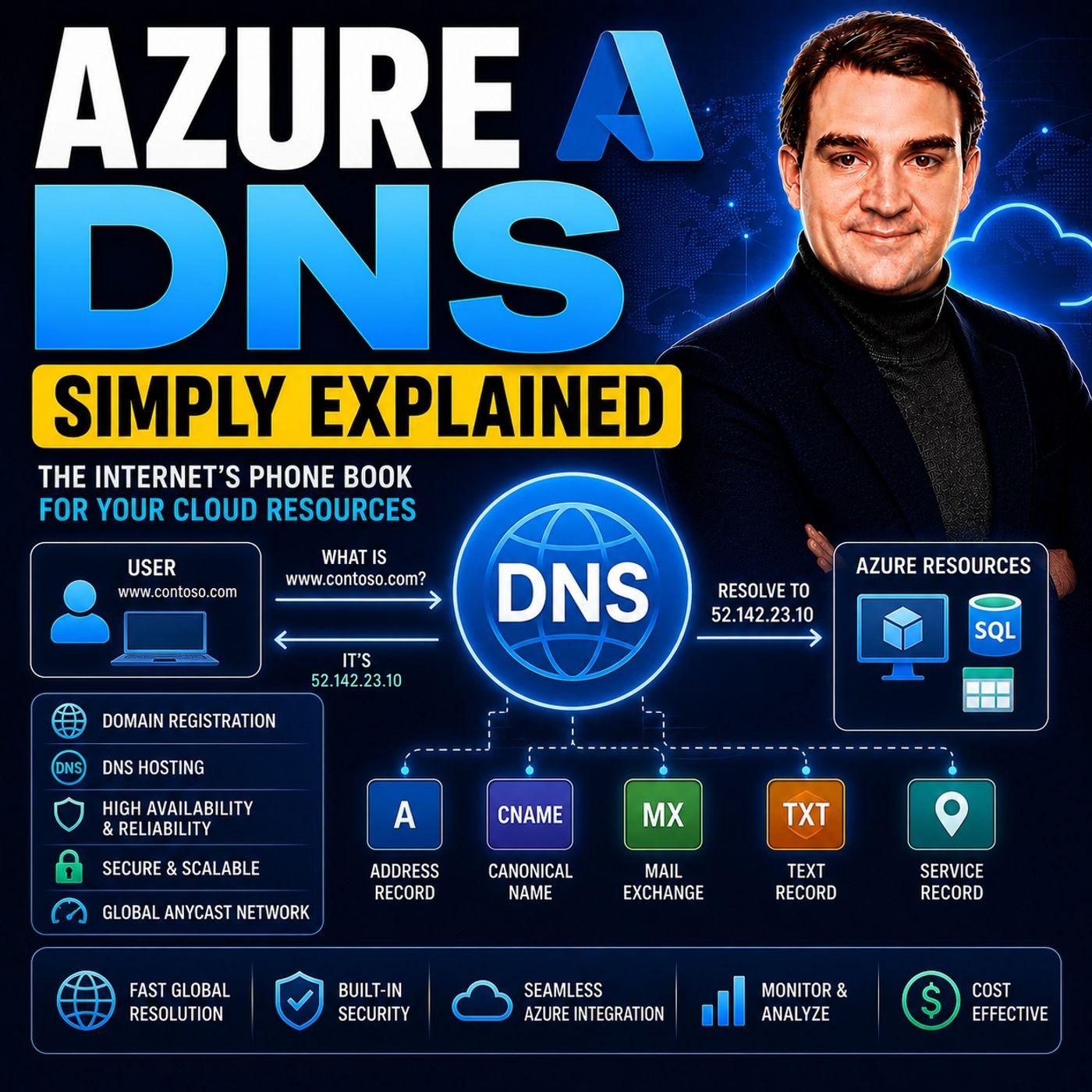
Azure DNS - Simply Explained
Show notes
Azure DNS is Microsoft's fully managed Domain Name System (DNS) hosting service that translates human-friendly domain names like contoso.com into the IP addresses computers use to communicate. Instead of managing your own DNS servers, patching operating systems, or configuring high availability, Azure DNS hosts your DNS records on Microsoft's global infrastructure. Whether you're publishing a public website, routing email, or managing internal cloud applications, Azure DNS provides a secure, scalable, and highly available platform for name resolution that integrates seamlessly with the rest of Azure. HOW DNS WORKS BEHIND THE SCENES Every time you enter a website address into your browser, a series of DNS lookups takes place within milliseconds. Your computer first checks its local cache before asking a recursive DNS resolver, usually operated by your internet provider. If the answer isn't already cached, the resolver queries the internet's DNS hierarchy, beginning with the Root Servers, then the Top-Level Domain (TLD) servers, and finally the authoritative name servers responsible for your domain. Azure DNS acts as that authoritative name server, providing the official DNS records that tell browsers where your Azure resources are located. This entire process happens automatically every time users access your applications or services. PUBLIC DNS ZONES VS PRIVATE DNS ZONES Azure DNS supports two distinct types of DNS zones. Public DNS Zones host internet-facing domains such as websites, APIs, and email services that must be reachable from anywhere in the world. Private DNS Zones, on the other hand, are designed exclusively for Azure Virtual Networks and allow internal resources like virtual machines, databases, and application servers to communicate using friendly names without exposing those services to the public internet. Private zones can be linked to multiple virtual networks, support automatic VM registration, and eliminate the need to deploy and maintain traditional internal DNS servers. This makes hybrid and cloud-native environments significantly easier to manage. UNDERSTANDING DNS RECORDS Every DNS zone contains records that tell clients where services are located. A Records map hostnames to IPv4 addresses, while AAAA Records perform the same task for IPv6. CNAME Records create aliases that point one hostname to another, making them ideal for Azure App Services and other cloud-hosted resources. MX Records define mail servers for email delivery, and TXT Records are widely used for domain verification, SPF, DKIM, and DMARC email security. Azure DNS also introduces Alias Records, allowing DNS entries to point directly to Azure resources such as Load Balancers, Public IPs, and Traffic Manager profiles. Because Alias Records automatically follow infrastructure changes, administrators no longer need to manually update DNS whenever Azure changes an IP address. DOMAIN DELEGATION AND AZURE INTEGRATION Creating a DNS zone inside Azure is only the beginning. For public domains, ownership remains with your domain registrar, while Azure becomes responsible for answering DNS queries after delegation. This is achieved by updating the domain's nameserver records at your registrar to point to Azure's authoritative DNS servers. Once DNS propagation completes, Azure becomes the source of truth for your domain. For private DNS zones, delegation isn't required. Instead, administrators simply link the zone to one or more Azure Virtual Networks, allowing cloud resources to resolve internal names automatically. Azure integrates DNS management with Infrastructure as Code tools such as ARM Templates, Bicep, Terraform, Azure CLI, and PowerShell, making automated deployments straightforward and repeatable. SECURITY, RELIABILITY, AND BEST PRACTICES Azure DNS is built on Microsoft's globally distributed Anycast network, providing low-latency DNS responses and enterprise-grade resilience without requiring organizations to operate their own DNS infrastructure. Integration with Azure RBAC allows administrators to control exactly who can modify DNS records, while Azure Policy helps enforce governance across large environments. Azure Monitor provides detailed metrics and diagnostics for DNS zones, enabling organizations to track query volumes, latency, and operational health. For hybrid environments, Azure DNS Private Resolver securely connects on-premises DNS infrastructure with Azure Private DNS Zones without requiring custom DNS virtual machines. Combined with Alias Records, automated deployments, and Microsoft's global network, Azure DNS delivers a modern, scalable, and highly available DNS platform suitable for organizations of every size. Become a supporter of this podcast: https://www.spreaker.com/podcast/m365-fm-microsoft-365-azure-cloud-power-platform-ai--6704921/support.
Apple Podcasts · Spotify · YouTube · YouTube Music · Deezer
Host: Mirko Peters
Related articles
Transcript
Read the full transcript
Welcome to another episode of Microsoft Knowledge Nuggets here on M365. FM, I'm your host, Mirko Peters. Today's topic is one that almost everyone has heard of, but fewer people actually understand. DNS, which stands for domain name system. You've probably heard it called the phone book of the internet, and that description isn't far off. The job is simple. Take a name you can remember, like Contoso. Come and turn it into a number computers understand like 20.90. 152 to 20. Computers live on numbers, we live on names, and DNS sits right in the middle, making the translation. But here's the thing, most people know it performs a lookup, but they never see the full chain. What actually happens the moment you type a domain into your browser? And more importantly, where does Azure fit in? By the end of this episode, you'll understand what Azure DNS really is. You'll know the difference between public and private DNS zones. You'll know which record types you actually need, and you'll see how delegation hands control over to Azure, recovering the building blocks in plain English, no fluff. What DNS actually does? Let's start with the core job. DNS turns names into numbers when you type Contoso. Come into your browser, your computer has no clue what that string means. It needs an IP address, something like 20.19, 150 to 20, to connect to the server hosting that website. DNS makes that translation happen. Why does this matter? Because computers only understand numbers, while humans only remember names. You don't memorize your friend's phone number, you remember their name, same with websites. DNS lets you type Google. Come instead of a string of digits, you'd never keep straight. So what actually happens when you type a domain into your browser? It's a chain, your browser first checks its own cache asking, have I looked this up recently? If not, it sends a request to a recursive resolver, usually provided by your internet service provider. From there, the resolver checks its own cache. Still no answer? Then it climbs the hierarchy. It asks a root server first. That root server doesn't know the IP address of Contoso. But it does know who to ask next, the TLD server for. That TLD server doesn't know the exact IP either, but it knows the authoritative name server for that domain. That's the final stop. The authoritative name server holds the actual records. It responds with the IP address, the resolver caches it, sends it back to your browser, and your browser loads the page. You don't need to memorize every step. Just know there's a hierarchy and it works. The part that matters for us is that last step, the authoritative name server. That's where Azure DNS comes in. What is Azure DNS? So Azure DNS is Microsoft's managed DNS hosting service. In plain English, that means you never have to run your own DNS servers, patch them, or plan for higher availability. As your handles all of that for you, you create a DNS zone in Azure for your domain, add your records like A records, Caname records, whatever you need, and Azure hosts those records on its global infrastructure. When someone anywhere on the internet queries your domain, Azure's name servers answer. And because it's built on Azure's global network, it's fast, resilient, and scales automatically. You don't have to think about it. It just works. You manage everything through the Azure portal, the command line, or ARM templates if you're into infrastructure as code. No manual server configs, no SSHing into a box to edit zone files. It's all point and click or script and deploy. Now let's compare that to the traditional approach. 20 years ago, you'd run your own DNS servers. You'd be responsible for patching the OS, ensuring redundancy, so a single server failure doesn't take your domain offline and planning capacity for traffic spikes. With Azure DNS, that's all someone else's problem. You just create your zone, add your records, and your done. But here's where it gets interesting. Azure DNS isn't just for public websites. It also handles internal name resolution inside your Azure virtual networks. That's where the distinction between public and private DNS zones comes in. Public DNS zones versus private DNS zones. Let's break down the two flavors of DNS zones in Azure. Public DNS zones are exactly what they sound like, domains that need to be reachable from the internet. Any name that someone outside your network needs to resolve, like your website, API endpoint or email server, goes into a public zone. Private DNS zones are the opposite, therefore names that should only resolve inside your Azure virtual networks. For example, say you have a database server. You don't want the whole internet asking for its IP address. You just want your application VMs to find it. So you create a private zone and only the networks you link to it can resolve those names. Here's a concrete example. Say you have a database server and internally you want to call it DB. Internal.com.toso.com. That name means nothing to the outside world and it shouldn't. But your app VMs need to find it. With a private DNS zone, you create that record, link the zone to your virtual network and suddenly every VM in that network can resolve DB. Internal.com.toso.com to the databases private IP, no custom DNS servers required. Now here's where private zones get really useful. You can link a single private zone to multiple virtual networks even across regions. So if you have a web app in East US and a database in West Europe, both vnets can share the same private zone. The web app resolves the database name just fine, even though they're in different data centers. No peering configuration for DNS, no forwarding rules, you just link the zone. Autoregistration is another feature worth knowing about. When you enable it on a virtual network link, Azure automatically creates a records for every VM as it spins up. You deploy a new VM and within minutes there's a DNS record for it. You delete the VM, the record goes away. No manual record management. It's especially useful in dynamic environments where VMs come and go. I hear a lot of people think private zones need a registered domain name. They don't. You can name a private zone anything you want. Internal.com.com.toso.toso.toso.t DB.tont.torial. It doesn't matter because nobody outside your network will ever query it. There's no domain register involved, no public delegation. It's purely internal. Let's summarize the difference. Public zones are for the internet. Private zones are for your virtual networks. Public zones require a domain you own and delegation from your register. Private zones just need a name and a vnet link. Once you have your zone set up, public or private, you need records to map names to resources. That's the foundation. And once you get it, the rest is just adding records. Record types you'll actually use. So what DNS records are you going to use day to day? Let's walk through them. The A record is the one everyone knows. It maps a name to an IPv4 address, type www.cont.zo.com into your browser. And that A record tells it the server lives at 20.19. 152.20, simple and universal. It's the most common record type on the internet. But A records do the same thing for IPv6 addresses. If your server supports IPv6, you'll need them right alongside your A records. Most people don't touch these day to day, but they're there when you need them. The name records work differently. Instead of mapping a name to an IP, a name maps one name to another name. So you might have www.cont.zo.com as a name pointing to cont.zo. A zero websites dot net. When someone queries www.cont.zo.com, the DNS resolver follows the chain until it finds the actual IP. And here's the beauty. Cnames are perfect for aliasing. Change the target once and everything pointing to it updates automatically. MX records handle email routing. If someone sends an email to user at cont.zo. And here's the command. The sending server queries the MX record to find out which mail server should receive it. You'll typically have one or more MX records with priority values. Lower numbers mean higher priority. So mail.cont.zo.com with priority 10 gets tried before backup. Cont.zo.com with priority 20, TXT, record store text information, and they get used for all kinds of things. Domain verification is a big one. When you're setting up Microsoft 365, they ask you to add a TXT record to prove you own the domain. Mail authentication to SPF records, D.Keyam keys, D.Mark policies. All of those are TXT records. They look like random strings of text, but they serve important security purposes. Now here's where Azure DNS adds something you won't find in traditional DNS hosting. Alias records. These are Azure specific and they're extremely useful. An alias record lets you point a name directly to an Azure resource instead of a static IP address. So instead of creating an A record with a hard coded IP for your load balancer, you create an alias record that points to the load balancer resource itself. And that matters because Azure resources can change their IP addresses. A load balancer gets redeployed or a CDN endpoint gets a new front end IP. With a regular A record, you'd have to manually update the DNS record every time that happens. But with an alias record, Azure handles it automatically. The record always points to the current IP of the resource. No manual work, no forgotten updates, and no downtime because someone forgot to change a record. One more thing about how Azure organizes records. When Azure DNS records of the same type and name are grouped together into a record set. So if you have two web servers serving the same site, you'd create a single A record set for www.contoso.com with two IP addresses in it. The DNS resolver returns both and the client picks one. That's a simple form of load balancing. Same idea applies to MX records with multiple mail servers. The record set keeps everything tidy. So you've got your zone, you've got your records. But there's one more step before the internet will actually use your Azure DNS zone. You have to tell the rest of the world that Azure is now the authority for your domain. That process is called delegation. Delegation how you hand over control. So you've created your public DNS zone in Azure, added your records, and everything looks good on your end. Here's the thing. Nobody on the internet knows Azure is supposed to answer queries for your domain. You have to tell them. That's what delegation is. Delegation is the process of saying to the rest of the internet, Azure DNS is now the authority for my domain. You do this at your domain registrar. Go daddy name cheap, Google domains wherever you bought your domain, you go into their DNS settings and change the name server records to point to Azure. When you create a public DNS zone in Azure, the service gives you four name server addresses. They look something like NS1, Neo1, Azure DNS.com, NS2.zor1.azurednest.net and so on. Those are the servers that will answer queries for your domain. You take those four addresses and put them into your registrar's name server configuration. That's it. That's the delegation step. As you save those changes, the information starts propagating across the internet. The root servers and TLD servers for your domain get updated. They learn that when someone asks for contoso, come, they should send the query to Azure's name servers instead of wherever it was pointed before. Propagation usually happens within minutes, but it can take up to 48 hours in some cases because DNS resolvers around the world cache the old information and won't check for updates until their cache expires. Now here's something important. Delegation is one way. Azure doesn't manage your registrar. You still renew your domain through GoDaddy or Namecheap or whoever. You still manage the registration there. Azure just hosted the DNS records. The two are separate. Your registrar handles the I own this domain part. Azure handles the, here's the IP address for this domain part. There's a common gotcha here that catches people off guard. When you change your name servers to point to Azure, the DNS records at your old host stop working. All of them, your A records, your MX records, your TXT records, they're gone because the internet is no longer asking your old host for answers. So you need to make sure you've recreated every single record in Azure before you flip the switch. Otherwise your website goes down, your email stops flowing and you're scrambling to figure out what you missed. Plan the migration carefully. Create the zone in Azure, add all your records, then change the name servers. Not the other way around. Delegation is the final piece for public zones. It's what connects your Azure DNS zone to the global DNS infrastructure. But for private zones, the story is completely different. There's no registrar involved and no delegation. Instead, you link your zone directly to the virtual networks that needed. Private DNS in action. Linking to virtual networks. So how do you actually make a private DNS zone useful? Think of it as a container for records, but it's useless until you link it to a virtual network. That link tells Azure which networks are allowed to resolve those names. Without that link, the zone exists, but nobody can query it. Like having a phone book with no phones to make calls, the setup is straightforward. You create a virtual network link from the private zone to each vnet that needs resolution. Pick the vnet, give the link a name, and save it. Once that's done, the zone works for every VM and service inside that network. With no custom DNS servers or host file edits needed, it just works. Here's the thing about auto registration. When you create a vnet link, you get a choice. Designated as a registration vnet or leave it as resolution only. And that difference matters a lot. Auto registration only works on the vnet you mark for registration. Any VM that spins up there automatically gets an A record created in the private zone. Deploy a new VM and within minutes a DNS record appears. Delete that VM and the record disappears, no manual work. What about other vnet's linked to the same zone? Their resolution only. They can look up names and get answers, but they don't auto register. So their VMs don't get records created automatically. That's intentional, especially for a shared private zone for a central service. You don't want every VM in every spoke network creating records automatically. Instead, keep registration on the vnet where your actual servers live and let everyone else just resolve. Let me give you a real scenario. Say you have a web application running in one vnet and a database server in a different vnet, maybe even in different Azure regions, the web app needs to connect to the database, but you don't want to hard code the databases private IP. That's fragile. If the database gets redeployed with a new IP, your web app breaks. So instead create a private DNS zone, add an A record for the database name and link the zone to both vnets. Now the web app resolves db internal.contoso.com to the databases IP. And that IP changes, you update one record instead of hunting through configuration files. Cross region linking works fine with private zones. You can have a vnet in east US and another in west Europe, both linked to the same private zone and name resolution happens across regions without any extra configuration. Azure handles the routing behind the scenes, something you don't get with traditional DNS servers without setting up complex forwarding rules. So delegation for public zones, vnet links for private zones and two different mechanisms for two different purposes. Since you have both set up, you've got the foundation, but there's still the question of keeping everything secure and making sure it stays healthy. Security, monitoring and best practices. Now let's talk about keeping your DNS healthy and secure. Azure DNS integrates with Azure R back so you control exactly who can create or modify records. You don't want someone accidentally deleting your MX record and taking down email for the whole company. Give your DNS team contributor access and everyone else read only. It's that simple. You can also use Azure policy to enforce rules across your entire organization. Maybe you want to enforce naming conventions for your zones or maybe your security team says no public zones allowed. Everything must be private. Write a policy, apply it at the management group level and it's enforced everywhere with no exceptions. There's also DNS level threat intelligence built in. Part of Microsoft Defender for Cloud can block resolution of known malicious domains. If a VM in your network tries to resolve a domain, flagged as a phishing site or a malware command and control server, Azure DNS can refuse to answer. It's a layer of security you get without any extra configuration. Monitoring is straightforward too. Azure monitor tracks query volumes latency and errors per zone. You can set up alerts so if query volume suddenly drops, you know something's broken. If latency spikes, there's a network issue. You get visibility into how your DNS is performing without running separate monitoring tools. One best practice. Use alias records instead of static. A records for Azure resources. We covered this earlier, but it's worth repeating alias records update automatically when the underlying resource changes static A records don't. If you're pointing to a load balancer, a CDN endpoint or a traffic manager profile, use an alias record. It's one less thing to remember when something changes. For hybrid environments with workloads on premises and in Azure, there's a service called Azure DNS private resolver. It's a managed service that bridges on premises DNS and Azure private DNS zones. Your on premises service can resolve names in Azure private zones and your Azure workloads can resolve on premises names. No custom DNS VMs to patch, no complex forwarding rules to maintain. It used to require a lot of manual setup, but now it's just a service you configure. So here's the big picture. Azure DNS is a managed service that handles your DNS hosting for you, giving you public zones for the internet and private zones for your virtual networks. Standard record types like A and Cnaim cover everything you need and alias records make it easy to point to other Azure services. Delegation hands control of your public domain to Azure and vnet links connect your private zones to the right networks. Now here's something to try. Grab a domain you own at a registrar, create a public zone in Azure, add a test record, and then change your name servers to delegate to Azure. That's the clearest way to see how it actually works in practice. Next episode will look at Azure DNS private resolver which links your cloud DNS to on premises networks. If you found this helpful, subscribe on your favorite podcast platform and share it with someone who's still running DNS on a virtual machine.