 EN
EN Deutsch
 Español
 Français
 Italiano
 Português
 Nederlands
 Polski
 Bahasa Indonesia
 Русский
 Українська
 العربية
 עברית
עברית हिन्दी
 日本語
日本語 한국어
한국어2025-08-12
Build Microsoft Teams Apps with Bots, Tabs, and Extensions

You can build a custom app in Microsoft Teams by using the right tools and following best practices. Start with a Microsoft 365 account and explore how teams benefit from apps that streamline communication. Message Extensions in Microsoft Teams boost productivity by letting you integrate data and actions into chats. Solutions like Microsoft Teams Message Extensions from m365.fm show how you can Build Custom Apps that transform workflow. Stay engaged as you learn how to create an app that fits your team's needs.
7 Surprising Facts about Building a Custom App for Microsoft Teams
- Apps can run fully in the cloud without hosting code on Teams. You can host bots, tabs, and services on any cloud or on-premises server and integrate via Microsoft Graph and Teams endpoints.
- Single app package supports multiple capabilities. A single Teams app package can include bots, tabs, messaging extensions, connectors, and adaptive cards, letting one app handle many scenarios.
- Power Platform lowers the barrier to entry. You can build powerful Teams apps with Power Apps and Power Automate without writing full code, then surface them directly inside Teams.
- Custom apps can bypass the public store. Organizations can sideload or upload apps to their tenant app catalog for internal distribution and governance without publishing publicly.
- Adaptive Cards enable rich, interactive UIs across clients. The same adaptive card payload renders consistently in desktop, web, and mobile Teams clients, providing cross-platform interactivity.
- Deep integration with Microsoft 365 security and compliance. Teams apps can leverage tenant-level policies, data loss prevention, and conditional access, so enterprise controls apply to custom apps too.
- Offline and low-bandwidth experiences are possible. With caching, service workers (for web tabs), and progressive enhancement, Teams apps can provide usable experiences even with intermittent connectivity.
Key Takeaways
- Start with a Microsoft 365 account to access the Teams developer platform.
- Ensure your admin allows custom app uploads by adjusting settings in the Teams admin center.
- Use Visual Studio Code and the Microsoft Teams Toolkit to simplify app development.
- Understand the main app features: tabs for content, bots for automation, and messaging extensions for interaction.
- Integrate Microsoft Graph to connect your app with Microsoft 365 data and enhance functionality.
- Test your app locally using ngrok to ensure it works well before sharing it.
- Package your app correctly with a manifest and icons before uploading it to Teams.
- Gather user feedback regularly to improve your app and keep it relevant.
Build Custom Apps: Prerequisites
Microsoft 365 Account and Admin Setup
You need a work or school Microsoft 365 account to build custom apps for teams. This account gives you access to the microsoft teams developer platform. Admins must set policies that allow users to upload custom apps. Follow these steps to enable custom app uploads:
- Sign in to the Teams admin center.
- Go to Teams apps and select Setup policies.
- Add a new policy or edit an existing one.
- Toggle the Upload custom apps option.
- Save the policy and apply it to users.
These steps control who can upload custom apps in teams. If the org-wide, team-level, and user-level settings are off, users cannot upload apps directly. If all settings are on, users can upload custom apps to teams and their personal context.
Tip: Check with your IT admin to make sure you have permission to upload custom apps before you start building.
Required Tools and Software
You need several tools to build custom apps for teams. The toolkit you choose affects how quickly you can start and how easy it is to manage your project. Here is a table that shows the main tools and their purposes:
| Tool | Purpose |
|---|---|
| Visual Studio Code | Essential for JavaScript, TypeScript, or SharePoint Framework (SPFx) development. |
| Microsoft 365 Agents Toolkit | Simplifies the development process by providing tools for provisioning and deploying cloud resources. |
| Node.js | Back-end JavaScript runtime environment necessary for app functionality. |
| Microsoft Teams | Required for collaboration and testing of the app. |
| Recommended Browsers | Developer tools are available in Microsoft Edge or Google Chrome for debugging. |
Visual Studio Code & Agents Toolkit
Visual Studio Code is a popular editor for building custom apps. The microsoft teams toolkit extension adds templates and debugging tools. The toolkit helps you manage your project and connect to cloud services. The Microsoft 365 Agents Toolkit makes it easier to provision resources and deploy your app.
Teams Developer Portal
The Teams Developer Portal lets you manage app manifests and test your app in teams. You can use the portal to register your app, set permissions, and upload your app for testing. The toolkit integrates with the portal to streamline these steps.
Node.js and npm
Node.js is the runtime environment for your app’s backend. npm is the package manager that installs dependencies. You need both to run and build custom apps for teams.
Development Environment Setup
Set up your development environment before you start building custom apps. Follow these steps:
- Install Visual Studio Code and add the microsoft teams toolkit extension.
- Use the toolkit to generate a simple Tab-based React web application. The teams apps generator helps you start quickly.
- Set up a secure tunnel with ngrok to expose your local server.
- Register your app in Azure Active Directory to set permissions.
- Complete your app manifest with all required information.
- Upload your app’s .zip folder to teams for testing.
- Each developer should add their own local app to teams to avoid overwriting changes.
Note: m365.fm offers resources and guides for developers who want to build custom apps for teams. Explore their tutorials to learn more about using the toolkit and integrating advanced features.
You now have the prerequisites to build custom apps for teams. The right toolkit and setup make the process smoother and help you create apps that boost productivity.
Microsoft Teams App Capabilities
Tabs, Bots, and Extensions
When you start building a microsoft teams app, you should understand the main features available on the microsoft teams platform. Each feature helps you solve different problems and boost your team's productivity. The table below gives you a quick overview of the main microsoft teams platform features and what they do:
| App Type | Functionality Description |
|---|---|
| Core apps | Built-in apps that provide essential tools for teams, such as chat and file sharing. |
| Messaging extensions | Shortcuts that let you insert content or take action on messages without leaving the conversation. |
| Meeting extensions | Tools that add features to live meetings, like identifying participant roles or sharing meeting notes. |
| Bots | Apps that can answer questions, automate tasks, or guide users through processes in teams. |
| Cards and task modules | Interactive messages that help you complete tasks or share information quickly. |
| Activity feeds | Notifications that keep you updated on important activities across your teams and channels. |
You will find that tabs, bots, and message extensions are the most popular features when building a custom microsoft teams app. Tabs display web-based content right inside teams, making it easy to collaborate and discuss information. Bots help you automate workflows and respond to user requests. Message extensions let you search for information or share content without leaving the chat. You can use tabs to bring in dashboards, project management tools, or reports. Bots are great for automating repetitive tasks, such as sending reminders or collecting feedback. Message extensions work best when you want to enhance message interactions, like creating help tickets or sharing documents.
Tip: Use tabs to consolidate information from external services like Azure DevOps or Jira. Bots are ideal for automating tasks directly from chat. Message extensions make it easy to search and share information in conversations.
Choosing the Right App Type
Selecting the right app type for your microsoft teams app depends on your team's needs and the tasks you want to simplify. You should consider how your team works and what processes you want to improve. Here are some points to help you decide:
- Use tabs if you want to make important apps or websites easy to access within teams.
- Choose bots when you need to automate tasks or guide users through workflows.
- Pick message extensions if you want to let users search for information or take action on messages without leaving the chat.
- Meeting extensions are useful if your team spends a lot of time in online meetings and needs extra tools.
- Cards and task modules help when you want to share interactive content or collect information quickly.
Custom microsoft teams apps can boost productivity in many ways. You can automate repetitive tasks, which saves time for everyone. You can create custom tabs that link to the tools your team uses most. You can also design workflows that match your business processes, making task management easier. By integrating workflows directly into teams, you reduce the need to switch between different apps. This helps your team stay focused and efficient.
You can also add your company branding to your microsoft teams app, which makes the experience feel familiar and engaging. With the right combination of microsoft teams platform features, you can build solutions that fit your organization perfectly.
Message Extensions in Microsoft Teams App
Message extensions in teams give you powerful ways to interact with information and tools without leaving your chat. You can use these features to search, share, and display data from external apps right inside your conversations. This section explains the three main types of message extensions you can add to your microsoft teams app: Search Extensions, Action Extensions, and Link Unfurling.
| Type of Message Extension | Description | Primary Use Case |
|---|---|---|
| Search Command | Lets you search an external system for information. | Searching for information and embedding results into messages. |
| Action Command | Presents users with a modal pop-up to collect or display information. | Collecting user input and inserting messages into conversations. |
| Link Unfurling | Converts shared links into rich previews. | Enhancing information sharing and collaboration. |
Search Extensions
Search extensions let you find and share information from external sources without leaving teams. You can pull up records, documents, or data from other apps and insert them directly into your chat. This feature saves you time because you do not need to switch between different windows or tools. For example, you can search your company’s CRM for a client’s details and share them in a conversation with just a few clicks.
- Search commands connect teams to external apps using APIs.
- You can fetch and display data from services like SharePoint, Jira, or Salesforce.
- This integration streamlines your workflow and keeps your team focused.
With solutions like Microsoft Teams Message Extensions from m365.fm, you can set up search extensions that fit your team’s needs. These tools help you bring important data into your conversations quickly and easily.
Action Extensions
Action extensions take your teams app to the next level by letting you collect or display information through interactive pop-ups. When you use an action extension, you can fill out forms, trigger workflows, or preview content without leaving the chat. This makes it easy to capture data and share updates with your team.
Action extensions improve user interaction in teams. You can use rich cards to show information or collect feedback. For example, a sales manager can update pipeline data, or a support agent can log a new ticket, all from within the app. This approach keeps communication smooth and helps your team stay productive.
Link Unfurling
Link unfurling in teams changes the way you share information. When you paste a link into a chat, the app automatically generates a rich preview. This preview shows key details from the linked content, making it easier for your team to understand and discuss the information.
Link unfurling improves visibility and engagement. Your team can see what a link contains before clicking it. This feature supports better collaboration and helps everyone stay informed. With Microsoft Teams Message Extensions, you can customize link previews to match your organization’s needs.
Tip: Use all three types of message extensions to create a seamless experience in your microsoft teams app. You will boost productivity and make teamwork more efficient.
Building with Teams SDK and Bot Framework
When you want to build message extensions for Microsoft Teams, you need to use the Teams SDK and the Bot Framework. These tools give you everything you need to create powerful, interactive features that work right inside Teams. You can connect your app to cloud services, display live data, and let users take action without leaving their chat.
The Teams SDK helps you add Teams-specific features to your app. It gives you templates, libraries, and APIs that make development faster and easier. The Bot Framework lets you build bots and message extensions that interact with users in real time. You can use both tools together to create custom solutions for your team.
Tip: Start with the Teams Toolkit in Visual Studio Code. It guides you through setting up your project and connecting to Teams.
Here is how the process works:
- You create a web service that handles requests from Teams. This service can connect to any cloud-hosted system, such as a CRM or ticketing tool.
- You register your web service as a bot in the Bot Framework. This step lets your app use secure messaging and Teams features.
- You define your app’s capabilities in the Teams app manifest. The manifest tells Teams where and how your message extension appears, such as in the compose box.
- You choose between two main methods for building message extensions:
- API-based: Good for simple lookups and actions.
- Bot-based: Best for complex workflows and interactive cards.
| Step | What You Do | Why It Matters |
|---|---|---|
| 1 | Build a web service | Connects Teams to external data |
| 2 | Register as a bot | Enables secure, real-time messaging |
| 3 | Create app manifest | Controls how your extension appears in Teams |
| 4 | Choose build method | Matches your extension to your workflow needs |
With the Bot Framework, you can use adaptive cards to display rich, interactive content. For example, you can show a sales report or a support ticket update right in the chat. Users can fill out forms, trigger workflows, or view live data—all without leaving Teams.
Message extensions built this way appear in the compose box. Users can search, share, or take action with just a few clicks. You can connect to any public service, making your Teams app a central hub for your team’s work.
Note: Microsoft Teams Message Extensions from m365.fm use these same tools and methods. They show how you can bring external data and workflows into Teams, making your team more productive.
By using the Teams SDK and Bot Framework, you can build message extensions that fit your team’s needs. You make it easy for users to access information and complete tasks, all within the Teams environment.
Build a Custom App for Microsoft Teams
Focused on microsoft teams app development, here are the main advantages and disadvantages to consider when building a custom Teams app.
Pros
- Tailored functionality: Create features and workflows specific to your organization's needs that off-the-shelf apps cannot provide.
- Improved productivity: Integrate with internal systems (ERP, CRM, databases) to reduce context switching and streamline processes directly in Teams.
- Branding and UX control: Maintain consistent branding, UI patterns, and user experience aligned with company standards.
- Security and compliance: Implement organization-specific security policies, data residency, and compliance controls within your app.
- Extensibility: Leverage Microsoft Teams capabilities—tabs, bots, messaging extensions, adaptive cards, and webhooks—for rich interactions.
- Ownership of roadmap: Prioritize features, bug fixes, and enhancements based on user feedback without relying on third-party vendors.
- Integration with Microsoft 365: Use Microsoft Graph, Azure services, and single sign-on to tightly integrate with your existing Microsoft ecosystem.
- Cost efficiency at scale: Long-term savings by replacing multiple subscription tools or manual processes with a single tailored solution.
Cons
- Development effort: Building a custom Teams app requires design, development, testing, and ongoing maintenance resources.
- Initial cost: Upfront investment in developer time, infrastructure (Azure), and possibly external consultants can be significant.
- Platform complexity: Navigating Teams app manifest, permission scopes, Graph API, and multiple app surfaces (desktop, web, mobile) increases complexity.
- Security responsibility: Your organization is responsible for securing the app, handling sensitive data, and keeping dependencies up to date.
- Governance and deployment: Managing app distribution, tenant permissions, and app lifecycle across large organizations requires governance processes.
- Compatibility and updates: Teams platform changes and API deprecations may require ongoing updates to keep the app functioning correctly.
- User adoption effort: Custom apps may need training, documentation, and change management to drive adoption among employees.
- Limited third-party ecosystem: Unlike popular off-the-shelf apps, custom solutions lack a community of extensions, plugins, and marketplace integrations.
Build Custom Apps: Development Process

Create a Teams App Project
You start your first microsoft teams app by setting up your development environment. Visual Studio Code is the recommended editor for this process. You install the Microsoft Teams Toolkit extension, which helps you manage your project and connect to your Microsoft 365 developer account. The toolkit guides you through each step, making the development process easier.
Follow these steps to create your project:
- Open Visual Studio Code and install the Microsoft Teams Toolkit extension.
- Sign in with your Microsoft 365 developer account.
- Use the toolkit to create a new teams project. Choose a template that matches your needs, such as a tab, bot, or messaging extension.
- Customize your app’s branding, features, and user experience.
- Set up a repository and CI/CD pipeline in Azure DevOps for version control and automated deployment.
- Choose Azure App Service to host your app.
- Register your app in Azure Active Directory and set the required permissions.
- Use App Studio or the Developer Portal for Teams to generate your app manifest and package your app as a .zip file.
- Submit your app to teams for testing and approval.
Tip: The Microsoft Teams Toolkit handles much of the configuration for you, so you can focus on building features and improving user experience.
App Manifest and Configuration
The app manifest is a key part of your first microsoft teams app. It tells teams how your app appears and what features it offers. You can use the Microsoft 365 Agents toolkit or the Developer Portal for Teams to create and edit your manifest. These tools help you add the right capabilities, such as tabs, bots, and messaging extensions.
When you configure your app manifest, make sure to:
- Include all required features, like tabs, bots, and messaging extensions.
- Add two versions of your app icon (color and outline) that meet the size requirements for the Teams Store.
- Reference the latest manifest schema to ensure compatibility with the microsoft teams platform.
- Set permissions for any api or data integration your app needs.
The manifest file is a simple JSON document. It defines your app’s name, description, icons, and features. You package this file with your app before uploading it to teams.
Note: Always check the latest documentation for manifest schema updates. This helps your app pass the review process and work smoothly in teams.
Add Core Features
Your first microsoft teams app should include features that help your team work better. The main features you can add are tabs, bots, and messaging extensions. Each feature serves a different purpose and improves collaboration in teams.
| Feature | Description |
|---|---|
| Tab | Displays web-based content in a central location for collaboration. |
| Bot | Automates tasks and enables conversational interactions in teams. |
| Messaging Extension | Lets users search and share external information directly in conversations. |
Custom Tabs
A tab is a powerful feature in your app. It lets you display web content, dashboards, or tools right inside teams. You can use a tab to show project status, reports, or any web-based application your team needs. Tabs help you centralize information and reduce the need to switch between different apps.
To build a tab:
- Use the Teams Toolkit to add a tab to your project.
- Design your tab as a web page using React, Angular, or plain HTML and JavaScript.
- Connect your tab to external data sources or api endpoints for live updates.
- Test your tab in teams to make sure it displays correctly and responds to user actions.
Tip: Keep your tab interface simple and focused. Use clear navigation and responsive design so your tab works well on all devices.
Bots
Bots automate tasks and provide conversational support in teams. You can build a bot to answer questions, send reminders, or guide users through workflows. Bots use the Microsoft Bot Framework and connect to teams through secure messaging.
To add a bot:
- Open the Teams Developer Portal and create a new app. Select "Bot" as a capability.
- Configure your bot with a unique ID and password.
- Set up your bot’s capabilities, such as sending proactive messages or responding to commands.
- Connect your bot to external systems using api calls.
- Test your bot in teams and refine its responses based on user feedback.
Bots help your team save time and stay organized. You can automate repetitive tasks and provide instant support without leaving teams.
Messaging Extensions
Messaging extensions let users interact with external data and services directly in teams conversations. You can build messaging extensions to search for information, share content, or trigger workflows. These features use api integration to connect teams with other apps.
To implement messaging extensions:
- Use the Teams Toolkit to add a messaging extension to your project.
- Define the commands and actions your extension will support, such as search or action commands.
- Connect your extension to external services using api endpoints.
- Use adaptive cards to display rich content in chat.
- Test your messaging extension in teams to ensure it works smoothly.
Messaging extensions make it easy for users to find and share information without leaving the conversation. They improve collaboration and help your team stay focused.
Note: Microsoft Teams Message Extensions from m365.fm are a great example of how messaging extensions can transform your workflow. You can integrate external data and automate actions, all within teams.
By following these steps, you can build a first microsoft teams app that includes powerful features like tabs, bots, and messaging extensions. Each feature helps your team work smarter and collaborate more effectively. The development process becomes easier when you use the right tools and follow best practices for configuration and integration.
Integrate Microsoft Graph & APIs
You can make your Microsoft Teams app much more powerful by connecting it to Microsoft Graph and other APIs. Microsoft Graph gives you access to a wide range of data and actions across Microsoft 365. You can use these APIs to automate tasks, manage teams, and keep your app up to date with real-time information.
Here are some ways you can use Microsoft Graph and APIs in your Teams app:
- Manage teams and channels with the
/teamsand/channelsendpoints. You can create, update, or delete teams and channels as needed. - Send messages using the
/chatMessageendpoint. This helps you send notifications or interact with users through bots. - Use event-based systems like change notifications and webhooks. These tools let your app react to real-time changes in Teams, such as new messages or updates.
- Set up notifications by sending a POST request to the subscriptions endpoint. This keeps your app informed about important events.
- Automate team tasks, such as creating multiple teams or channels at once, by making specific API calls.
- Manage users and roles. You can add, update, or remove team members with API calls, making user management simple.
- Implement security controls like Single Sign-On (SSO). This makes it easy for users to sign in and keeps your app secure.
Tip: Use Microsoft Graph to connect your Teams app to calendars, files, and other Microsoft 365 services. This integration helps your team work smarter and faster.
You can also connect to other APIs, such as your company’s CRM or ticketing system. This lets you bring in data from outside Microsoft 365 and display it in Teams. For example, you can show sales data, support tickets, or project updates right inside your app.
To get started, add the Microsoft Graph SDK to your project. Set up authentication so your app can access the data it needs. Use the Teams Toolkit in Visual Studio Code to help you manage permissions and API calls.
Local Testing
Testing your app locally is an important step before you share it with your team. Local testing helps you find and fix problems early. You can test your app by yourself or with other developers.
Follow these steps for local testing:
- Open Visual Studio Code and use the Teams Toolkit extension to set up your app.
- Start your app locally. You can access it through
localhostin your browser. - Set up a tunnel with ngrok. This exposes your local server to the public internet, so you can test your app inside Microsoft Teams.
- Add your local app to Teams. This lets you see how it works in the real Teams environment.
- Test your app’s features, such as tabs, bots, and messaging extensions. Make sure everything works as expected.
Each developer should add their own local app to Teams. This prevents you from overwriting changes made by other developers during testing.
You can also build an app for your own workflow automation or create one for a small group, such as your work team. Local testing gives you the chance to improve your app before you deploy it to everyone.
Note: Always test your app on different devices and screen sizes. This ensures your app looks good and works well for all users.
Custom Microsoft Teams App Deployment
App Packaging
You need to package your custom microsoft teams app before you can share it with others. This process helps teams use your app safely and ensures it works as expected. Start by creating an app manifest. The manifest describes your app’s features, permissions, and resources. Use the Microsoft 365 Agents toolkit in Visual Studio Code to help you build and configure the manifest. The toolkit gives you a template that you can customize for your needs.
After you finish the manifest, check that it matches the requirements for teams. Add your app icons and make sure they meet the size and format rules. Next, place the manifest and icons into a folder. Compress this folder into a .zip file. This .zip file is your app package. Always validate your package before moving to the next step. Validation helps you find errors early and makes the review process smoother.
Tip: Use clear version numbers in your manifest. This helps you track updates and avoid confusion when you publish new versions.
Upload and Test in Teams
You should test your custom microsoft teams app before sharing it with your whole organization. Testing helps you catch problems and improve the user experience. To upload your app, log in to the teams client with your Microsoft 365 development account. Go to the Apps section, then choose Manage your apps. Select Upload an app and pick your .zip app package.
Teams will add your custom microsoft teams app to your personal apps. Open the app to see how it works in teams. Make sure all features, like tabs, bots, and messaging extensions, function as planned. If you find any issues, update your app package and upload it again. You can repeat this process until your app works perfectly.
Before you upload, check that your app is accessible through HTTPS. Also, confirm that your teams settings allow custom app uploads. This step is important for security and smooth testing. When you test, remember that your app is sideloaded into microsoft teams. Only you and other testers can see it at this stage.
Note: Testing in teams helps you see your app in action and ensures it meets your team’s needs.
Organization App Catalog
When your custom microsoft teams app is ready, you can share it with your whole organization. Use the organization app catalog for this step. The catalog is a private store where your company can manage and distribute apps. Upload your app package to the catalog so everyone in your organization can find and use it.
Admins control which apps appear in the catalog. They can review your app for security, permissions, and compliance. Make sure your manifest lists all permissions your app needs. This helps admins approve your app faster. You can also update your app in the catalog when you release new features or fix bugs.
Tip: Keep your app documentation clear and up to date. Good instructions help users get started and reduce support requests.
After you publish to teams through the organization app catalog, your app becomes available to all users in your company. This process makes it easy to roll out new tools and improve teamwork across your organization.
Teams App Store Submission
Submitting your custom Microsoft Teams app to the Teams App Store lets users across the world discover and use your solution. You need to follow a clear process and meet specific requirements to ensure your app passes review and reaches your audience.
Start by preparing your app package. Make sure your manifest, icons, and all features work as intended. Test your app thoroughly in Teams. Fix any issues before you move forward. When you feel confident, sign in to the Teams Developer Portal. Select your app and choose the option to submit it to the Teams App Store.
You must provide detailed information about your app. This includes a clear description, screenshots, and a list of supported features. You also need to supply important links and documents. The table below shows the main requirements for Teams App Store submission:
| Requirement Type | Details |
|---|---|
| Privacy Policy | Must explain how you handle user data, describe security controls, and provide contact information. The link must work and not require users to sign in. |
| Terms of Use | Must be specific to your app, hosted on your own website, and accessible without authentication. |
| Support Links | Must let users contact you without signing in. Include either a direct contact method or a support ticket system. |
| Localization | Must include translation files for supported languages and list these languages in your app description. |
Tip: Double-check that all links work and do not require users to log in. Broken or restricted links can delay your app’s approval.
After you submit your app, the Teams App Store team reviews it for compliance, security, and user experience. They check your privacy policy, terms of use, and support links. They also test your app’s features and look for any issues. If they find problems, they will send you feedback. You can update your app and resubmit it.
Follow these best practices to improve your chances of approval:
- Use clear version numbers in your manifest.
- List all permissions your app needs.
- Make sure your app does not collect unnecessary data.
- Provide accurate and helpful documentation.
- Respond quickly to feedback from the review team.
Note: Submitting your app to the Teams App Store helps you reach a wider audience and build trust with users. Meeting all requirements ensures a smooth review process and a successful launch.
By following these steps and best practices, you can publish your custom Microsoft Teams app to the Teams App Store and help teams everywhere work smarter.
Teams App UI/UX Best Practices
Teams Look and Feel
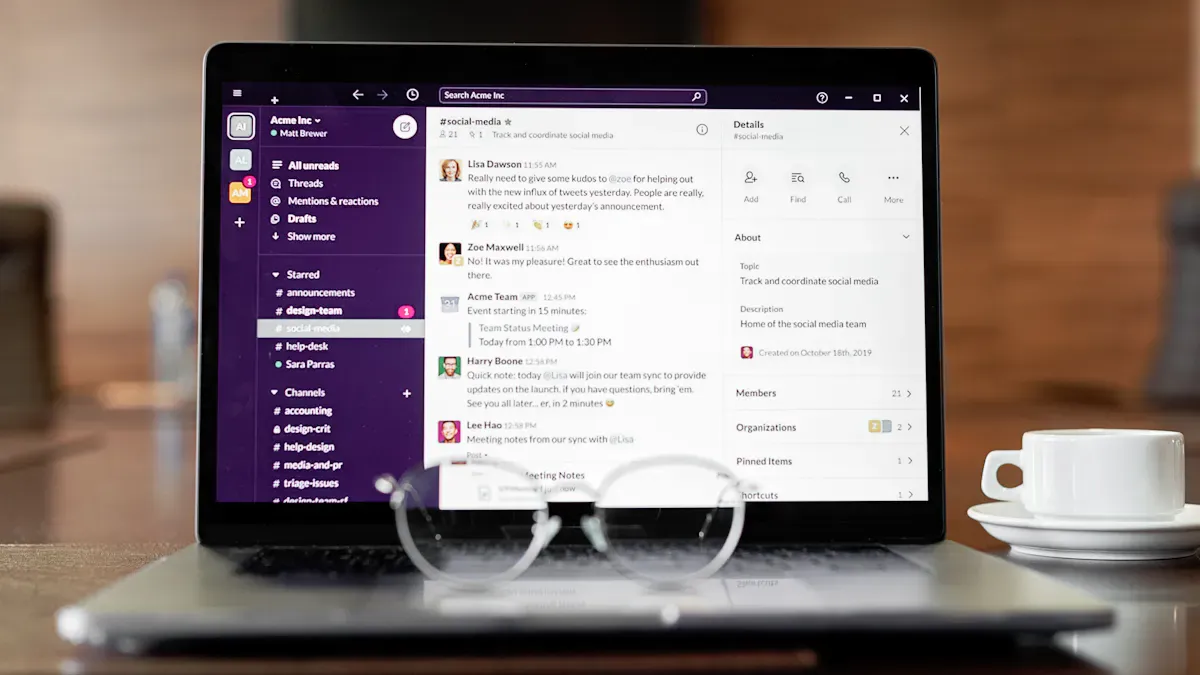
You want your app to feel like a natural part of teams. Consistency helps users feel comfortable and confident as they move between different features. Start by following Microsoft’s design guidelines for typography, color, and layout. Use Segoe UI for all text in your app. This font matches the rest of teams and keeps your content easy to read. Support light, dark, and high-contrast themes so everyone can use your app in their preferred mode.
You should keep your design simple. Avoid deep nesting and stick to a flat hierarchy. This makes navigation easier for everyone. Use shared tokens for color, padding, and fonts to ensure your app looks consistent with teams. Regularly audit your designs to catch any inconsistencies early. The table below summarizes the main guidelines:
| Aspect | Guidelines |
|---|---|
| Typography | Use Segoe UI for type ramp and different font sizes to create hierarchy and ensure readability. |
| Colors | Support light, dark, and high-contrast themes with specific color schemes for each. |
| Shape & Elevation | Utilize shape and elevation to create additional hierarchy in your app. |
| Copy & Content | Follow Microsoft voice principles: warm, relaxed, crisp, and clear. |
Tip: A simple, adaptive design helps your app blend seamlessly into teams and improves the user experience.
Accessibility
You need to make your app accessible to everyone, including people with disabilities. Add alt text to all visuals so screen readers can describe images to users who cannot see them. Use clear labels for buttons and forms. This helps users who rely on assistive technology. Teams offers built-in accessibility tools, such as Immersive Reader, which lets users customize their reading experience.
You should also support keyboard navigation. Make sure users can move through your app without a mouse. Test your app with high-contrast themes to ensure all text and controls remain visible. For meetings and messages, provide captions and allow users to change backgrounds for better visibility. These steps help everyone participate fully in teams.
- Add alt text to images and icons.
- Use clear, simple language for all instructions.
- Support keyboard navigation and screen readers.
- Test your app with different accessibility settings.
Note: Accessible design is not just a requirement—it makes your app better for everyone in teams.
Responsive Design
Your app must work well on all devices, from desktops to mobile phones. Responsive design ensures your app adapts to different screen sizes and orientations. Use flexible layouts that adjust automatically. Avoid fixed widths or heights, as these can break your app on smaller screens.
Test your app in teams on both desktop and mobile. Make sure all buttons, forms, and content remain easy to use. Use scalable icons and images that look sharp at any size. Responsive design keeps your app usable and attractive, no matter where users access teams.
- Use flexible grids and layouts.
- Test on multiple devices and screen sizes.
- Make sure touch targets are large enough for mobile users.
Tip: A responsive app helps everyone stay productive in teams, whether they are at their desk or on the go.
Adaptive Cards & Fluent UI
You can create engaging and interactive experiences in your Microsoft Teams app by using Adaptive Cards and Fluent UI. These tools help you build interfaces that look modern and work well across devices. You make your app feel like a natural part of Teams when you use these technologies.
Adaptive Cards let you display rich content in messages, tabs, and bots. You design cards with JSON, which makes them easy to customize and update. Users can interact with buttons, forms, and images right inside Teams. You can show live data, collect feedback, or trigger actions without leaving the conversation.
Here are some benefits of Adaptive Cards:
- You create interactive messages that users can respond to.
- You display information in a clear, structured way.
- You support actions like submitting forms or opening links.
- You use the same card design across Teams, Outlook, and other Microsoft 365 apps.
Tip: Use Adaptive Cards to simplify workflows. For example, you can let users approve requests or update records directly from chat.
Fluent UI gives you a set of design components that match the look and feel of Microsoft Teams. You build tabs, dialogs, and forms with Fluent UI controls. These controls include buttons, text fields, dropdowns, and more. You ensure your app stays consistent with Teams by using Fluent UI.
| Feature | Adaptive Cards | Fluent UI |
|---|---|---|
| Purpose | Interactive messages | App interface components |
| Usage | Bots, messaging extensions | Tabs, task modules |
| Customization | JSON schema | React components |
| Consistency | Works across Microsoft 365 | Matches Teams design guidelines |
You can combine Adaptive Cards and Fluent UI in your app. Use Adaptive Cards for messages and notifications. Use Fluent UI for building the main interface in tabs and task modules. This approach helps you deliver a seamless user experience.
To get started, add the Adaptive Cards SDK and Fluent UI library to your project. Design your cards with the Adaptive Cards Designer tool. Build your interface with Fluent UI React components. Test your app in Teams to make sure everything looks and works as expected.
Note: Microsoft Teams Message Extensions from m365.fm use Adaptive Cards to display live data and actions in chat. You can follow this example to create your own interactive cards.
You improve accessibility and responsiveness when you use Adaptive Cards and Fluent UI. Both tools support keyboard navigation and screen readers. You help all users participate fully in Teams.
You build apps faster and with fewer errors when you use these technologies. You focus on your app’s features instead of worrying about design details. You create solutions that boost productivity and make teamwork easier.
Security and Compliance in Microsoft Teams App
Security and compliance play a key role when you build a custom app for teams. You must protect user data, control access, and follow industry standards. Microsoft provides strong tools and policies to help you keep your app secure and compliant.
Authentication & Authorization
You need to make sure only the right users can access your app in teams. Microsoft Entra ID is the main service for authenticating users. You register your app in Azure AD to use these features. OAuth 2.0 is the protocol that handles authorization, so users can sign in safely and access only what they need. Modern Authentication, based on OAuth 2.0, supports multi-factor authentication and Conditional Access. These features help you block unauthorized logins and add extra layers of security.
Tip: Always enable multi-factor authentication for all users. This step protects your app from common attacks.
You should also use Conditional Access policies. These policies let you limit who can log in and from where. Review permissions often to make sure only trusted users have access.
Data Privacy
Data privacy means you control how information is shared and stored in your app. You should define clear governance for teams. Set up data security features to protect sensitive information. Share data only in the right collaboration spaces. For meetings with guests, always use the lobby to control who joins.
You can use privacy tags for documents and set data retention policies. These steps help you manage how long data stays in teams. Use eDiscovery and legal hold to find and keep important records when needed. Advanced Threat Protection and Data Loss Protection tools help you stop leaks and block threats.
- Restrict guest access and review permissions regularly.
- Manage data sharing and retention policies.
- Monitor for cyber threats and create activity alerts.
- Train your teams users on privacy best practices.
- Delete sensitive documents when they are no longer needed.
Permissions Management
You must control what your app can do in teams. Start by listing all permissions your app needs in the manifest. Only ask for the permissions that are required. This step helps you build trust with users and admins.
Set up app management to control which apps are available to users. Audit user activity using Microsoft’s Communication Compliance policies. Make sure data is encrypted both in transit and at rest. These actions protect your app and the data inside teams.
Microsoft teams meets many compliance standards, such as HIPAA, ISO 27001, and EU Model Clauses. You can rely on these standards to show your app follows strong security rules.
Note: Review permissions and compliance settings often. This habit keeps your app secure as teams and policies change.
Maintain and Update Teams Apps
Keeping your Microsoft Teams app up to date is important for long-term success. You need to manage versions, monitor performance, and listen to your users. These steps help you deliver a reliable experience and keep your app valuable for your team.
Versioning
Versioning helps you track changes and improvements in your app. You should update the version number every time you add new features or fix bugs. This practice makes it easy for users to know which version they have. It also helps you roll back to a previous version if something goes wrong.
- Use a simple versioning system, such as 1.0.0 for the first release.
- Increase the middle number for new features and the last number for bug fixes.
- Update the version in your app manifest before you upload a new package to teams.
Tip: Keep a changelog that lists updates and fixes. This helps your team understand what has changed.
Monitoring & Analytics
You need to know how your app performs in teams. Monitoring and analytics tools give you this information. You can track usage, errors, and user actions. This data helps you find problems and improve your app.
- Use Microsoft Application Insights or Azure Monitor to collect data.
- Set up alerts for errors or unusual activity.
- Review analytics to see which features users like most.
A table can help you organize what to monitor:
| What to Monitor | Why It Matters |
|---|---|
| App usage | Shows which features are popular |
| Error logs | Helps you fix problems quickly |
| Performance metrics | Keeps your app running smoothly |
Note: Regular monitoring helps you keep your app reliable and responsive in teams.
User Feedback & Support
Listening to your users is key to making your app better. You should provide easy ways for users to share feedback or ask for help. This support builds trust and helps you spot issues early.
- Add a feedback button or link inside your app.
- Check reviews and comments in teams regularly.
- Respond to questions and fix problems quickly.
You can also create a support channel in teams for your app. This gives users a place to ask questions and share ideas. When you act on feedback, you show users that you care about their experience.
Tip: Thank users for their feedback and let them know when you make changes based on their suggestions.
By following these steps, you keep your app useful and trusted in teams. Regular updates, monitoring, and support help your app grow with your team’s needs.
You now know how to build a custom app for teams using Microsoft tools. Start by setting up your environment, then add features that help your team work better. Use Message Extensions to bring data into teams and boost productivity. Test your app in teams to make sure it works well. Explore m365.fm and Microsoft resources for more ideas. Try building your own app and see how teams can become even more powerful.
Checklist: Build a Custom App for Microsoft Teams
Target keyword: microsoft teams app development
- Define app goals, target users, and primary use cases for microsoft teams app development
- Review Microsoft Teams platform capabilities (tabs, bots, messaging extensions, connectors, webhooks)
- Choose app architecture: single-page app, server-side APIs, or serverless functions
- Set up development environment: Node.js/.NET SDK, Teams Toolkit, Visual Studio Code, ngrok for local tunneling
- Create Azure resources if needed: App Service, Azure Functions, Bot Service, Azure AD app registration, Cosmos DB/Storage
- Register and configure app in Azure AD: application ID, client secret/certificate, redirect URIs, scopes/permissions
- Configure Teams app manifest: app ID, version, developer info, icons, localization, valid domains
- Implement authentication and authorization using Microsoft identity platform (OAuth 2.0, OpenID Connect)
- Build front-end UI following Teams design guidelines and Fluent UI components
- Implement bot and messaging capabilities using Bot Framework if needed
- Add deep links, personal/team/channel scopes, and compose extensions as required
- Ensure data storage and APIs follow least privilege and secure practices
- Implement telemetry and logging (Application Insights, monitoring)
- Validate app manifest and package app (.zip) using App Studio or Teams Developer Portal
- Test locally with ngrok and in Teams client across desktop, web, and mobile
- Conduct accessibility testing (WCAG) and internationalization/localization checks
- Perform security review: vulnerability scanning, secure secrets handling, CORS, content security policy
- Prepare documentation: installation guide, admin consent steps, user guide, troubleshooting
- Plan app distribution: org app catalog, tenant-wide deployment, or Microsoft Teams Store submission
- Complete Microsoft validation checklist if publishing to Teams Store (privacy, support, packaging)
- Set up CI/CD pipeline for builds, automated tests, and deployment to Azure or hosting platform
- Monitor post-release metrics, crash reports, and user feedback; iterate on features and fixes
- Maintain app: update manifest versions, renew certificates/secrets, and review permissions periodically
building apps with teams toolkit for visual studio code
What is Microsoft Teams app development and why does it matter?
Microsoft Teams app development is the process of creating custom applications and integrations that run inside Microsoft Teams to extend collaboration, automate workflows, or surface data from other systems. It matters because apps and services in Teams increase productivity, centralize tools in the Teams UI, and leverage the Microsoft 365 platform to reach users directly where they work.
How do I get started to create a new teams app?
To create a new Teams app, begin by defining the scenario (tabs, bots, messaging extensions, or connectors), choose an app template or start from scratch, and use the Teams developer portal or development tools like the Teams Toolkit for Visual Studio Code or Teams Toolkit for Visual Studio. You can follow guided tutorials on Microsoft Learn to scaffold, run, and test your app locally before deploying.
What development tools and extensions should I use for building microsoft teams apps?
Common tools include Visual Studio Code with the Teams Toolkit extension, Visual Studio 2022 with the Teams Toolkit for Visual Studio, and the Teams developer portal. The toolkit for Visual Studio Code provides project templates, local debugging, and build and deploy apps workflows, while the Visual Studio extension integrates Teams development into .NET projects.
Can I build custom teams apps using Visual Studio Code and an extension?
Yes. Use the toolkit for Visual Studio Code (Visual Studio Code extension) to create apps such as tabs, bots, and messaging extensions. The extension offers create app wizards, local tunneling, and commands to build and deploy apps for Microsoft Teams, making it straightforward to build custom teams apps with web frameworks or Node/.NET backends.
What is a teams tab and when should I use it?
A Teams tab is a web-based view embedded in a Teams channel or chat that lets you surface a web app directly inside Teams. Use a teams tab to provide dashboards, forms, or workflow interfaces tied to your business processes so users can interact with your applications without leaving Teams.
How do I deploy apps for Microsoft Teams and what are the deployment options?
You can deploy apps for Microsoft Teams by packaging the app manifest and resources and publishing to the organization app catalog or Microsoft Teams Store. Tooling like the Teams Toolkit automates build and deploy steps, while enterprise scenarios can use the Microsoft 365 platform and centralized deployment via the Teams admin center or Microsoft 365 admin center.
What is the role of the Microsoft 365 platform in teams development?
The Microsoft 365 platform provides APIs, identity, and services (Graph API, SharePoint, OneDrive, Outlook) that Teams applications can use to access organizational data and capabilities. Integrating with the Microsoft 365 platform helps you build richer apps that interact with calendars, files, and users across the tenant.
Are there app templates or starters to speed up building apps for microsoft teams?
Yes. There are app templates and sample projects available through Microsoft Learn, the Teams Toolkit, and the Teams developer portal. These templates cover common scenarios like task management, polls, or approval flows and help you rapidly create a functioning prototype you can customize.
How do I test and debug applications for Microsoft Teams locally?
Use local tunneling tools and the Teams Toolkit to run your app locally and expose it to Teams for testing. The toolkit integrates with local debuggers in Visual Studio Code and Visual Studio 2022, enabling breakpoints and logs while you interact with your app in a test team or personal scope in MS Teams.
What best practices should I follow when building microsoft teams apps for enterprise use?
Follow security and compliance guidelines from Microsoft 365, use proper authentication and Graph permissions, design for accessibility, minimize permission scopes, implement telemetry, and use the Teams design guidelines. Plan for lifecycle management, app updates, and centralized deployment to ensure apps are maintainable across the organization.
Can I use .NET and Visual Studio 2022 to build and deploy apps for Microsoft Teams?
Yes. Visual Studio 2022 with the Teams Toolkit for Visual Studio supports building server-side components and web apps in .NET that integrate as tabs, bots, or APIs for your Teams application. The toolkit helps with scaffolding, local debugging, and deploying apps to Azure and publishing to Teams.
What does "build and deploy apps" mean in the Teams context and how automated can it be?
"Build and deploy apps" refers to compiling assets, packaging the Teams manifest, deploying backend services (e.g., to Azure), and publishing the app. Toolkits and CI/CD pipelines can automate these steps so you can continuously build, test, and deploy apps for Microsoft Teams with minimal manual intervention.
How do teams capabilities like bots and messaging extensions differ from tabs?
Bots enable conversational interactions via chat and channel messages, messaging extensions let users compose rich messages or query external data from the compose box, while tabs provide persistent embedded web experiences. Choose the capability that best fits your workflow: interactive UI (tabs), conversational automation (bots), or in-message integrations (messaging extensions).
What is the Teams developer portal and how does it help create apps for teams?
The Teams developer portal is a web-based tool for registering, configuring, and managing your Teams applications. It simplifies creating a new teams app, editing the app manifest, testing, and managing app packages and versioning before deploying to your organization or submitting to the Teams Store.
How can I ensure my apps built for Teams scale and remain secure?
Design for scalability by using cloud-native services, implement authentication with Azure AD, apply least-privilege permissions (Graph), validate inputs, encrypt data in transit and at rest, and monitor performance and usage via telemetry. Follow Microsoft’s security recommendations for apps and services integrated with Microsoft 365.
Can I reuse existing web applications to build a teams application?
Yes. Many existing web apps can be adapted into teams tabs by embedding them in an iframe-compliant way or exposing specific views for Teams. You may need to handle single sign-on with Microsoft accounts and adjust UI to fit the Teams experience.
What is basic teams development and when should I use it?
Basic teams development covers simple app scenarios such as static tabs or simple bots that require minimal backend logic. Use it to prototype ideas quickly or to provide lightweight integrations that enhance a team's workflows without complex infrastructure.
How do I build your app with continuous integration and deployment for Microsoft Teams?
Integrate build and deploy steps into CI/CD pipelines (GitHub Actions, Azure DevOps) to run tests, build artifacts, deploy backend services to Azure, and update the Teams app package in the app catalog. Toolkits provide CLI commands to streamline these steps and can be wired into pipeline tasks.
Where can I learn step-by-step guidance on building microsoft teams apps?
Microsoft Learn offers guided modules and learning paths for teams development, including hands-on labs for creating tabs, bots, and messaging extensions. Combine Microsoft Learn with the Teams Toolkit, developer portal, and sample repositories to get practical, end-to-end experience.
How do I submit apps built for Teams to the Teams Store or distribute them within my organization?
Package your app manifest and resources, then use the Teams developer portal or Partner Center to submit to the Teams Store. For internal distribution, upload the app package to the organization app catalog or use centralized deployment through the Teams admin center or Microsoft 365 admin center.
What skills from software development are most useful for teams development?
Skills in web development (JavaScript/TypeScript, React), backend services, REST APIs, authentication (OAuth/Azure AD), and familiarity with the Microsoft 365 platform and Graph API are highly valuable. Understanding UX design for Teams and experience with Visual Studio Code or Visual Studio 2022 and the Teams toolkits will accelerate development.
Apple Podcasts · Spotify · YouTube
Host: Mirko Peters
Related articles
- Mastering Tabs, Bots, and Extensions in Microsoft Teams
- Fixing Mobile App Issues: A Practical Guide for Teams and SharePoint Users
- Automating Teams Admin Tasks: The Complete Guide for Microsoft 365
- AI-Generated Action Items: Boosting Team Productivity in Microsoft Teams
- Copilot vs ChatGPT: Choosing the Best AI for Microsoft Teams Collaboration
- Prompt Engineering for Microsoft Teams: Complete Guide