 EN
EN Deutsch
 Español
 Français
 Italiano
 Português
 Nederlands
 Polski
 Bahasa Indonesia
 Русский
 Українська
 العربية
 עברית
עברית हिन्दी
 日本語
日本語 한국어
한국어2026-07-08 · Season 2
Excel vs Google Sheets with David Benaim [MVP]
![Excel vs Google Sheets with David Benaim [MVP]](https://d3wo5wojvuv7l.cloudfront.net/t_rss_itunes_square_1400/images.spreaker.com/original/b4a65c87c10144cbcaba54988cfd7b46.jpg)
Quick answer: Excel vs Google Sheets for business is explained in this M365 FM episode through its purpose, practical use, and the architecture, security, governance, or operational decisions teams should understand before adopting it in a Microsoft environment.
Many users now prefer Google Sheets over Excel, as they believe Google Sheets beat Excel in several key areas, thanks to its powerful features. Google Sheets excels in collaboration and accessibility, allowing you to work with your team in real-time, leaving comments and discussing changes as you go. This cloud-based solution facilitates easy sharing, making it perfect for cross-functional teams. Additionally, Google Sheets is free to use, which eliminates licensing concerns. Understanding these differences helps you make informed decisions about which tool best fits your needs.
Key Takeaways
- Google Sheets allows real-time collaboration, enabling multiple users to work on a spreadsheet at the same time.
- Access Google Sheets from any device with an internet connection, making it easy to share and edit documents.
- Google Sheets is free for individuals, eliminating costs associated with software licenses.
- Excel offers advanced data analysis tools, making it better for users who need to handle complex data.
- Google Sheets integrates well with other Google Workspace apps, enhancing teamwork and project management.
- Excel requires installation on each device, which can limit accessibility and collaboration.
- Google Sheets is user-friendly, making it easy for new users to learn and navigate.
- Consider your needs: choose Google Sheets for collaboration and accessibility, and Excel for advanced data analysis.
Functionality: Google Sheets vs Excel
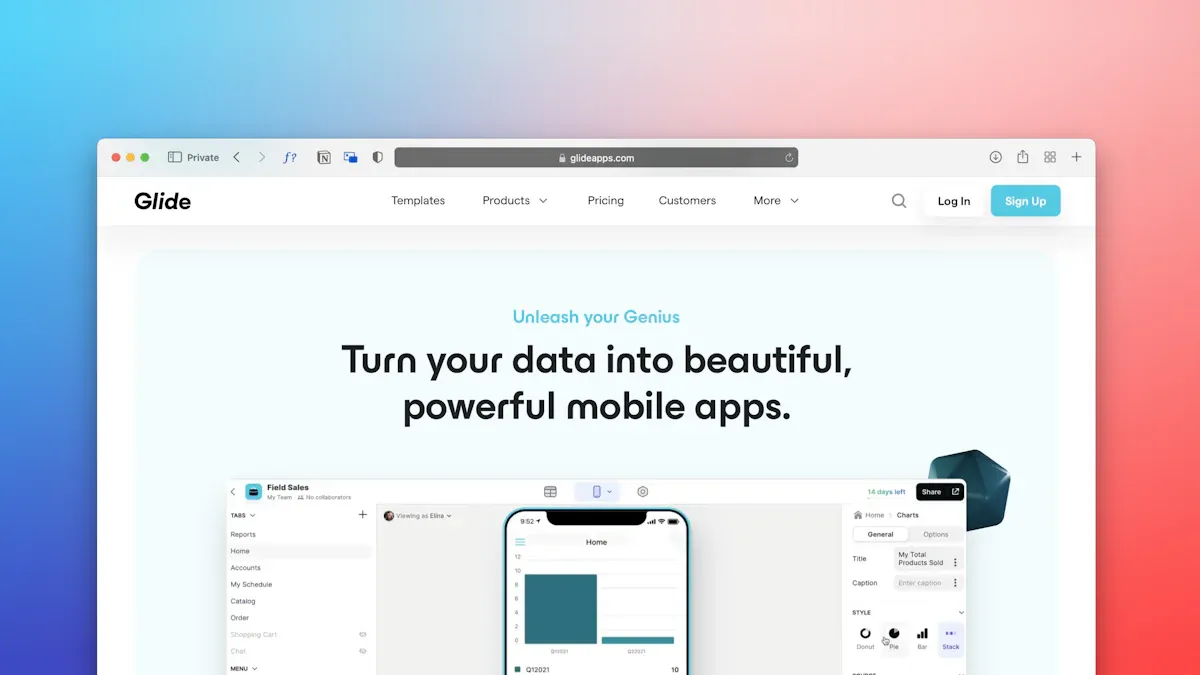
When comparing functionality, both Google Sheets and Microsoft Excel offer unique features that cater to different user needs. Understanding these features can help you choose the right tool for your tasks.
Google Sheets Features
Real-time Collaboration
One of the standout features of Google Sheets is its real-time collaboration. You can work on a spreadsheet simultaneously with multiple users, making teamwork seamless. This feature allows you to see changes as they happen, which enhances communication and efficiency. You can also leave comments and suggestions directly within the document, fostering a collaborative environment.
Cloud-based Accessibility
Google Sheets operates entirely in the cloud, which means you can access your spreadsheets from any device with an internet connection. This cloud-based accessibility eliminates the need for software installations and allows for easy sharing capabilities. You can create a general access link with predefined permissions, enabling anyone to view or edit the document as needed. This flexibility makes Google Sheets an excellent alternative to Excel for teams that require constant access to their data.
Microsoft Excel Features
Advanced Data Analysis Tools
Microsoft Excel shines when it comes to advanced data analysis. It offers powerful tools like Power Query and Power Pivot, which allow you to manipulate and model data in complex ways. These features enable you to clean and transform data from various sources and perform relational data modeling. If your work involves heavy data analysis, Excel's capabilities may be essential for your needs.
Offline Capabilities
Excel also provides robust offline capabilities. You can work on your spreadsheets without an internet connection, which is beneficial in situations where connectivity is limited. This feature allows you to continue your work uninterrupted, making Excel a reliable choice for users who often find themselves in environments with poor internet access.
| Feature | Google Sheets | Excel |
|---|---|---|
| Collaboration | Real-time collaboration | Limited collaboration without setup |
| Saving | Automatic saving | Manual saving required |
| Access | Seamless access across devices | Primarily desktop application |
| Ease of Use | Streamlined interface for quick access | More complex interface |
Collaboration: Google Sheets Advantage
Google Sheets Collaboration Tools
Real-time Editing
Google Sheets offers a significant advantage with its real-time editing capabilities. You and your team can work on the same spreadsheet simultaneously, seeing changes as they happen. This feature ensures that everyone stays updated, fostering effective communication and minimizing errors. Teams can collaborate effortlessly, making Google Sheets an ideal choice for a shared team workplace.
Chat and Commenting Features
In addition to real-time editing, Google Sheets includes built-in chat and commenting features. These tools allow you to leave feedback and suggestions directly within the spreadsheet. This enhances teamwork by keeping all discussions in one place. Google Sheets integrates seamlessly with other Google Workspace apps, further streamlining collaboration and project management.
| Feature | Description |
|---|---|
| Real-time collaboration | Allows multiple users to edit the same spreadsheet simultaneously with instant updates. |
| Google Workspace integration | Integrates seamlessly with other Google Workspace apps like Docs and Slides for efficient collaboration. |
| Commenting and suggestions | Built-in features for team communication and feedback, enhancing collaboration on projects. |
Excel Collaboration Challenges
Dependency on Installed Software
Excel faces challenges in collaboration due to its dependency on installed software. Unlike Google Sheets, which operates in the cloud, Excel requires installation on each device. This can limit accessibility and hinder real-time collaboration. Users often face delays in decision-making because of these limitations.
Limited Real-time Features
Excel's limited real-time features present another challenge. Collaboration can lead to confusion over which version of a spreadsheet is the most current, resulting in inconsistent data. Users often struggle with broken references and incorrect results. These issues highlight the need for robust collaboration tools, which Google Sheets provides effectively.
Google Sheets beat Excel in collaboration by offering a user-friendly interface and seamless access across devices. Its ability to foster collaboration and drive smarter decision-making sets it apart as a superior alternative for teams.
Pricing: Google Sheets vs Microsoft Excel
When considering pricing, Google Sheets and Microsoft Excel offer different models that cater to various user needs. Understanding these options can help you make an informed choice.
Google Sheets Pricing
Free for Individuals
Google Sheets is free for anyone with a Google account. This accessibility makes it an attractive option for individuals and small businesses. You can create, edit, and share spreadsheets without any cost. This feature allows you to leverage powerful tools without worrying about subscription fees.
Google Workspace Premium Features
For those who need more advanced features, Google offers Google Workspace subscriptions. These plans start at $7 per user per month. With a subscription, you gain access to enhanced collaboration tools, automation capabilities, and integration with other applications. Here are some key benefits of Google Workspace:
- Advanced collaboration tools like real-time editing and commenting.
- Automation capabilities that streamline repetitive tasks.
- Integration with applications like Salesforce and QuickBooks.
Microsoft Excel Pricing
Subscription Costs
Microsoft Excel requires a subscription or a one-time purchase. The subscription model starts at $6 per user per month for Microsoft 365 Business Basic. This plan includes web and mobile versions of Excel, along with other Office apps. Here’s a breakdown of some popular plans:
| Plan | Price (per month) | Features Included |
|---|---|---|
| Microsoft 365 Business Basic | $6.00 | Web and mobile versions of Office apps, Exchange, OneDrive, SharePoint, Teams |
| Microsoft 365 Business Standard | $12.50 | Desktop versions of Office apps, additional business tools |
| Microsoft 365 Business Premium | $22.00 | Advanced security features, device management, and more |
| Standalone Excel | $159.99 (one-time) | Full version for 1 PC or Mac, compatible with Windows 10, 11, and macOS |
Additional Costs for Advanced Features
While Excel provides robust features, accessing them often comes with additional costs. For example, advanced data analysis tools and features may require higher-tier subscriptions. This can add up, especially for businesses that need multiple licenses.
Performance: Excel's Strengths
When it comes to performance, both Google Sheets and Microsoft Excel have their unique strengths. Understanding these can help you choose the right tool for your needs.
Google Sheets Usability
User-friendly Interface
Google Sheets offers a user-friendly interface that many users find easy to navigate. This simplicity makes it an excellent choice for those who frequently collaborate on spreadsheets. You can quickly learn how to use its features without extensive training. Users appreciate the comprehensible layout, which enhances their overall experience.
- Google Sheets is preferred for users who value cloud sharing and real-time changes.
- It reduces the need for additional training, making it accessible for new users.
- The integration with Google Workspace further simplifies collaboration.
Ideal for Smaller Datasets
Google Sheets works well for smaller datasets. It supports up to 10 million cells, which is sufficient for many everyday tasks. However, as you approach larger datasets, you may notice performance declines, especially past 1,000 rows. This limitation can hinder your ability to perform extensive data analysis efficiently.
Microsoft Excel Performance
Handling Large Datasets
Microsoft Excel excels in managing large datasets. It can handle up to 1,048,576 rows and 16,384 columns without slowing down. This capability makes Excel the preferred choice for professionals who work with extensive data.
- Excel processes large datasets more efficiently than Google Sheets.
- The desktop version of Excel is optimal for extensive data management.
- Google Sheets can lag significantly when handling larger datasets.
Advanced Formulas and Functions
Excel boasts an extensive function library that supports complex calculations and data analysis. You can utilize advanced formulas to perform intricate tasks, making it a powerful tool for financial modeling and data manipulation.
- Excel's advanced functions allow for detailed data analysis.
- The desktop version provides better performance for complex calculations.
- Google Sheets, while capable, may struggle with heavy formulas in larger spreadsheets.
In summary, Google Sheets offers significant advantages over Microsoft Excel, particularly in collaboration, accessibility, and cost-effectiveness. Its real-time editing capabilities allow teams to work together seamlessly, reducing version control issues. The cloud-based nature of Google Sheets ensures you can access your spreadsheets from anywhere, making it ideal for remote work. Additionally, its free access for individuals makes it a budget-friendly option.
When deciding between these tools, consider your specific needs. If collaboration and accessibility are priorities, Google Sheets is likely the better choice for you.
FAQ
What is the main advantage of Google Sheets over Excel?
Google Sheets excels in real-time collaboration. You can work with multiple users simultaneously, making it easier to share ideas and updates instantly.
Is Google Sheets free to use?
Yes, Google Sheets is free for individuals with a Google account. You can create and edit spreadsheets without any subscription fees.
Can I use Google Sheets offline?
Google Sheets primarily operates online. However, you can enable offline access through Google Drive, allowing you to work without an internet connection.
How does Excel handle large datasets?
Excel can manage extensive datasets efficiently, supporting up to 1,048,576 rows and 16,384 columns. This capability makes it ideal for complex data analysis.
Are there any advanced features in Google Sheets?
Yes, Google Sheets offers features like advanced formulas, data validation, and integration with other Google Workspace apps, enhancing its functionality for users.
Can I import Excel files into Google Sheets?
Absolutely! You can easily import Excel files into Google Sheets. Just upload the file to Google Drive and open it with Google Sheets.
What are the subscription costs for Microsoft Excel?
Microsoft Excel offers various subscription plans. The basic plan starts at $6 per user per month, while standalone Excel costs $159.99 as a one-time purchase.
Is Google Sheets suitable for businesses?
Yes, Google Sheets is suitable for businesses, especially those that prioritize collaboration and cloud-based access. Its features support teamwork and project management effectively.
🎧 Listen to this episode
Want a practical explanation of Excel vs Google Sheets with David Benaim [MVP]? This episode breaks down the topic in clear language and shows why it matters for Microsoft 365, Azure, Power Platform, security, AI, and modern work.
Listen to this episode if you want to:
- Understand the key concepts behind Excel vs Google Sheets with David Benaim [MVP]
- See how it fits into the wider Microsoft technology ecosystem
- Learn where it can create practical value for your organization
You may also enjoy these related M365 FM episodes:
- Multi-Agent AI with Copilot Studio and David Lorenzo Lopez [MVP]
- Fix Excel Shadow Systems and Broken Business Processes
- Migrate Power Apps from Excel to Dataverse
- Fix Power Apps Excel Data Limits with Dataverse
- Automate Excel RFI Responses with an Autonomous Agent
Discover more practical Microsoft conversations on M365 FM.
Last reviewed: July 2026.
Who Should Listen
This episode is for Microsoft practitioners, architects, developers, security professionals, and IT leaders evaluating the topic in a real-world environment.
🎧 You Should Also Listen To
- AI Agents — A relevant next step that adds practical context to this topic.
- Model Context Protocol — A relevant next step that adds practical context to this topic.
- Microsoft AI Agent Harness — A relevant next step that adds practical context to this topic.
Official Microsoft MVP profile: David Benaim on Microsoft MVP
Apple Podcasts · Spotify · YouTube · YouTube Music
Host: Mirko Peters