 EN
EN Deutsch
 Español
 Français
 Italiano
 Português
 Nederlands
 Polski
 Bahasa Indonesia
 Русский
 Українська
 العربية
 עברית
עברית हिन्दी
 日本語
日本語 한국어
한국어2026-07-16 · Season 3
Conditional Access - Simply Explained
Show notes
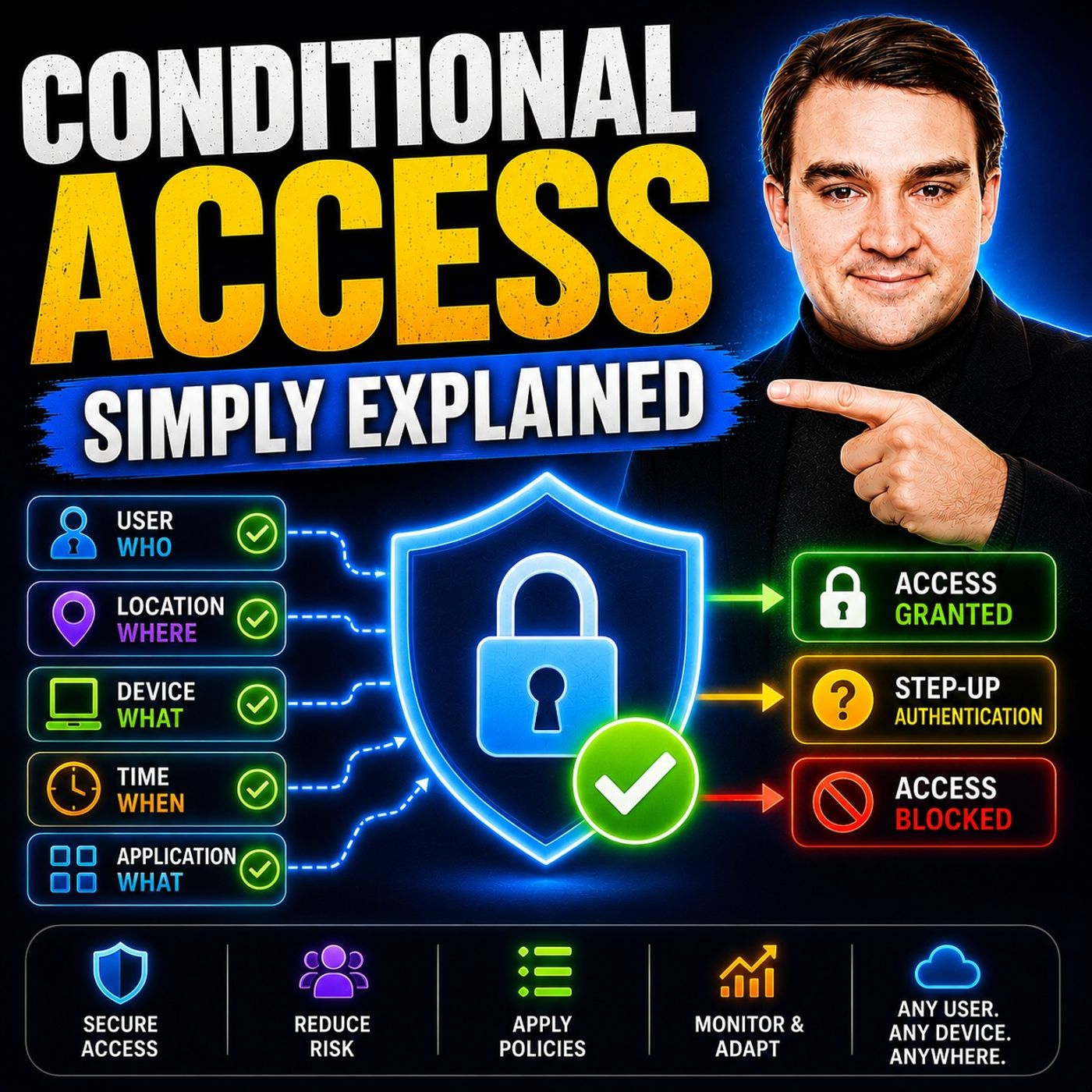
Every time you sign in to Microsoft 365, far more happens than simply checking your username and password. Behind the scenes, Microsoft evaluates dozens of signals before deciding whether you should be allowed access. This intelligent decision-making process is powered by Microsoft Entra Conditional Access, one of the most important security features available in Microsoft 365. In this episode of Microsoft Knowledge Nuggets, we explain Conditional Access in simple terms and show how it protects your organization by evaluating who is signing in, where they're connecting from, which device they're using, what application they're accessing, and how risky the sign-in appears. Instead of relying on passwords alone, Conditional Access adds context to every authentication request, making identity security dramatically stronger. WHY PASSWORDS AND MFA ARE NO LONGER ENOUGH Passwords are stolen every day through phishing attacks, malware, password reuse, and large-scale data breaches. Even traditional multi-factor authentication (MFA), while extremely important, isn't always enough to stop sophisticated attackers. Conditional Access adds another layer of intelligence by evaluating the complete sign-in context before granting access. Rather than asking "Did the user enter the correct password?", it asks much smarter questions: Is this login coming from a trusted location? Is the device compliant with company security policies? Is the account showing signs of compromise? Is the user attempting to access sensitive business applications? This context-aware approach dramatically reduces the risk of unauthorized access while improving your organization's Zero Trust security posture. HOW MICROSOFT ENTRA CONDITIONAL ACCESS MAKES DECISIONS Conditional Access operates using a simple "if-this-then-that" policy engine. Administrators define conditions such as user identity, device compliance, geographic location, cloud application, sign-in risk, user risk, authentication context, and session controls. Based on these signals, Conditional Access can grant access, require multi-factor authentication, demand a compliant device, enforce phishing-resistant authentication methods, restrict sessions, or block access completely. This flexible policy engine allows organizations to create highly targeted security controls that balance strong protection with a seamless user experience. We also explain Report-Only Mode, the What If tool, and policy testing strategies that allow administrators to safely validate new policies before enforcing them across the organization. THE THREE CONDITIONAL ACCESS POLICIES EVERY ORGANIZATION SHOULD DEPLOY This episode highlights the three foundational Conditional Access policies every Microsoft 365 tenant should implement immediately. First, require strong multi-factor authentication for every user using phishing-resistant authentication methods whenever possible. Second, block all legacy authentication protocols such as POP, IMAP, and older Exchange authentication methods that cannot enforce MFA and remain common attack vectors. Third, require compliant, managed devices for privileged administrators to protect the most powerful identities inside your organization. We also explain why every tenant should maintain dedicated break-glass emergency administrator accounts that remain excluded from Conditional Access policies to prevent administrators from accidentally locking themselves out of the environment. ADVANCED CONDITIONAL ACCESS FEATURES FOR ZERO TRUST SECURITY Beyond the basics, Conditional Access becomes even more powerful through advanced capabilities such as Sign-In Risk policies, User Risk policies, Authentication Contexts, Continuous Access Evaluation, and persona-based security policies. Learn how Microsoft uses machine learning to detect impossible travel, anonymous IP addresses, leaked credentials, and suspicious behavior in real time. Discover how organizations can create different security policies for administrators, employees, contractors, guests, and external users while protecting highly sensitive applications like finance systems with additional authentication requirements. These capabilities allow businesses to implement a true Zero Trust security model that continuously verifies every user and every access request. BUILDING A STRONGER MICROSOFT 365 SECURITY FOUNDATION Whether you're securing a small business or a global enterprise, Microsoft Entra Conditional Access should be considered the central policy engine of your identity security strategy. Combined with Microsoft Entra ID, Microsoft Intune, Microsoft Defender, phishing-resistant MFA, and Zero Trust principles, Conditional Access provides intelligent, adaptive protection that continuously evaluates risk instead of relying solely on passwords. After listening to this episode, you'll understand how Conditional Access protects Microsoft 365 users, why it is essential for every organization, and how to safely deploy policies that significantly improve your overall cloud security posture without disrupting productivity. Become a supporter of this podcast: https://www.spreaker.com/podcast/m365-fm-microsoft-365-azure-cloud-power-platform-ai--6704921/support.
Apple Podcasts · Spotify · YouTube · YouTube Music · Deezer
Host: Mirko Peters
Guests
Related articles
- Mastering Zero Trust: How Conditional Access Drives Modern Security
- Microsoft 365 Sync Scheduler
- Soft Match vs Hard Match
- Copilot Prompts for Meeting Summaries
Transcript
Read the full transcript
Imagine you sit down at your computer, type in your email address, punch in your password, and hit enter. There's that brief pause while the system decides if it's really you. Most folks assume that pause is just the password check. If the password matches, you're in, right? Actually no, a lot more happens behind the scenes than you probably realize. While you're waiting, Microsoft 365 runs a series of checks in the background. It looks at where you are, what device you're using, and whether this sign-in seems normal or suspicious. And it does all of that before it lets you through the door. By the end of this episode, you'll understand what conditional access is, how it works every single time you sign in, and why it's one of the most important security controls in your Microsoft 365 tenant. So let's start with the simplest definition. What actually is conditional access? Here's the definition in plain English. Conditional access is a policy engine that checks context before letting someone in. It doesn't just look at your password and say good enough. Instead, it asks extra questions about who you are and what's happening around your sign-in. Think of it like a nightclub bouncer. You show your ID at the door. That's your username and password. But a good bouncer doesn't just glance at it and wave you through. They check your name on the guest list, look at what you're wearing, and might even remember if you've caused trouble before. Conditional access does the same thing. It checks your identity against rules, sees where you're coming from, checks your device, and decides if everything looks right before letting you in. Now here's a key point. Conditional access runs after you've already typed your password. It's not a replacement for multi-factor authentication. It's an extra layer on top. Think of it as the second checkpoint after you've shown your ID at the front door. The logic is simple. If then, if a user tries to access a cloud app and they meet certain conditions, then enforce this rule. For example, if someone is trying to access outlook from outside the office, then require multi-factor authentication. That's the basic structure behind every conditional access policy. Why passwords aren't enough anymore? So why do we need this extra step? Because passwords get stolen every single day. Fishing attacks, data breaches, people reusing the same password across multiple sites, your password could be compromised right now and you would not even know it. And you might be thinking, well, that's fine. We have multi-factor authentication that protects us. And you are right, MFA does help a lot. But it is not a silver bullet. Imagine a hacker gets hold of one of your employees passwords. They try to sign in from a country you have never done business with. Using a device you have never seen before. MFA might stop them if it triggers a prompt. But what if the hacker also has access to that employee's phone? Or what if they are using a fishing attack that captures the MFA code too? Suddenly, MFA alone does not look so bulletproof. Here's a real-world example. A salesperson's credentials leak on the dark web. Without conditional access, an attacker can sign in from anywhere in the world. They can access email files, customer data, everything. And you would never know until it is too late. The old way was all or nothing. You gave a user a license and they could sign in from any device, any location, any network. No context, no intelligence, just a password check and then full access. Conditional access changes that completely. It adds context to every sign in. It looks at where you are, what device you are using, what app you are trying to open, how risky the sign in looks based on Microsoft's analysis. It turns a flat yes or no decision into a smart, layered judgment. The signals, what conditional access looks at? So what exactly does conditional access check? Let's break it down into the signals it uses to make its decision. Identity is the first signal. Who are you? Are you a regular employee, an admin with elevated privileges, or a guest from outside the company? Conditional access looks at your user account and what groups you belong to. An admin trying to sign in might face stricter rules than a standard user. A guest might be blocked from certain apps entirely. Your identity determines the baseline of what is allowed. Location is next. Where is this sign in coming from? If you are connecting from the office network, that is a trusted location. Conditional access knows the IP range of your company headquarters. Signing in from a coffee shop in another country raises a flag. If the system cannot even figure out where you are, that is another flag. Location is a powerful signal because it is hard to fake. Device also matters. What are you using to sign in? A company laptop managed by Intune and compliant with your security policies? Or a personal phone with no security controls at all? Conditional access can check whether the device is enrolled in management, has encryption enabled and is up to date on security patches. An unmanaged device might get blocked or limited. The application matters too. What app are you trying to reach? Outlook, SharePoint, Teams, a custom business application? Not all apps have the same security requirements. A finance system handling sensitive data might require stricter controls than a team collaboration space. Conditional access lets you set different rules for different apps. If you have the right license, there is another layer. Sign in risk. Microsoft uses machine learning to score every sign in in real time. It looks for suspicious patterns. Impossible travel. Where a user signs in from New York and then five minutes later from London. Anonymous IP addresses. Leaked credentials from known data breaches. The system assigns a risk level, low, medium or high, and conditional access can act on that. There is also user risk. This is different from sign in risk. User risk looks at the account itself. Has this user's password appeared in a breach? Has there been unusual activity over time? If the system detects that an account might be compromised, it can block access until the user resets their password. Finally, there is authentication context. This lets you attach extra security requirements to specific sensitive content. For example, anyone trying to access the finance SharePoint site must use a compliant device and a phishing-resistant MFA method. It protects your most valuable data without slowing down everything else. Once these signals are collected, the policy engine decides what to do. Let's see how that works. The decision engine. How policies work. The conditional access policy works like an if/then rule. You pick the signals as conditions, then decide what action to take. That's really all it is. So there are three main parts to a policy. The first part is assignments, who the policy applies to, which app they're trying to reach and what conditions trigger the rule. The second part is access controls. What happens when those conditions are met? Do you grant access, block it, or require something like MFA or a compliant device? The third part is session controls, and those manage what happens after someone is signed in. How often they need to reauthenticate. Let me give you a concrete example. If a user is in the sales group and is trying to access SharePoint from an unmanaged device, then block access. That's a complete policy right there. Who? What app? What condition? What action? Grant controls are flexible. You can require multiple things at once. Say you want a user to complete MFA and also use a compliant device. Both conditions must be met. Or you could say they need one or the other. The system lets you choose. Now block is the most powerful control. If any policy says block, block wins, there are no exceptions. For exclusions you explicitly said. That's why you need to be careful, one mistake, and you could lock out your entire organization. Before you turn a policy on, there's a critical feature you need to know about. Report only mode. This lets you see what a policy would do before it actually enforces anything. You can run a policy and report only for a week, check the sign-in logs, and see how many users would have been blocked or prompted for MFA. It's a safe way to test without breaking anything. Now that you understand the engine, let's talk about the most common policies every business should have. The big three, baseline policies for day one. So what should you actually set up first? Let me give you the three baseline policies that every business should have from day one. Not day 30, and not after an audit. Policy number one is the foundation. Require MFA for all users. Not just admins everyone. Every single person who signs into your tenant needs to prove who they are with a second factor. But here's the important part, not all MFA is created equal. You don't want people using SMS codes or voice calls. Those methods are weak. They can be intercepted, what you want is something stronger. Microsoft has something called authentication strengths that lets you pick exactly which methods are acceptable. The Microsoft Authenticator app, FIDO2 Security Keys, Windows Hello for Business, those are the good ones. So when you create your MFA policy, don't just check the box that says, "Require MFA, be specific." Choose the strong methods only. Policy number two. Block legacy authentication. This one sounds technical, but it's simple. There are old protocols that Microsoft 365 still supports. I'm app, SMTP, older versions of exchange active sync. These protocols were built before anyone thought about multi-factor authentication and they don't support it. So if an attacker gets a password, they can use one of these old protocols to sign in and completely bypass your MFA. That's a huge gap. The fix is straightforward. Create a conditional access policy that blocks all legacy authentication for all users. Unless you have a very specific business need for an old scanner or printer that uses SMTP, turn it off. It's one of the highest impact security controls you can enable. Machine number three, require compliant devices for admins. Admin accounts are the crown jewels of your tenant. If someone compromises a global admin account, they own everything, so you need to lock those accounts down harder than anyone else. This policy says that anyone with an admin role must use a company-owned device that meets your security requirements, enrolled in management, encryption enabled like Bitlocker, Defender running, and up-to-date on patches. If an admin tries to sign in from a personal laptop or an old machine that doesn't meet those standards, access is blocked. It's a simple way to make sure your most powerful accounts are also your most protected. Before I move on, I need to talk about something critical. Break-glass accounts. These are emergency admin accounts that you keep outside of your conditional access policies. You create at least two of them. They use long, complex passwords and phishing-resistant MFA like a FIDO-2 security key. You store the credentials securely, maybe in a safe or a locked cabinet. The purpose is simple. If you accidentally lock yourself out of your tenant with a bad policy, you can use a break-glass account to get back in. They are excluded from every conditional access policy. That's by design. Without them, you risk being locked out of your own system with no way back in. Why only three policies for day one? Because you want to focus on the highest impact controls first. These three close the biggest security gaps. MFA stops most credential theft, blocking legacy outs closes the back door. Compliant devices for admins protects your most sensitive accounts. You can fine tune later with more granular policies, but start here. Advanced policies. Risk and Personas. Since the basics are in place, you can add more advanced controls. That's where risk-based policies and Persona-based rules come in. Sign-in-risk policies use Microsoft's machine learning to watch every login attempt in real time. If someone tries to sign in from an anonymous IP address, or the system detects impossible travel, like a login from New York, and then tow-cure 10 minutes later, it scores that sign in as high risk. From there, you set a policy that says if the risk is high, block access, or force MFA immediately. The catch is you need an Entra IDP-2 license, but this is one of the most powerful controls you can add because it catches attacks that static rules miss. User-risk policies look at the account itself over time, not just one sign-in event. If Microsoft detects that a user's credentials have appeared in a known data breach, it marks that user as high risk. You can then set a policy that blocks access until they reset their password. And yes, that also needs P2. Together sign-in-risk and user-risk policies create a dynamic security layer that adapts to threats as they happen. Now, Persona-based policies address a different problem. Not everyone in your organization has the same security needs. Your admins need the strictest rules, while contractors and temporary staff might need limited access. And guests from outside your company need different controls entirely. Persona-based policies let you group users by role and apply the right level of protection. Here's a concrete example. Contractors often use their own devices that you don't manage, so you have no idea if they're running antivirus or keeping up with patches. Instead of giving them full access, you create a policy that limits them to browser only access, no desktop apps, no mobile apps, and even within the browser you restrict actions they can view and edit files but can't download or sync them to their own device. That way, contractors stay productive without exposing your data to unnecessary risk. Authentication contexts take this idea further by protecting specific content within an app instead of the whole app. For instance, your finance team has a sharepoint site with sensitive financial data. You can attach an authentication context to that site, so anyone who tries to access it must use a compliant device and phishing-resistant MFA, even if they're already signed into Microsoft 365. It's precision targeting for your most sensitive information. Continuous access evaluation revokes access in near real time when something changes. If an admin disables an account or a device gets reported lost, the session ends immediately without waiting for the token to expire. That's critical for responding to incidents quickly. All of this sounds powerful, but how do you actually get started without breaking things? Getting started. From security defaults to custom policies. If you have a brand new tenant, you're not starting from zero because Microsoft enables something called security defaults by default. It's a basic set of protections that requires MFA for admins and blocks legacy authentication. It's a decent starting point, but it's limited. You can't customize it or target specific apps or users. It's a one-size-fits-all solution. The moment you create your first custom conditional access policy, security defaults automatically turn off, putting you in control. That's a good thing, but it also means you need to know what you're doing because you can't rely on the training wheels anymore. So here's how to do it safely. First, start with report-only mode for every new policy and let it run for at least a week. Then go into the sign-in logs and see what would have happened like how many users would have been blocked or prompted for MFA. That data tells you if your policy is too strict or too loose before you enforce it. Second, use the "what if" tool in the Entra Admin Center to test the policy against a specific user, app and location before turning it on. You can simulate exactly what would happen if someone tried to sign in from a coffee shop in another country using a personal device. It's a safe way to catch problems before they become real. Third, and this is critical. Create your break-glass accounts before you deploy any policies. I cannot stress this enough if you accidentally create a policy that blocks all admins and you haven't set up an emergency account that's excluded from everything you lock yourself out of your own tenant. The only way back in is to call Microsoft Support and prove you own the domain which can take days. So set up two break-glass accounts stored securely with phishing-resistant MFA. Do it before you start. Deploy in phases. Don't turn on a policy for everyone on day one. Start with a small test group, maybe the IT team and let it run for a few days. Check the logs to see if anyone got blocked unexpectedly. Then expand to a larger group and finally to all users. Each phase gives you a chance to catch issues before they affect the whole company. Monitor the sign-in logs throughout and if you see unexpected blocks adjust the policy before moving to the next phase. Recap. Why this matters for your business? So why does all of this matter? Global access is the bouncer at the door that doesn't just check your ID. It looks at everything. Who you are, where you're connecting from, what device you're using and whether your account looks like it's been compromised. It turns a simple yes or no password check into a smart decision based on the whole picture. Without it, anyone with a stolen password can walk right into your tenant from anywhere in the world. No questions asked and when you think about how many passwords get stolen every single day, that's a scary thought. The three baseline policies alone close the biggest gaps. MFA stops most credential theft-called. Locking legacy authentication closes a backdoor attackers love. Requiring compliant devices for admins protects your most sensitive accounts. Just those three policies raise your security floor dramatically and when you're ready to take it further, advance policies give you precise protection without killing productivity. Risk-based controls catch attacks in real time. Persona-based rules treat different users differently. Authentication contexts protect your most sensitive data with surgical accuracy. You can be both secure and flexible. So here's your homework, log into your Entra Admin Center. Go to conditional access. Check if you have at least those three baseline policies in place. If you don't, start with report only mode and build from there. Don't wait for an audit or a breach to take action. If this episode helped you see the big picture, subscribe to Microsoft Knowledge Nuggets for more plain English explanations of security and identity. And share it with someone who's just starting their Microsoft 365 journey.