 EN
EN Deutsch
 Español
 Français
 Italiano
 Português
 Nederlands
 Polski
 Bahasa Indonesia
 Русский
 Українська
 العربية
 עברית
עברית हिन्दी
 日本語
日本語 한국어
한국어2026-07-12 · Season 3
Copilot Skills - Simply Explained
Show notes
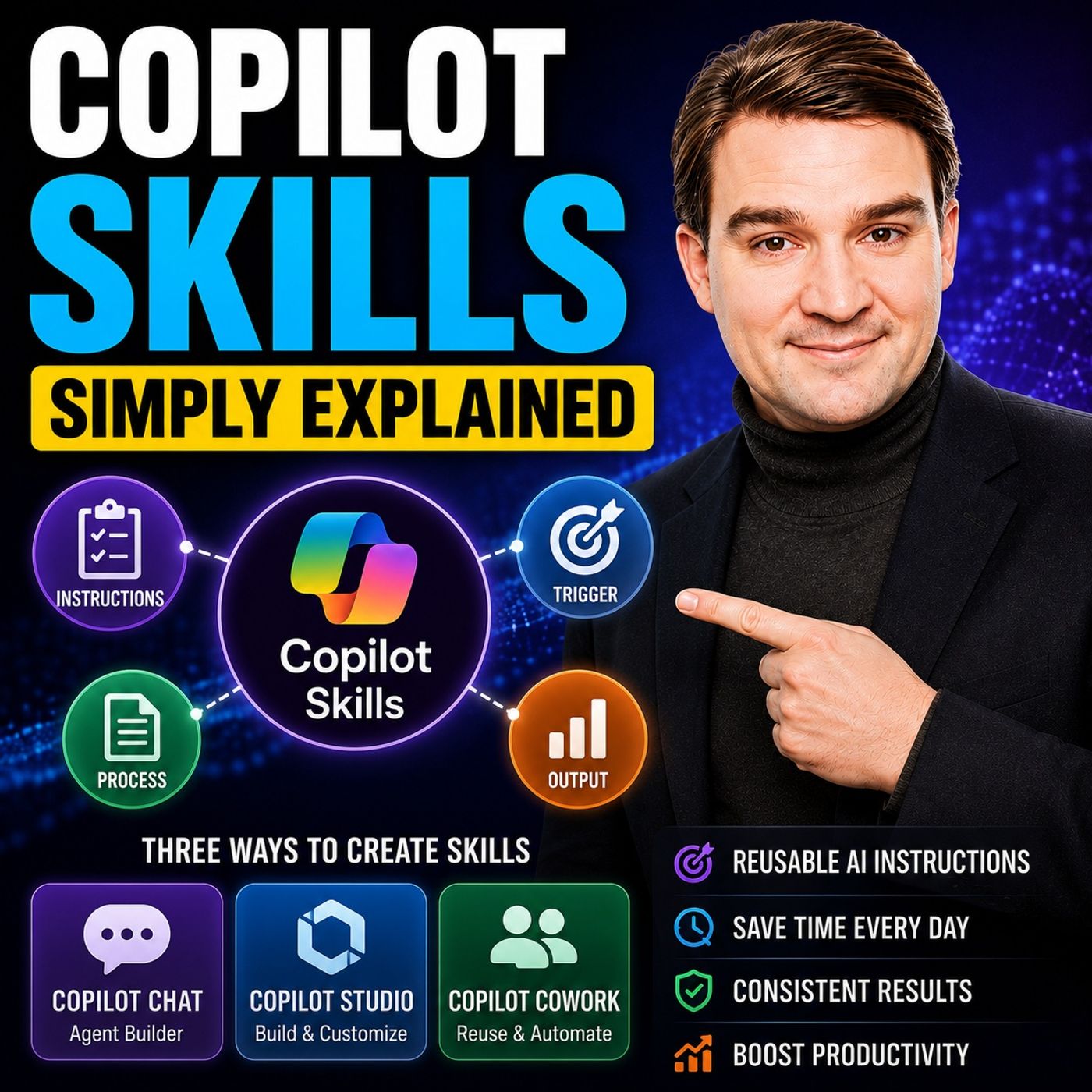
Copilot Skills are one of Microsoft's most important AI building blocks, yet they're also one of the most misunderstood. Depending on which Microsoft product you're using, the same concept appears under different names, making it difficult to understand where everything fits together. At its core, a Copilot Skill is simply a reusable set of AI instructions. Instead of repeating the same prompt every day, you teach Copilot how to perform a specific task once, and it can automatically reuse those instructions whenever the situation matches. Think of it as creating a specialist that knows exactly how to complete one job consistently every single time. WHERE COPILOT SKILLS LIVE Microsoft currently offers three different places to create and manage skills. The easiest starting point is Copilot Chat, where the Agent Builder allows you to describe a task in plain English and automatically generates a complete skill. No coding, markdown, or configuration is required. For more advanced scenarios, Copilot Studio provides complete control over skill files, workflows, templates, and even Python scripts. Finally, Copilot Cowork stores skills as markdown files inside your OneDrive, allowing reusable business processes to be managed like documents while also performing automated quality checks after creation. CREATING YOUR FIRST SKILL Building a skill is surprisingly simple. You describe the task you want Copilot to perform, such as transforming messy meeting notes into structured summaries with action items and decisions. Copilot generates the skill, including its name, trigger description, instructions, and expected output format. After a quick review and some testing, the skill is ready to use repeatedly without having to recreate the prompt each time. For most users, this no-code approach is all that's needed to begin automating repetitive work. COPILOT STUDIO FOR ADVANCED SCENARIOS Copilot Studio takes skills much further by allowing developers and power users to package reusable expertise alongside supporting assets. Skills can include markdown instructions, templates, reference documents, and even Python scripts that execute calculations or process uploaded data. Studio also introduces workflows for scenarios that require approvals, deterministic processes, and enterprise automation. This makes Copilot Studio ideal for organizations building production-ready AI solutions rather than simple personal automations. HOW COWORK USES SKILLS Copilot Cowork approaches skills as reusable business procedures. Skills are stored inside OneDrive, making them easy to edit, version, and reuse across common business scenarios. Whether generating customer profiles, preparing reports, or processing meeting transcripts, Cowork repeatedly executes the same structured process using predefined instructions and templates. After every skill is created, Cowork evaluates trigger quality, instruction clarity, and robustness to help improve reliability before the skill is used in production. BUILDING HIGH-QUALITY SKILLS The best Copilot Skills share several common characteristics. They have clear, descriptive names, precise trigger conditions, concise instructions, and well-defined output formats. Good skills also define rules, exceptions, and edge cases while avoiding overlap with similar skills that could confuse the AI. Like any AI solution, skills improve through testing and iteration. Small adjustments to instructions often produce significantly better and more consistent results. SKILLS VS. INSTRUCTIONS VS. WORKFLOWS Understanding the distinction between these three concepts removes much of Microsoft's terminology confusion. Instructions define the agent's overall behavior and are always active. Skills provide reusable expertise for specific tasks and activate only when appropriate. Workflows enforce structured business processes with approvals, conditions, and guaranteed execution order. Together, these three layers allow organizations to create AI assistants that are both flexible and predictable while remaining easy to manage. WHY COPILOT SKILLS MATTER Copilot Skills transform AI from a conversational assistant into a repeatable business tool. Instead of writing the same prompts over and over again, organizations can package expertise once and reuse it across projects, teams, and workflows. Whether summarizing meetings, creating reports, processing customer information, or automating repetitive documentation, skills provide consistent, reliable results while dramatically reducing manual effort. As Microsoft continues expanding Copilot across Microsoft 365, mastering Skills will become one of the most valuable ways to standardize AI-powered work throughout the enterprise. Become a supporter of this podcast: https://www.spreaker.com/podcast/m365-fm-microsoft-365-azure-cloud-power-platform-ai--6704921/support.
Apple Podcasts · Spotify · YouTube · YouTube Music · Deezer
Host: Mirko Peters
Related articles
Transcript
Read the full transcript
Welcome to another episode of Microsoft Knowledge Nuggets. I'm Merco Peters. Today's topic is one you've probably heard but might not fully understand. Copilot skills, you've heard the term. Maybe you've seen a button labeled skills or creator skill in some menu and you thought, what does that actually mean? Is it a chatbot? A template, some kind of automation thing. Here's the problem. Microsoft uses different names for the same idea depending on which product you're in. In Copilot chat, they call them agents. In co-work, they call them skills. And in Copilot Studio, they also call them skills, but with a slightly different meaning. It's confusing and honestly, it shouldn't be. By the end of this episode, you'll understand exactly what a copilot skill is, where it lives and how to create your first one, all in plain English. What a copilot skill actually is. Let's break it down with the simplest definition possible. A copilot skill is a reusable instruction set for AI. Think of it like writing a job description for a temporary worker. You wouldn't just say, do some work. You tell them the job, the schedule, the expected output and the rules to follow, same thing here. When you create a skill, you give Copilot three things. First, the skills name. Second, a description that tells Copilot when to trigger it, like, this task matches this skill. Third, the instructions themselves. The step-by-step process for the AI to follow. Here's the important part. A skill is not a chatbot that you sit and talk to. It's a specialist that only activates when needed. You don't have to turn it on or off. Copilot looks at what you're asking, checks for a matching skill and runs it automatically if there's a match. The best analogy I've found is a recipe card. You have the same ingredients and the same steps every time and you get the same result. That's a skill. Write the instructions once and every time Copilot runs that skill, you get the same structured output, consistent and repeatable with no guessing. Now here's where the confusion starts. Microsoft has placed skills in three different homes. Where skills live? So where do skills actually live? That's an important question because the home you pick determines how much control you get and how easy the setup is. Copilot gives you three different homes to create and manage skills and each one serves a different purpose. The first home is Copilot chat, specifically the agent builder inside it. This is your easiest path. You just describe what you want in plain English, name, description, instructions, everything and Copilot builds the skill for you with zero code and zero markdown. You don't write, you don't touch, you just talk and it builds. The second home is Copilot Studio. The builder's platform for when you need more hands on control. Skills here live as MD files, which are just text files with simple formatting, store the long side instructions and workflows. You can open them up, edit them directly, even add Python scripts if that's your thing. It's more powerful, but it's also more involved. Now the third home is Copilot Core Work and this one works a bit differently. Core Work skills are also MD files, but they live in your one drive under a specific folder structure, documents then Core Work then Skills. You can write a skill in plain text and upload it or use Core Work's built in tools to create one. Core Work even runs a quality check after creation to test whether your instructions are clear enough. Here's the thing, all three homes follow the same core concept. Instructions are trigger and an output format. The packaging changes, but the idea stays the same. Let me give you the quick comparison. Copilot chat is described and go. Simple, fast, no setup. Copilot Studio is built in control, more features, more complexity and Copilot Core Work is like training a coworker to handle a task for you. You describe the process once and it executes repeatedly behind the scenes. Let's start with the easiest one. Creating a skill right inside Copilot chat. Creating your first skill, agent builder. So you're in Copilot chat. First thing to find is the agent builder. Depending on your interface, it might be under a tab called agents or a button that says create. Microsoft moves things around sometimes, but look for the option that lets you describe what you want. That's your entry point. Let me walk you through a real example. Say you take meeting notes all day, you know the drill, messy bullet points, half finished sentences, action items buried inside paragraphs. You want Copilot to turn those into clean structured summaries. So you type something like this. Create a meeting notes skill that takes messy transcripts and turns them into structured summaries with action items and decisions. That's it, one sentence, no instructions to write, no output format to define. You just describe the job. Copilot takes that description and builds the skill for you. It writes the name, the description that tells itself when to use this skill and the step-by-step instructions. Then it presents everything for your review. You read through, make tweaks if you want and test it. Here's the process in four steps. You describe what you want. Copilot generates the skill, you review and adjust, then you test with real input. When you test, you'll see the output. A structured summary with sections for meeting title, date, attendees, key decisions, action items, discussion topics, and open questions. Everything organized exactly how you asked, with no formatting, no markdown and no code on your part. And here's the knowledge nugget. You do not need to write a single line of code or markdown. You don't even need to know what a markdown file is. You just describe the job and copilot handles the rest. It's the fastest way to create a skill. And for most beginners, it's all you'll ever need. Now, if you need more control, maybe you want to add a Python script or a custom workflow, that's when you move to copilot studio. Creating skills in copilot studio. Copilot studio is a different animal. It's built for people who want to get under the hood and it has three layers to know about. Instructions are always active. They shape how your agent thinks and responds, tone, role, default behavior. They run behind every conversation. Skills are called on demand. They're expert knowledge for specific, repeatable tasks and only activate when the trigger matches. Workflows are step-by-step processes with approvals and conditions. If you need a guaranteed outcome like routing something to a manager for approval before sending, that's a workflow. Skills in studio are packaged as MD files or markdown files, but they're more than just text. A skill can include scripts, templates, and examples all bundled together. You can attach a Python script for calculations, a word template for output, and reference documents, all inside one package. Here's the anatomy of a skill, MD file. At the top is the name, something clear and specific like expense calculator. Then a description that says when this skill should trigger. Use this when a user needs to calculate total expenses from receipt data. Then a section for when to use it and another for when not to use it. This prevents the skill from activating in the wrong context. Then the step-by-step instructions. Here's a real example. Say you want a skill that runs a Python script to calculate expenses from uploaded receipts. In co-pilot studio, you create the skill. MD file and package the Python script right alongside it. When the skill triggers, it runs the script, processes the data, and returns the result. The skill and code travel together. Use skills for repeatable expertise, tasks where the AI needs to think and adapt. Use workflows for strict order and approvals. Tasks where you can't afford variation. Skills are flexible. Workflows are rigid. Pick the right tool. And there's one more place, skills live, inside co-pilot co-work, and it feels different. Creating skills in co-pilot co-work. Co-work skills live in a different place than you might expect. They're stored as MD files in your one drive, under documents, then a folder called co-work. And inside that, a folder called Skills. That's where all your custom skills live. And you can open that folder to see every skill sitting there as plain text. There are two ways to create a skill in co-work. You can write it in plain text and upload it directly to that skills folder. Or you can use co-work's built in skill management tool inside the chat interface. You describe what you want, co-work creates the MD file and saves it to that folder automatically. After you create a skill, co-work runs a quality check. It tests trigger coverage, whether your skill activates when it should. It tests instruction clarity, whether your steps are specific enough. And it tests robustness. Whether the skill can handle edge cases, you get a report back with results. If something's weak, you know where to improve. Here's a real example. Say you're a real estate agent. After every scoping call with a buyer, you need to turn your notes into a structured one-pager. Budget range, must-haves, deal breakers, next steps. You do this every single time. So you create a skill called buyer profile assistant. You give it trigger phrases like create a buyer profile or summarize client call. You tell it to read the transcript, extract key information and fill a template. You attach your actual one-pager template so the output matches exactly what you need. Then you test it, you upload a call transcript and say, run the buyer profile assistant. Co-work activates the skill, reads the transcript and produces a summary in chat. Then you ask it to prepare the word doc. It pulls your template, populates every section, budget, must-have, deal breakers, next steps, and hands you a finished document. Same format every time, with no manual formatting or copy pasting. Co-work skills are built for background delegation. You're not sitting there chatting with the AI. You describe the process once, attach the templates, define the rules, and then co-work executes it repeatedly. You just drop in the inputs and get the outputs. Those same rules apply, whether you're in studio or co-work. What makes a good skill? We start with the very name of your skill. It needs to be readable to two completely different audiences, humans and AI. Humans need to see what the skill does at a glance. AI needs to find the right skill when a task matches. So go with precise descriptive names. Meeting notes summarizer beats note-taker every time. Buyer profile assistant works better than client helper. Clever names just confuse everyone involved. Next up, trigger phrases. This is how co-pilot knows when to activate your skill. Be specific about it. Don't say use this for meetings. Say use this when a user uploads a meeting transcript and asks for a summary. The more specific your trigger gets, the less likely the skill activates in the wrong context. And if a skill fires when it shouldn't, the output becomes useless real quick. Now let's talk about instructions. Here's the thing most people get wrong. Skills are called on demand. They're not always active. Every time the skill runs, it burns AI processing. So keep your instructions short and focused. Don't dump your entire company policy in there. Just the steps needed for that one specific task. Short instructions mean faster execution and lower consumption overall. Output format matters too. You want to tell the skill exactly how to structure its output. Give me a summary with these sections. Meeting title, date, attendees, key decisions, action items, open questions. If you have a template, a word doc or an Excel file, include it. The skill can use that template as a reference and match your existing format exactly. Rules and exceptions are where good skills separate from bad ones. Think about the edge cases. Always flag unclear items. Never remove people's names. If the transcript is too short, ask for more input. These rules prevent the skill from making bad assumptions. They act like guardrails that keep the output reliable. Avoid ambiguity at all costs. Don't create two skills with similar names or overlapping triggers. If you have a meeting notes skill and a meeting summary skill sitting side by side, co-pilot won't know which one to use. The AI will guess and sometimes it'll guess wrong. If two skills overlap, merge them into one. Keep your skill library clean and finally test and iterate. Run sample input through your skill. Check the output. Does it match what you expected? If not, refine the instructions. Add a rule. Clarify the trigger. Then test again. Skills improve through iteration. Not through getting it perfect on the first try. So skills are the specialized workers. Instructions are the background policy. Workflows are the strict processes. How do they fit together? The big picture. Skills versus instructions versus workflows. All right, let's tie everything together now because this is where people get tripped up. Instructions, skills and workflows are not competing ideas. There are three layers that work together and each one handles a different part of the job. Instructions are always active. They shape how your agent thinks and responds. Tone, roll, defaults, that's instructions. Think of it like the personality and ground rules. Be helpful. Use plain English. Never make up facts. That runs in the background of every single interaction whether a skill is active or not. Skills package, reusable expertise. They are called on demand for specific, repeatable tasks. And say, be helpful. A skill says when someone uploads a meeting transcript, do this exact series of steps. Instructions are the policy. Skills are the playbook. Workflows enforce deterministic processes. This is the strict one. Approvals, conditions, guaranteed outcomes. If you need something to happen in a specific order every single time. Like step one, extract data, step two, root to manager, step three, wait for approval before sending. That's a workflow. No variation. No AI improvisation. Just execution. Here's a real world example. To build an agent for your team, the instructions set the tone, helpful, professional, concise, a skill handles meeting notes. Takes messy transcripts and produces clean summaries. And a workflow routes that summary to the team lead for approval before it gets saved. Instructions shape the behavior, skills to the work, and workflows enforce the process. Now here's what matters for you as a beginner. Most people only need skills. Instructions come built in with any agent you create. They already have default behavior. Workflows are for advanced automation scenarios. If you're just starting out focus on skills, they give you the most value for the least complexity. And the naming confusion across all these products. It's just marketing. Microsoft calls them agents and chats, skills in co-work, skills in studio, different names, same core idea. Instructions plus a trigger plus an output format. Once you understand that, the product names stop mattering. Let's wrap up everything we've covered into one clear takeaway. A co-pilot skill is simply a reusable instruction set that turns your AI into a specialist for any task you do on repeat. It's the core idea, nothing more, nothing less. Here's where you start. Open co-pilot chat today and describe just one task you do every week, maybe a weekly report or a meeting recap. See what the agent builder creates, then test and refine it. You'll be surprised how fast it works. I hope this gave you a clearer picture of what co-pilot skills can do. If this episode helped you, subscribe on your favorite podcast platform and share it with a friend or colleague who's been confused by all the new terminology.