 EN
EN Deutsch
 Español
 Français
 Italiano
 Português
 Nederlands
 Polski
 Bahasa Indonesia
 Русский
 Українська
 العربية
 עברית
עברית हिन्दी
 日本語
日本語 한국어
한국어2026-08-20 · Season 3
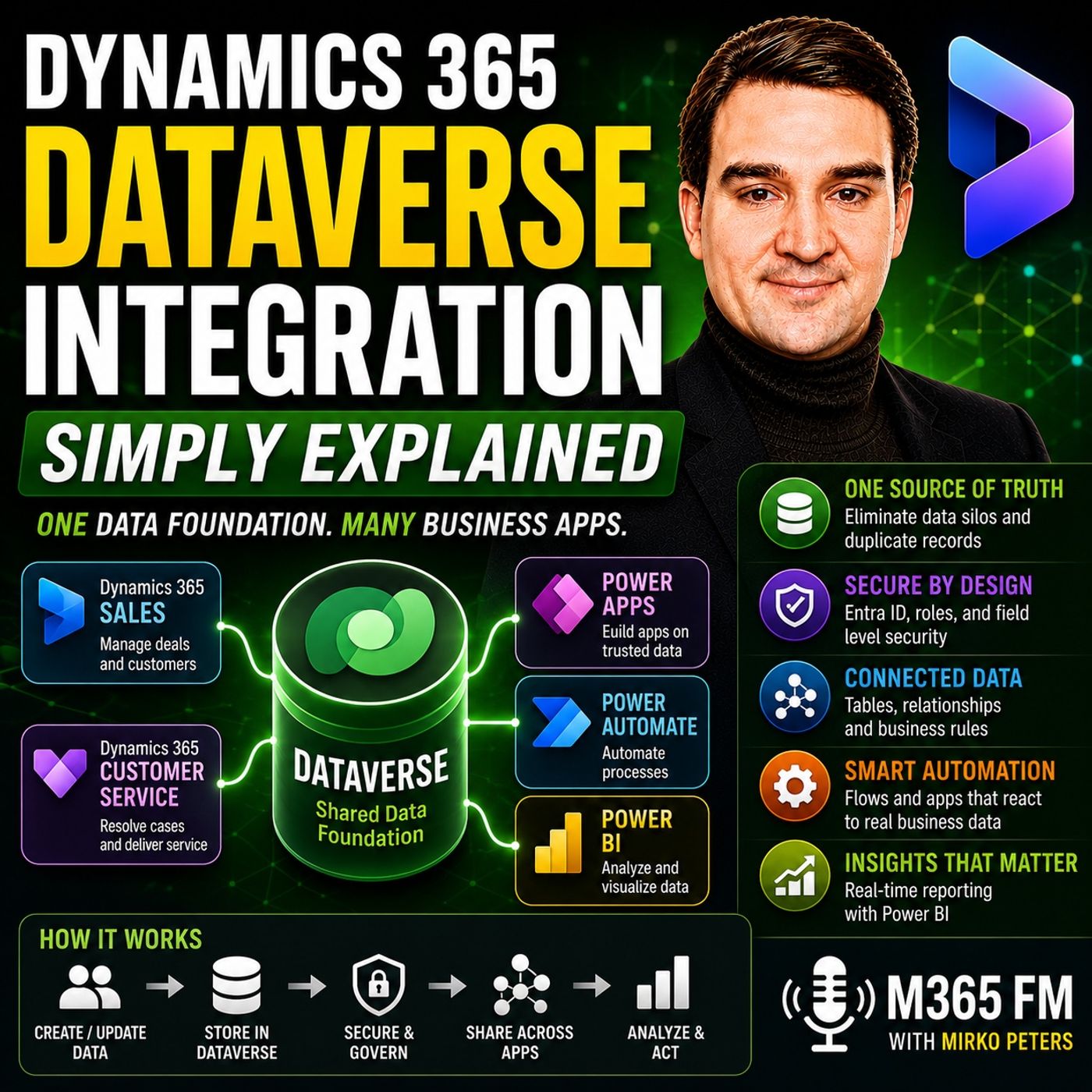
Dynamics 365 Dataverse Integration - Simply Explained
Show notes
Dynamics 365 Dataverse Integration is easier to understand once you stop thinking about Dynamics 365 and Dataverse as two completely separate systems that constantly need to synchronize customer data. For Dynamics 365 applications such as Sales and Customer Service, Dataverse provides the shared data foundation underneath the applications. Accounts, contacts, leads, opportunities, cases, activities, relationships, permissions, and business rules can all live within this structured environment. In this episode of M365 FM, Mirko Peters explains what Dataverse actually is, how Dynamics 365 uses it, and how the same business data can power Power Apps, Power Automate, Power BI, and other connected processes. WHAT IS MICROSOFT DATAVERSE? Microsoft Dataverse is Microsoft's cloud data platform for structured business information. Instead of keeping customer and operational data across disconnected spreadsheets, lists, emails, and applications, Dataverse provides a common place where approved business applications can work with structured information. Think of Dynamics 365 as an office building. Sales, Customer Service, and other applications are the rooms where employees work. Dataverse is the filing system, structure, and rules behind those rooms. The objective is to reduce unnecessary copies of the same business information and provide applications with a shared foundation. ONE CUSTOMER INSTEAD OF MULTIPLE COPIES Consider a company where Sales stores customer information in one system, Support maintains another customer list, Finance keeps another version, and additional information lives inside shared mailboxes and spreadsheets. When the customer's address or contact information changes, those copies quickly become inconsistent. With Dataverse, approved applications can work with the same customer information. A customer used by Dynamics 365 Sales can also provide context when that customer contacts Dynamics 365 Customer Service. Instead of asking which customer list is correct, teams can work around a shared reference point. DATAVERSE TABLES EXPLAINED Dataverse organizes business information into tables. An Account table can contain companies. Contacts can contain individual people. Leads represent potential customers, Cases can represent customer support requests, and Activities can represent calls, emails, appointments, and tasks. Microsoft provides standard tables for common business concepts, while organizations can create custom tables when they need to represent information specific to their business. A training company, for example, could create tables for courses and certificates, while a property company might create tables for buildings and inspections. ROWS AND COLUMNS Each table contains rows representing individual pieces of business information. One Contact row might represent a particular person. Columns then describe the information associated with that person, such as first name, last name, email address, phone number, job title, company, owner, and status. This structured approach gives information a predictable shape. Applications know what each value represents, reports can analyze it consistently, and automation can react when specific information changes. STANDARD VS CUSTOM TABLES Organizations should generally start with standard Dataverse tables when those structures already represent the business concept they need. Creating several custom tables that all represent slightly different versions of "customer" can recreate the same data fragmentation Dataverse is intended to reduce. Custom tables become valuable when the organization genuinely has business information that doesn't fit existing standard structures. The objective is a data model people can understand and reuse across applications. RELATIONSHIPS CONNECT BUSINESS INFORMATION Tables become significantly more useful when they are connected through relationships. A Contact can belong to an Account. A Case can connect to the customer who created the support request. An Opportunity can connect to calls, emails, appointments, and tasks associated with the sales process. Instead of repeatedly copying company information into every related record, relationships maintain connections between the information. If a company's address changes, the Account can be updated while related Contacts continue pointing toward the same company. TABLES, COLUMNS AND ROWS VS OLDER TERMINOLOGY Older Dynamics 365 and Dataverse documentation may use different terminology. What Microsoft now calls a table was previously commonly called an entity. A column was called a field, and a row was commonly called a record. Understanding both sets of terminology can make older documentation and training material easier to follow. ㅤ SECURITY STARTS WITH IDENTITY Shared information doesn't mean everybody should have access to everything. Microsoft Entra ID provides the identity used to determine who is working with Dataverse. Dataverse can then apply additional security controls governing what that person is permitted to do with business information. Think of Entra ID as the reception desk verifying who entered the building, while Dataverse security determines which rooms, filing cabinets, and information that person can access after entering. ㅤ SECURITY ROLES Security roles provide permissions associated with different jobs and responsibilities. Sales representatives might receive permissions for Accounts, Contacts, Leads, and Opportunities. Customer service agents might work with Cases without receiving the same permissions over sales opportunities. Permissions can govern operations such as reading, creating, updating, and deleting information. Because these controls exist around the underlying data, security doesn't need to depend exclusively on hiding buttons inside individual applications. ㅤ ROW AND COLUMN LEVEL SECURITY Access can become more granular than simply allowing or denying access to an entire table. Row-level security can determine which individual rows a person can access. A salesperson might only work with customers they own, while a sales manager can access customers belonging to the wider team. Column-level security can protect particularly sensitive information within an otherwise accessible row. This provides organizations with more control over who can access particular business information. ㅤ Become a supporter of this podcast: https://www.spreaker.com/podcast/m365-fm-microsoft-365-azure-cloud-power-platform-ai--6704921/support.
Apple Podcasts · Spotify · YouTube · Deezer
Host: Mirko Peters
Guests
Related articles
- Demystifying Microsoft Dataverse: Stop Thinking of It as a Separate System
- Dataverse Security Roles vs. Row-Level Security: Which Do You Need?
Transcript
Read the full transcript
Welcome to Microsoft Knowledge Nuggets, I'm Mirko Peters. Today's topic is one that often confuses people. What exactly is Dataverse? Is it a database, an app, or some hidden Dynamics 365 service that only IT people need to understand? Here's the simplest definition. Dataverse is the shared data foundation behind many Dynamics 365 experiences. Think of Dynamics 365 as an office building, sales, customer service, and other apps, other rooms where people work, while Dataverse is the filing system and the rules behind the walls. By the end of this episode, you'll know where Dynamics Data lives and how one customer update can appear in sales work, automation, and reporting. But before we jump into product names, let's start with the business mess this solves. One shared place. Instead of separate copies, imagine a company with a sales team, a support team, and a finance team. Sales keeps customer details in a spreadsheet, support works in a separate case tool. Finance has customer names in its own system. Someone else saves email threads in a shared mailbox, while another person keeps notes in a folder nobody else can find. The same customer now exists in five places. That set up feels normal at first, because each team only sees the part of the work in front of them. But here's the thing. As soon as a customer changes their phone number, address, company name, or main contact, the problem start. Sales updates the spreadsheet, support doesn't see it. Finance still sends documents to the old address. Then somebody exports a list, cleans it up by hand, emails it around, and suddenly three people, each believe their copy is the right one. Which list should you trust? That question waste more time than you might think. Staff stop to compare records. Managers ask why a report doesn't match the sales system. A support agent opens a case for a customer whose details are already sitting somewhere else, just slightly different. Nobody's trying to create a mess. The mess comes from copies. 20 years ago, separate systems meant separate servers, separate databases, and separate teams keeping their own information. Connecting them took custom work, scheduled imports, and a lot of manual checking. A change in one place might reach another system tomorrow, next week, or never. Dataverse gives business apps a shared place for this type of information. In plain English, dataverse is Microsoft's cloud data platform for business information. It stores that information, in structured tables. So the data has a clear shape, instead of living as random notes, loose files, and disconnected spreadsheet tabs. You can think of it as the company filing cabinet, but one that several approved tools can use it at the same time. A customer appears once in Dataverse. That customer can show up in Dynamics 365 sales when a salesperson works on a deal. The same customer details can appear in Dynamics 365 customer service when an agent handles a support request. A power app can use the same customer information for a field worker or account manager without someone copying the data into a new app first. One customer row, one shared reference point. This doesn't mean every team suddenly sees everything. Access still needs rules, and we'll get to that shortly. It means approved apps can work from the same business information, instead of building their own competing version of it. This is why Dynamics 365 and Dataverse fit together so naturally. Dynamics 365 apps such as sales and customer service use Dataverse to store and secure the data they work with. But here's the thing. When someone talks about integrating Dynamics 365 with Dataverse, they often imagine two separate products that need a connector between them. For many Dynamics 365 apps, that isn't the situation. The data already lives in Dataverse. You aren't pulling a customer list out of Dynamics 365, copying it into another database, and hoping both sides stay current. You can build on the same foundation using the same business information that Dynamics 365 already uses that changes the conversation. Instead of asking, how do we sync these two customer lists? You can ask which people and apps need to work with this customer record and what should each of them be allowed to do. Now Dataverse doesn't replace every system a company owns. A business may still use finance software, industry tools, warehouse systems, websites, or older applications that hold their own data. Dataverse isn't magic glue that removes every outside system overnight. What it gives you is a common place for the business data that connected apps need to share. Customer details, sales work, support work, tasks, and follow-ups. Those records can live together with one source that a proof tools can read and update. So open that filing cabinet with me. Once you see how Dataverse organizes the information inside, the whole Dynamics 365 connection becomes much easier to understand. The filing cabinet, tables, rows, columns, and relationships. Let's open that filing cabinet. Inside Dataverse information sits in tables. Think of it like a real cabinet with separate drawers out. One drawer holds companies, another holds people, and a third holds support requests. You don't throw every paper into one huge drawer and hope someone can sort it out later. Each drawer has a job. So in Dataverse, a table holds one type of business information and account table usually holds companies you work with. A contact table holds individual people. A lead table holds potential customers before they become real customers. A case table holds support requests, while an activity table can track work like calls, emails, appointments, and tasks. Those are standard tables. Microsoft includes them because most businesses need to keep track of customers, people, work, and conversations. You don't need to start by inventing a new table for something common when a standard table already fits the job, but every company has its own work to a training company might need to track courses and certificates. A property business may need buildings, units, and inspections. A manufacturer might track equipment checks or service visits. In those cases, you can create custom tables that match the work your company actually does. Think of a custom table as adding a new drawer to the cabinet, then giving it a clear label. Now each table contains rows. A row is one item in that drawer. For example, one row in the contact table could represent Maria Gomez, a person at a customer company. Her row holds her own details, separate from every other contact in the system. Columns describe the details you want to keep for each row. Maria's contact row might have columns for her first name, last name, email address, phone number, job title, company, record owner, and status. A column sets the type of information that belongs in that spot, so an email column expects an email address and a status column can hold the approved status choices. That's how business information gets a reliable shape. Without columns, one person might type a phone number into a notes box, another might add it to a name field, and someone else may not enter it at all. With a clear contact table, everyone works with the same set of details in the same places. That structure also helps apps understand the data. A form can show the right boxes, a report can group contacts by status, and an automation can react when an owner changes. The information isn't just stored out. It has labels that tell connected tools what each part means. Start with the standard tables whenever they match your business need. If you sell to companies, accounts and contacts already describe a pattern most people understand. If you handle customer support, cases give you a starting point. Then add custom tables only where your business has information that doesn't fit the built-in patterns. This avoids a common problem, creating five different tables that all mean customer. One team calls it client, another calls it customer master, a third calls it partner contact, IU, soon people can't tell which table they should use. Clear standard tables and carefully named custom tables keep the cabinet understandable as more people build on it. The next part is where those drawers begin to work together, a contact belongs to an account. Maria works for Contoso Looted. Instead of typing Contoso's address, main phone number, and company details into Maria's row again, data verse can create a relationship between the contact table and the account table. Maria links to Contoso, and that link matters because company information stays with the company. If Contoso changes office address someone updates the account row once every related contact can still point to the same company without carrying its own old copy. Relationships also connect a support case to the customer who raised it. They can connect a sales opportunity to the calls, emails, meetings, and tasks around that deal. When a salesperson opens an opportunity, they can see the activity connected to it rather than searching through unrelated notes and calendars. The information has context. You aren't just looking at a case number O, you can see which customer it belongs to. You aren't only viewing a contact AO, you can see the company connected to that person. Those links keep the data useful without repeatedly typing the same facts into several places. One small naming note before you read older guides or watch older videos. You may hear the words Entity, Field, and Record. Those are older data verse terms. Microsoft now uses table instead of Entity, column instead of Field, and Row instead of Record. The meaning hasn't changed. Oh, an older guide that tells you to create an Entity is talking about creating a table, a field is a column, and a record is a row. Knowing both sets of words saves you from thinking you found a different product. So tables organize the information and relationships connected, but a well-organized cabinet still needs controls. Someone must decide what people can enter, change, and safely access. The rules and reception desk. Behind the data share data only works when the right people can work with it safely. A sales rep needs customer details that support agent needs case history, a manager needs a wider view, and an external partner may only need access to a small part of the process. They shouldn't all see the same information. Think about a customer record with a private contact note, a negotiated price, and an open support case. Giving every user full access would create risk fast, restricting everyone so tightly that they can't do their job creates a different problem. Data verse gives you controls for this. The first control starts with Identity. When you sign in with your company account, Microsoft Entra ID identifies you. Think of Entra ID as the reception desk at the office entrance. You arrive, show your badge, and the receptionist checks who you are before you can enter. Data verse uses that identity to know which user is working with the data. It doesn't stop at asking, is this person allowed in? It also asks, what is this person allowed to do after they enter? That's where security roles come in. A security role is a set of permissions linked to a job or responsibility. You might create one role for sales staff, another for customer service agents, and another for managers. Each role can control access to a table. For example, a sales rep may be allowed to read, create, and update accounts, contacts, leads, and opportunities. They may not be allowed to delete important customer information. A support agent may create and update cases, but not change a sales opportunity. The permissions can cover reading, creating, changing, and deleting rows. That means access doesn't depend on somebody remembering which buttons to hide in every app. The permissions sit with the data itself. So the same guardrails apply wherever that data verse data appears, then you can narrow access even further. Role level security decides which individual rows a person can work with. A sales rep may only see the customers they own, while a sales manager can see the customer rows owned by everyone on their team. Both people use the same account table. They just don't see the same slice of it. That setup helps people focus on their own work while giving managers the view they need. It also reduces the chance that someone opens information about a customer they have no reason to access. Some information needs even tighter protection. Column level security can protect individual columns inside a table. Maybe a user can open a customer row but shouldn't see a person identify a salary figure, a bank detail or a private financial note. The customer row remains available for the work they need to do. The protected column stays restricted. For larger companies, business units can create boundaries between parts of the organization. A company may separate regions, divisions, or subsidiaries that work with different customer groups. Business units help shape how access works across those boundaries. This doesn't mean every business needs a complicated security map. A small team may only need a few clear roles. A larger company may need more layers because it's teams, regions, and responsibilities differ. The point is that databases can match access to how the business actually works. Access control protects who can reach the data, but rules also protect the quality of the data itself. A business rule can require someone to enter a phone number before they save a new contact. It can check a condition such as requiring a reason when a case closes. It can also change what users see based on the information they enter. The same rule applies across apps that use that table. This matters because you don't want one app accepting incomplete data while another app rejects it. The rule belongs with the business information, not with one screen that happens to show it. Dataverse can also run logic behind the scenes to help keep business processes consistent. The detail you need to remember is simple. The data comes with rules, not just storage. So the foundation includes the information, the people allowed to work with it, and the rules that keep it usable. Once Dynamics 365 works on that same foundation, it doesn't need a traditional bridge just to reach its own business data. What ODynamics 365 integration is? Actually means most people here, ODynamics 365 integration with Dataverse O, and they picture two separate systems joined by a connector. One system holds the customer data, another system needs a copy, so someone sets up a sync, waits for it to run, and hopes nothing fails along the way. That picture makes sense for a lot of business tools. But here OTMS is the thing for Dynamics 365 sales and Dynamics 365 customer service, the connection is much closer than that. These apps use Dataverse as their shared data foundation. They are notemt separate databases passing customer roles back and forth just to understand each other. They work from the same business information from the start. The TaoTems make it concrete. Imagine you ODM-ree, a salesperson, and you create a new company in Dynamics 365 sales. You add the main contact and you start working on a possible deal. Those details immediately become part of the shared data that the app uses. Later, that customer contact support. The support agent can work with the exact same company and contact details. No one has to export a list from sales or create the customer again inside a separate support tool. The agent simply connects the support case to that customer and sees the history that helps them understand what OU, TMS going on, sales sees the deal, supports sees the case, and both teams work around the same customer. Now that does notemtime, every screen looks identical or every team follows the same process. Sales needs leads, opportunities, calls and meetings. Customer service needs, cases, queues, and service history. Each Dynamics 365 app gives people tools built for their job. While the business information underneath can connect wherever it needs to, that shared foundation is what people often mean when they talk about Dynamics 365 and Dataverse integration. It is notemtmainly about moving data from point A to point B. It TaoTems about apps working with the same rows, relationships, rules, and access controls from the start. Later, it says walkthrough a simple sales journey. A lead comes in from a website or an event. A salesperson works with that lead, learns more about the person, and turns the lead into a customer relationship and an opportunity. Calls, emails, appointments, and tasks can all connect to that work. So the team does notemtime need to hunt through separate tools to piece the story together. If the customer later needs help, a support case can connect back to that same customer. The support agent does notemtime that just see a name and email address. They can work in context with the customer relationship already identified. Meanwhile, the sales team can see that the customer has an open service issue and avoid walking into a renewal conversation without knowing their old terms of problem. One customer relationship can support different kinds of work that is much more useful than simply keeping a matching customer name in two systems. You might also hear the phrase common data model. Sometimes shortened to CDM, dono samt let the name make it sound more mysterious than it is. It simply means Microsoft provides common business table patterns for things many companies track, such as accounts, contacts, activities, and cases. These patterns give Dynamics 365 and Dataverse-based apps a shared starting language, an account means a company, a contact means a person. An activity tracks work around a business relationship. You can adjust the setup for your company and add your own tables when needed, but you don't know Tim's deal to begin with a blank sheet every time. When one app understands an account table and another app uses that same table, both apps refer to the same type of business information. This also changes what you can build. Suppose your field team needs a simple app to look up a customer, confirm a visit, and add a note after the appointment. You can build a power app that works with the same Dataverse tables already used by Dynamics 365. There's no need to export the customers into a new list just for that app. The field worker opens the app, finds the customer, and updates the visit information. The data stays connected to the customer relationship that sales or customer service already uses, subject to the security rules we covered earlier. For more structured business work, you can build a model-driven app. A model-driven app starts with the data model. You choose the dataverse tables, define their relationships, setup forms and views, and apply security roles. Power apps then uses that structure to create a working business app experience. Think of it like arranging a workbench around the tools and materials your team actually uses. The tables describe the work, relationships connect the pieces. Forms give people a place to enter and review details. Views help them find the rows that need attention. Security decides what each person can open or change. A model-driven app can sit alongside Dynamics 365 because both work with Dataverse. Maybe Dynamics 365 sales handles the full sales process, while a smaller model-driven app gives contract managers a focused place to track customer agreements. Both can work with related customer data without creating a second customer database. Of course, that access still needs care. Just because an app can work with a Dataverse table does note a team ad, mean every user should edit every row or see every column. The role, row access, and business rules still control what happens. A field app can give someone exactly the customer details and actions they need without exposing the rest of the company our TM is data. So Dynamics 365 integration with Dataverse is now TMFT, a cable connecting two distant rooms. Dynamics 365 apps, custom apps, and business processes can all work from the same shared foundation. Once you see that, the next question becomes clear. What else can use that same customer update across Microsoft, out TM, is connected platform? How the connected platform works in real work? A shared customer update becomes useful when the tools around it can respond. Power automate handles the follow-up work by watching for a change in a Dataverse row and starting an action when that change happens. For example, a new lead enters Dynamics 365 sales. A flow can notify the assigned salesperson, post a message in Teams, or create a follow-up task. Nobody needs to watch a shared inbox all day. The lead changes and the next step starts automatically. Power automate does now, TMI-T, need a separate copy of the lead just to do that work. It can react to the row in Dataverse using the same customer and ownership details the sales app uses that keeps the automation close to the business process instead of relying on someone to export a file and start a manual chain of emails. Then there is Power BI, a sales manager may want to see the current pipeline. A customer service manager may need to see how many cases arrive this week, which cases remain open or which customers contact support most often. Power BI can report on Dataverse business data, so those Teams can see the work taking place without building fresh spreadsheet exports every Friday afternoon. The report draws from the business data people already use. That means a pipeline chart can change as opportunities move forward. A case dashboard can show current workload as agents update cases. The point is now TMI-T that a dashboard replaces people checking the details. It gives them a clear review of the work before they decide what needs attention. Power Apps adds another path into the same process. Imagine a field worker arriving at a customer's site. They don't know to meet the entire Dynamics 365 sales experience. They may only need to find the customer, review the visit details, confirm what happened, and add a note or photo. A focused Power App can give them that smaller experience. An account team might need an app for reviewing customer agreements. A manager might need a simple app for approving a request. Each app can focus on one job while working with the same controlled dataverse information behind the scenes. The person sees the tool that fits their day, the business keeps the connected information. Sometimes that information begins outside dataverse. A company may have a list from an online source that needs to become part of its business data. Power Query can bring data in from supported online sources, clean it up during the import, and load it into the right dataverse table. This is useful when an outside source holds information, your Dynamics and Power Platform tools need to use. You still need to decide what belongs in dataverse and how it should connect to the existing tables. Importing data without that thought simply moves the confusion into a new location. Later, our teams put the pieces into one everyday flow. A new lead enters Dynamics 365, an assignment rule checks who should own that lead, perhaps based on region or product. The owner receives a team's message through a Power Automate flow, so they know there is work waiting. As the salesperson updates the lead and moves it through the sales process, the Power BI dashboard changes to show the team our team's current pipeline. One update starts useful work in several places. Power Automate moves work from one step to the next. Power BI helps people see the work. Power Apps give specific teams a focused way to take part. Dataverse keeps the business information organized and secure, while those tools do their jobs. That difference matters. Automation is no timetary the filing system, and a dashboard is no timetary the customer database. Each tool has a separate job, but they can all work from the same source. Knowing that helps you choose the right tool instead of treating every spreadsheet or simple list like it should run an entire business process. When Dataverse fits and what it doesn't replace, here's the thing. Choose Dataverse when multiple people and apps need to work with connected business data. You need clear access rules and repeatable processes. Dataverse handles that, but it doesn't replace everything else. Excel is still your go-to for personal analysis and quick lists. SharePoint lists work well for simple team tracking. And if you're a developer who needs deep control, SQL remains a strong choice. So when does Dataverse truly fit when your data needs to connect across Dynamics 365, Apps Automation and Reports without creating another copy? That's where it shines. No. Conclusion. One Foundation, many business tools. So here's the bottom line. Dynamics 365 and Dataverse work best when all your data, rules, security, Apps Automation and Reports share one common foundation. Subscribe to Microsoft Knowledge Nuggets on M365, FM for more plain English guides to Dynamics 365, Power Platform and Microsoft 365. Then watch our episode on Model Driven Apps to see how Dataverse tables turn into a working business app.