 EN
EN Deutsch
 Español
 Français
 Italiano
 Português
 Nederlands
 Polski
 Bahasa Indonesia
 Русский
 Українська
 العربية
 עברית
עברית हिन्दी
 日本語
日本語 한국어
한국어2026-08-21 · Season 3
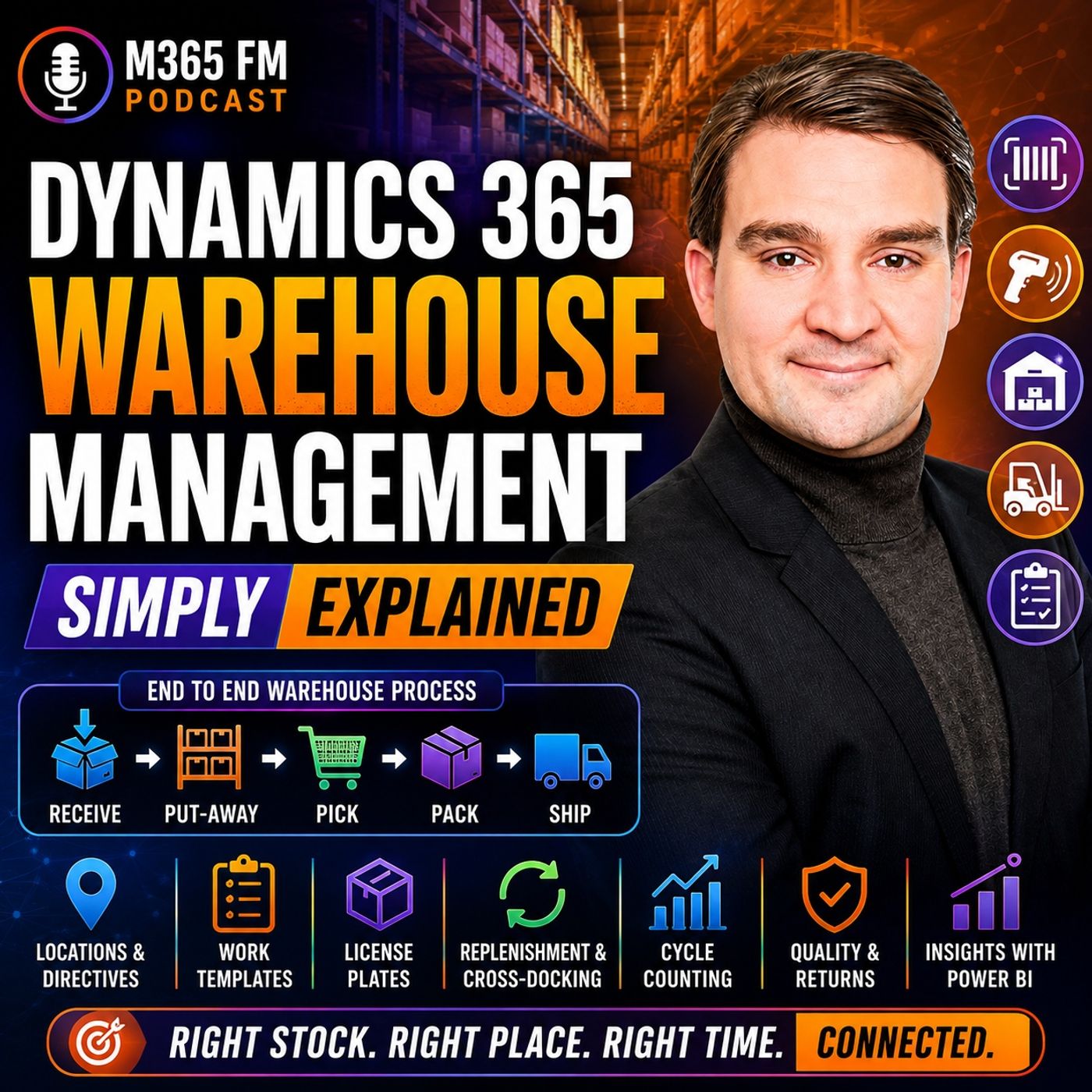
Dynamics 365 Warehouse Management - Simply Explained
Show notes
Dynamics 365 Warehouse Management turns inventory records into guided physical work on the warehouse floor. Knowing that 200 units exist is only the beginning. Warehouse teams need to know exactly where those units are stored, whether they are available, which customer orders they belong to, and what workers should do with them next. In this episode of M365 FM, Mirko Peters explains how Dynamics 365 Warehouse Management connects receiving, put-away, storage, replenishment, picking, packing, shipping, cycle counting, returns, quality management, barcode scanning, and warehouse automation with the wider Dynamics 365 Supply Chain Management platform. WHAT IS DYNAMICS 365 WAREHOUSE MANAGEMENT? Dynamics 365 Warehouse Management focuses on the physical work taking place inside a warehouse. It guides employees through receiving deliveries, moving products into storage, replenishing picking locations, picking customer orders, packing shipments, and preparing goods for dispatch. Each completed warehouse action can update the same connected business system used by purchasing, sales, production, inventory, quality, transportation, and finance. Instead of relying on paper lists or recording movements later, warehouse employees can confirm activities while they happen using mobile devices and barcode scans. INVENTORY MANAGEMENT VS WAREHOUSE MANAGEMENT Inventory Management and Warehouse Management solve related but different problems. Inventory Management answers questions such as: How much inventory does the company have? What is it worth? Is it available? Warehouse Management focuses on questions such as: Where exactly is that inventory, and what should a warehouse worker do with it next? Knowing that 200 boxes exist in Warehouse A isn't enough for efficient warehouse operations. Employees need to know that 80 are in one rack, 60 are in bulk storage, 20 are near packing, and another quantity is already reserved. Inventory Management provides the stock record. Warehouse Management converts that information into physical work. SITES, WAREHOUSES AND LOCATIONS Dynamics 365 needs a digital representation of the physical warehouse environment. A site can represent a broader business location such as a factory campus or distribution center. A site can contain one or more warehouses. Inside those warehouses are individual locations representing receiving docks, racks, shelves, bins, packing stations, staging areas, and quarantine areas. This hierarchy gives inventory a precise digital location rather than simply recording that the product exists somewhere inside a building. BATCH AND SERIAL NUMBER TRACKING Warehouse Management can maintain additional information about individual products. Batch numbers identify groups of products from the same production run or delivery. This becomes particularly important for food, pharmaceuticals, chemicals, and other products requiring traceability. Serial numbers identify individual units. Machines, laptops, and high-value components can therefore maintain their individual identities as they move through the warehouse and eventually reach customers. This creates a traceable history that can become valuable for returns, quality problems, servicing, and recalls. LICENSE PLATES EXPLAINED A warehouse license plate isn't a vehicle registration. In Dynamics 365, a license plate provides a unique identifier for a pallet, carton, tote, or another container. Think of it like a luggage tag. Scanning the identifier tells Dynamics which container the worker is handling and what that container contains. Instead of scanning every individual box on a pallet repeatedly, employees can work with the license plate representing the complete pallet when the underlying inventory record is accurate. RECEIVING INBOUND GOODS Warehouse activity frequently begins with a purchase order. The purchase order tells the organization which products it expects from a supplier, the expected quantities, and usually the expected arrival time. When the truck reaches the warehouse, employees can scan the products or pallets and compare the physical delivery with the expected purchase order. If 100 cases were expected but only 98 arrived, the discrepancy can become visible immediately instead of waiting for somebody to manually enter paperwork later. QUARANTINE AND QUALITY CONTROL Not everything entering a warehouse should immediately become available. Products might require inspection, testing, or approval before they can be used or shipped. Dynamics 365 can direct those goods toward quarantine locations. The inventory physically exists inside the warehouse, but employees cannot treat it like ordinary available stock. Once the appropriate quality process has been completed, the products can either be approved for normal use or rejected and handled appropriately. PUT-AWAY After receiving, products need somewhere to go. This process is called put-away. Instead of asking workers to decide where a pallet should fit, Dynamics 365 can direct them toward an appropriate storage location. The decision can consider the product, warehouse zone, physical size, storage requirements, available space, and intended use of the location. The worker receives a straightforward instruction while the underlying warehouse configuration handles the decision logic. LOCATION DIRECTIVES Location directives are the rules Dynamics 365 uses to determine where inventory should go or where inventory should be picked from. Heavy inventory might need a ground-level rack. Fast-moving products might belong close to packing areas. Temperature-sensitive products may only be stored in approved locations. Location directives translate these warehouse policies into executable instructions. Instead of expecting every employee to memorize every storage rule, Dynamics can determine an appropriate location and present that destination through the worker's device. WORK TEMPLATES Work templates determine the steps employees need to perform. For inbound inventory, a work template might contain two straightforward steps: pick the inventory from the receiving location and put it into its designated storage location. For outbound operations, templates can define picking, movement to packing, and staging. These repeatable workflows help create consistent warehouse processes across employees and shifts. MOBILE DEVICES AND BARCODE SCANNING Warehouse employees can receive instructions directly on mobile devices. The device can ask the worker to scan a location, scan a product, confirm a quantity, and proceed to the next step. These scans create immediate validation. If somebody scans the wrong product while picking a customer order, the system can identify the problem before the incorrect item reaches the customer's package. The scan also updates the warehouse record while the physical activity occurs rather than requiring information to be entered later. REPLENISHMENT Many warehouses separate bulk inventory from smaller locations used for daily order picking. When a picking location begins running low, employees need to move additional inventory from bulk storage before somebody encounters an empty shelf while fulfilling an order. Dynamics 365 can create replenishment work directing employees to move inventory into the appropriate picking location. This turns replenishment into planned warehouse activity rather than an emergency search for missing products. OUTBOUND WAREHOUSE MANAGEMENT Outbound warehouse activity begins when customer demand needs to become a physical shipment. A sales order identifies what the customer ordered and how much they require. Inventory can be reserved for that order so the same limited stock isn't accidentally promised to somebody else. Warehouse Management then converts the requirement into physical activities such as picking the products, moving them to packing, preparing containers, staging the shipment, and eventually moving the goods toward the loading dock. WAVES EXPLAINED Large warehouses don't necessarily process every customer order independently. Dynamics 365 can use waves to group outbound work. Orders might be grouped because they leave on the same truck, share a delivery date, belong to a similar warehouse zone, or follow another operational rule. Grouping work can reduce unnecessary movement and help warehouses process large quantities of orders more efficiently. PICKING CUSTOMER ORDERS Once warehouse work is released, employees receive picking instructions. The mobile device can direct someone toward the appropriate location, ask them to scan the location, verify the product, and confirm the quantity. This creates several validation points before the product leaves its storage location. Instead of relying on a paper list and discovering errors at the end of the process, Dynamics can identify some mistakes while the worker is still standing at the shelf. CLUSTER PICKING Cluster picking allows one employee to pick products for several customer orders during a single journey through the warehouse. The worker might use a cart containing multiple totes, with each tote associated with a different order. When an item is picked, the mobile device tells the employee which tote should receive it. This can reduce unnecessary walking while keeping products belonging to different customer orders separated. Become a supporter of this podcast: https://www.spreaker.com/podcast/m365-fm-microsoft-365-azure-cloud-power-platform-ai--6704921/support.
Apple Podcasts · Spotify · YouTube · Deezer
Host: Mirko Peters
Guests
Related articles
Transcript
Read the full transcript
You click OB-NoWal for one item, but someone still needs to find that exact item, among hundreds of shelves, confirm it out, meets the right one, and get it onto the right truck. A spreadsheet can tell you that 50 units exist somewhere. It can automate guide a worker through a busy warehouse floor, while stock moves every minute. That outams, where Dynamics 365 Warehouse Management comes in. It acts like a digital guide behind the warehouse floor, directing the work from the moment goods arrive until an order leaves the loading dock. By the end you, to understand receiving, storage, picking, shipping, and how all that warehouse activity connects to the rest of the business. Why Warehouse Management Exists? Imagine a busy library where every book arrives on a pallet, moves between rooms, and may need to leave for a reader within an hour. The books are products, the shelves are storage locations, the library staff need more than a rough idea of where things belong. They need to know the exact shelf, the exact spot, and whether someone already promised that book to another reader. A warehouse has the same problem, except picking the wrong book can mean shipping the wrong customer order. For a long time, warehouse teams handled much of this work with paper pick lists, manual counts, and separate systems. A worker wrote down what they moved, then someone entered that information later at a computer. Stock could leave a shelf at 9 o'clock in the morning, while the system still showed it there at lunchtime. That delay creates confusion. The purchasing team asks what arrived from a supplier. Sales asks whether an item can still ship today. A warehouse manager asks where a pallet sits, finance needs to know what stock the business owns. If every team sees a different answer, people start checking spreadsheets, walking the floor, and calling each other. Work slows down fast. Dynamics 365. Supply chain management connects the wider flow of goods across a business. It covers buying from suppliers, making products, moving stock, selling to customers, handling returns, and more. Warehouse management sits inside that connected platform and focuses on the physical work inside the warehouse. It tells workers what to do next. A worker can receive a delivery. Another worker can move products into storage. Someone else can pick customer orders, pack boxes, and prepare a shipment. Each action records in the same business system, while it happens. That shared record changes the conversation. Instead of asking, "How did anyone move those parts?" "Oh, you can see the warehouse task. It's status and the stock position." Instead of sending a printed list and hoping it comes back with good handwriting, the worker follows steps on a mobile device and confirms each action with a scan. Our people often mix up inventory management and warehouse management because they sound almost identical. Inventory management answers, "Oh, how much stock do we have?" "Oh, it tracks quantities, costs, product details, and availability across the business." Warehouse management answers a different question. Where exactly is that stock? And what should a worker do with it next? Oh, knowing you own 200 boxes of a product is useful. Knowing that 40 boxes sit at the receiving dock, 120 sit in bulk storage, 20 sit in a picking area and 20 are already reserved for customer orders is what helps the warehouse run. So think of inventory management as the stock record. Warehouse management turns that record into guided physical work. A delivery truck has just arrived at the loading dock. The supplier expects someone to unload it, but the real work starts when the system decides where every item should go. The warehouse map. Sides, warehouses, locations, and stock details. Before anyone can manage stock, the system needs a map of the physical space. Think of a site as the wider business place, such as a factory campus, a distribution center, or a regional operation. Inside that site, you can have one or more warehouses. A warehouse might mean an entire building, but it can also mean a separate storage area inside the same building. You may keep raw materials in one warehouse, finished products in another, and returned goods in a third, then come locations. A location is the exact place where work happens, or stock sits. It could be a receiving dock, a rack, a shelf, a bin, a packing table. It could also be a quarantine area where products wait for inspection. This level of detail removes guesswork. Imagine a product called Blue Widget 100. Without location control, the system might only tell you that 200 units sit in warehouse A. A worker still has to search for them, which is not much better than asking somebody who remembers seeing them last week. With warehouse management, the record can show that 80 units sit in aisle 4, rack B, shelf 03. Another 60 sit in bulk storage. The rest may sit near the packing area, ready for open orders. Every product starts with its own identity. That includes an item number, the unit used to count it, and the rules that apply to it. You might count bottled water by cases, bolts by pieces and floor tiles by pallets. Some products need special storage rules because they are heavy, fragile, cold, or fast moving. The system can track stock through several details at once. It can track the site, warehouse, and location. When needed, it can also track a batch number, a serial number, or a license plate. Each detail answers a different question about the same physical product. A batch number group items that came from the same production run, or delivery. This matters for food, medicine, chemicals, and other goods where you may need to trace a problem back to a specific group. A serial number identifies one individual item. If you sell a machine, a laptop, or a high-value part, you may need to know exactly which unit arrived, where it moved, and which customer received it. That creates a clear trail when an item fails or needs to come back. Then the items the license plate. Despite the name, it has nothing to do with trucks. A license plate is a unique ID for a pallet, carton, tote, or other container. Think of it like a luggage tag at an airport. You scan the tag, and the system knows which container you mean and what it holds. A worker does not need to scan every box on a pallet one by one if the pallet already has a license plate with the right contents attached to it. That saves time, but only when the record stays accurate. So when people talk about on-hand stock, they don't know to mean to only a total number. The system can show how much stock exists, where it sits, whether it is available to use and which batch, serial number, or container it belongs to. Some stock may physically sit in the warehouse, but remain unavailable. It could be damaged, it could wait for inspection, it could belong to a customer order. The system keeps those differences clear, so a worker does not make accidentally pick something that should know, mate, leave the building. Once this map exists, a truck can arrive, workers can scan what comes off it, and Dynamics 365 can turn those storage rules into the next piece of work. Inbound work. From delivery truck to the right shelf. A delivery does not begin with a truck arriving. It begins earlier with a purchase order. A purchase order tells the business what it expects from a supplier, which products should arrive, how many, and usually when. When the truck reaches the dock, the warehouse team can compare the physical delivery with that expected record instead of receiving boxes with no clear destination. The worker scans the product or scans the pallet out TM's license plate and confirms the quantity that arrived. If the supplier sent 100 cases but only 98 come off the truck, the difference appears straight away. Nobody needs to wait until someone types notes into a computer at the end of a shift. The business can see what arrived and what is still missing. Sometimes receiving involves more than a quantity check. A food supplier may deliver products from a batch that needs checking, a manufacturer may receive parts that need approval before they reach the production floor. In those cases, Dynamics 365 can send the stock to a quarantine location. Quarantine means the goods remain physically in the building, but workers can't use or ship them as normal stock. The quality team can inspect the products and approve them, reject them, or record a problem. Until that decision happens, the warehouse system keeps the stock away from regular work. That stops an unapproved pallet from quietly finding its way into a customer order. Once the stock passes receiving, it needs a home. This step is called put away, rather than leaving a worker to decide where a pallet might fit. The mobile device can direct them to a specific location. It might tell them to take the pallet from the receiving dock to a bulk rack, a cold storage zone, or a pick location near the packing area. The system makes that choice through location directives. That name sounds technical, but the idea is simple. A location directive is a set of rules that answers, "Oh, where should this item go now?" "Oh, the rules can consider the product, its size, its storage needs the warehouse zone, space limits, and the location or termis purpose." Heavy stock may go to a ground level rack. Small, fast moving items may go into a bin close to where workers pick orders. Stock that needs cooling can only go to approved cold storage locations. The worker sees the result as a clear instruction, not a page of warehouse rules. Work templates shape the job itself. Think of a work template as a repeatable job card inside the system. For a supplier delivery, it might create two steps. Receive the stock at the dock, then put it away in the location chosen by the rules. The mobile device presents each step in the right order, and each scan confirms that the step happened. That consistency matters when different people work different shifts. A new team member does not need to remember every storage rule. The device asks for the right scan, shows the next task, and records the movement. Workers can see whether the stock still waits at the dock, travels to storage, or already sits in its assigned location. But storage areas can create a new problem. Many warehouses keep large amounts of stock in bulk locations, while smaller pick locations hold only the amount workers need for daily orders. When a pick location starts to run low, the warehouse needs more stock before someone reaches an empty shelf. This is replenishment. Dynamics 365 can create work that tells a worker to move stock from bulk storage into the pick location. It is a planned refill, not a last minute search for products after an order is already waiting. Goods can also arrive through routes other than a supplier purchase order. A transfer order moves stock from one warehouse or side to another. A production order can create finished goods that need receiving into storage after the factory completes them. In each case, the warehouse uses the same basic pattern. Confirm what arrived, apply the right rules, and direct it to the correct place. Now the stock is stored, checked, and ready for work. That only pays off when the warehouse can find it again for the customer who ordered it, the master side. Outbound work from customer order to the loading dock. A customer order starts the outbound side of the warehouse. The sales team records what the customer wants, how many units they need, and when the order should leave. That order enters the same connected platform as the stock record, so the warehouse does not need to work from a separate emailed list. Before picking starts, the business may reserve stock for that order. Reservation means the system sets specific stock aside on paper, so another order cannot claim it. If only 10 units remain, and one customer already ordered all 10, the warehouse and sales team can see that those units are spoken for. That avoids a very awkward conversation later, the order still needs physical work. Somebody must walk to the right location, take the right item, confirm the quantity, pack it, and move it to the loading dock. Dynamics 365, warehouse management turns the customer order into those steps. For busy warehouses, orders often do not release one at a time. Instead, the warehouse can create a wave. A wave is a planned group of orders that the team wants to process together. Maybe all orders leave on the same truck. Maybe they share a delivery date, a warehouse zone, or a customer route. The system groups that work before people begin picking, think of a wave like preparing a group of errands before you leave home. You do not drive to the supermarket, return home, then leave again for the pharmacy if both are on the same route. You group the work so people spend less time walking and more time completing orders. Once the warehouse releases a wave, the system creates work. That work follows rules chosen during setup. It might create a pick task first, then a task to move the items to a packing area, and finally a task to stage the finished shipment at the correct dock door. A worker sees the next action on a handheld device rather than trying to interpret a long paper list. The device can ask the worker to scan the location first. That confirms they reach the correct shelf or bin. Next they scan the product, then they confirm the quantity. If the worker scans the wrong item, the system can stop the task before that item reaches the box. Small checks prevent large mistakes. For a simple order, one person might pick every item for one customer and bring it to packing. But a warehouse with many small orders may use cluster picking instead. Cluster picking lets one worker collect items for several orders during the same trip through the warehouse. The worker may use a cart with separate totes each linked to a different order. When they pick an item, the device tells them which tote receives it. That means one walk through an aisle can help fill several customer orders without mixing those orders together. After picking, the items move to packing. Packing confirms what enters each box, cart and or pallet. The warehouse can record the container that holds the goods, print labels, and prepare the shipment for collection. This step matters because the customer does not receive a warehouse task. They receive a package and that package needs the right contents and the right delivery details. Some goods never need a long stay on a warehouse shelf. Imagine a customer waits for a product that arrives from a supplier that morning. Rather than receiving it storing it in bulk and picking it again later, the warehouse can use cross-talking. Cross-talking directs incoming stock toward an outbound shipment with little or no long-term storage in between. Less handling means fewer chances to play something in the wrong spot. The shipment then reaches the staging area and loading dock. When the warehouse confirms the outbound work, Dynamics 365 updates the wider order process. Stock no longer appears available in the same way. The sales order moves forward and transport-related work can use the shipment details. This is not just a box leaving a building, the warehouse action connects to the customer promise, the stock record, and the next steps needed to get that order onto the right vehicle. But customer orders are only part of daily warehouse life because stock also needs attention while it waits. Daily control, moving, counting, and protecting stock stock does not stay still just because it has reached a shelf. A warehouse may move products because a pick area needs space, a fast-selling item needs to sit closer to packing, or a bulky pallet needs to leave a temporary area. Dynamics 365 records these internal movements, so the system continues to match the physical warehouse after each move. Without that record, the item may exist in the system, but disappear for the worker who needs it. Counting matters for the same reason. Most people picture a stock take as a full shutdown, with staff counting every shelf and every bin while normal work stops. That can happen, but many warehouses use cycle counting instead. They count selected locations or selected products on a regular schedule while the rest of the warehouse keeps moving. Maybe one aisle gets counted this week, maybe fast-moving items get counted more often because they change hands all day. A high-value part may also need more frequent checks than a carton of low-cost packing tape. The system can create counting work and send it to a mobile device just like other warehouse tasks. The worker travels to a location, scans it, and enters the physical quantity they can see. Dynamics 365 compares that number with the recorded quantity. If both numbers match, the count closes. If they differ, the warehouse can investigate before anyone changes the stock record. Perhaps something moved without a scan, perhaps an item sits in the wrong bin, maybe a previous count contained in error. A difference needs an explanation. When the physical count and the system count cannot match, an approved inventory adjustment corrects the record. It controls matters because an adjustment changes what the business believes it owns. It should not become a shortcut for avoiding proper warehouse work. Returns need that same care. A customer may send back an unopened product, a damaged item, or something that needs testing. The warehouse receives the return and checks its condition. Depending on the result, workers can put it back into available stock, send it to quarantine, move it to rework, or remove it from usable stock. The condition decides the next path. Quality management connects directly to this work. A quality check can hold stock from a supplier delivery, a return or a warehouse process, until someone approves it. That keeps questionable goods from moving into production or customer shipments simply because they happen to sit near the normal stock. All of these tasks work better when people record them at the point of work. A barcode scan at the shelf captures the item, location, container, or quantity, while the worker handles it. There is no paper note waiting in a pocket until later. There is no second step where someone tries to remember whether the pallet moved before or after lunch. The scan becomes the record. Labels make those scans possible. A warehouse can print scannable labels for items, locations, pallets, and containers, including labels that use zebra programming language often called "ZPL". In plain English, that means the system can send label instructions to supported zebra printers, so a worker can create an ID that the scanner understands. A clear label gives physical stock a digital address. That matters during a move, account, a return, or a quality check. Every action on the floor can update the same record that people in the office use, and that connection changes more than warehouse accuracy. One connected platform. What makes Dynamics 365 different? Some warehouse systems sit apart from the rest of the business. Someone enters a purchase order in one system. Warehouse staff track the delivery somewhere else. Later, a person copies information across or tries to fix differences between the two records. That creates delays, duplicate work, and arguments over which number people should trust. Dynamics 365, warehouse management works inside Dynamics 365 supply chain management, purchasing, sales, transfers, production, quality, returns, and transportation can all connect to the same business record. The warehouse does its physical work, but that work does not live in a separate corner where only warehouse staff can see it. Imagine a customer order arrives. Sales enters the order. The warehouse creates and completes the pick work. When the shipment moves forward, the stock record changes, and the financial transaction can follow the same business event. People do not need to retie a completed shipment into another system, just to tell finance that goods left the building. Each team sees it's part of the same story. The purchasing team can see whether expected goods arrived. Sales can see whether an order has moved through warehouse work. Production can work with material and finished goods records. Managers can see where work gathers instead of collecting updates from separate tools. That shared view is often called a single source of truth. It simply means the office team and warehouse team look at the same order and the same stock picture. They may use different screens and ask different questions, but they should not work from competing versions of the facts. Power BI can use that connected data for reporting. A manager might track order accuracy, fulfillment time, stock levels and warehouse workload. If one area regularly slows down, the data can point to the problem. The next question becomes practical. Is the location layout causing too much travel? Is one team overloaded? Does a pick area run out of stock too often? The system records the work, so managers can look for patterns. A few setup terms sit behind those daily instructions, and they are worth keeping straight. Location directives choose where stock should go or come from. Work templates shape the steps workers need to complete. Waves release groups of outbound work at the right time. Those rules create the prompts workers see on their devices. That also means the setup needs care. If the location rules point stock to the wrong area, a scanner will faithfully direct a worker there. If the work steps do not match how the warehouse actually operates, the device can add friction instead of removing it. The system follows the rules it receives. When the rules match the building, the products and the people on the floor, each scan turns into a useful business event, not just a beep from a handheld device. Conclusion The digital guide on the warehouse floor dynamics. 365 warehouse management gives warehouse workers guided tasks, while every completed task becomes part of the wider business record. If this knowledge nugget cleared up the difference between stock records and warehouse work, subscribe on your favorite M365 FM channel. Then watch the next episode on Dynamics 365 inventory management where we connect what the business owns with where the warehouse puts it.