 EN
EN Deutsch
 Español
 Français
 Italiano
 Português
 Nederlands
 Polski
 Bahasa Indonesia
 Русский
 Українська
 العربية
 עברית
עברית हिन्दी
 日本語
日本語 한국어
한국어2025-08-15
Automate Real-Time Actions with Fabric Data Activator

You see immediate results when you use Fabric Data Activator. The tool listens to live data and turns Real-Time AI Insights into automated actions. You no longer rely on dashboards that refresh slowly. Instead, you move to event-driven automation that delivers instant operational impact. Modern organizations need this shift to stay competitive and agile.
| Metric | Improvement Percentage |
|---|---|
| Anomaly detection and incident response | 70% |
| Operational efficiency with real-time monitoring | 45% |
| Reduction in latency in decision-making | 80% |
| Cost savings through optimized resource utilization | 65% |
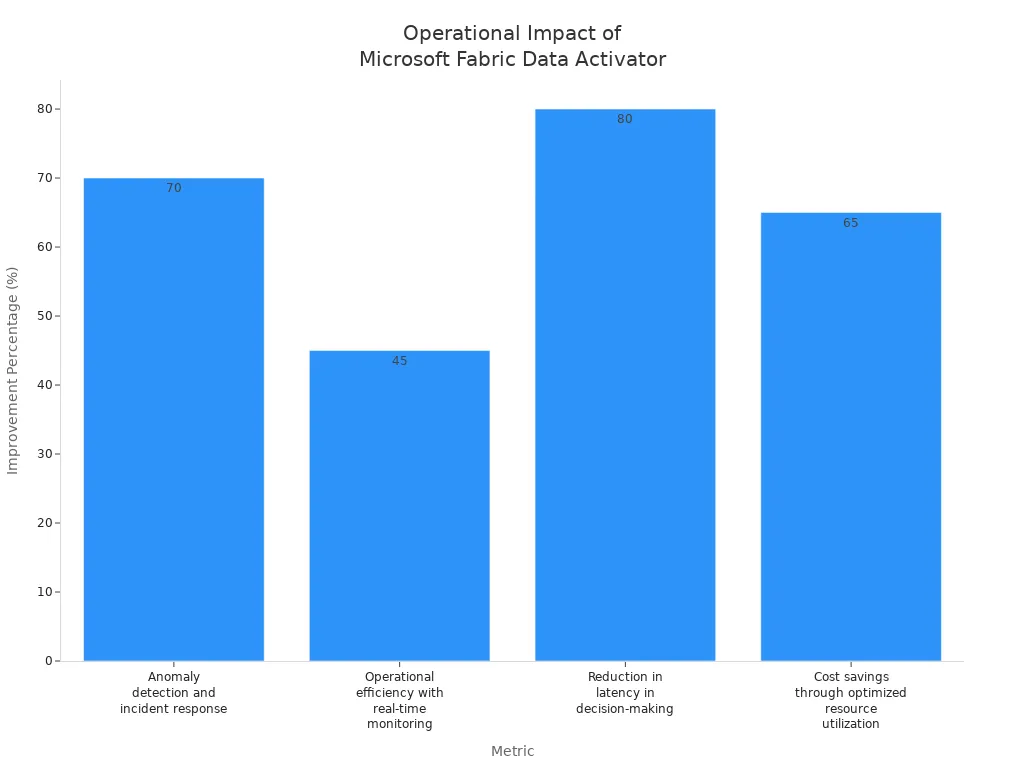
You benefit from seamless integration and actionable intelligence. AI and automation work together as a living system that adapts and learns. This approach helps you reduce costs, improve customer experiences, and optimize operations.
Key Takeaways
- Microsoft Fabric Data Activator enables real-time AI insights, allowing businesses to act quickly and improve operational efficiency.
- Event-driven automation replaces slow dashboard refreshes, providing immediate responses to data changes and enhancing agility.
- Real-time data processing with KQL ensures fast and accurate analysis, supporting timely decision-making.
- AI-powered insights help predict trends and automate actions, giving organizations a competitive edge.
- Automation triggers allow users to define specific actions based on real-time data events, improving responsiveness.
- Integrating Microsoft Fabric with tools like Power BI enhances data visualization and decision-making capabilities.
- Real-time monitoring and alerts keep teams informed, enabling proactive management of operations.
- Implementing best practices for triggers and workflows ensures reliability and scalability in automation efforts.
7 Surprising Facts about Microsoft Fabric Data Activator
- Event-driven automation inside Fabric: Data Activator lets you detect data changes and trigger actions automatically—bringing event-driven workflows directly into the Microsoft Fabric ecosystem rather than relying on external orchestration tools.
- Near real-time response to OneLake data: It can monitor OneLake tables and other Fabric data assets and react to changes in near real-time, enabling operational responses as data arrives instead of only batch schedules.
- Native integration with Fabric services: Data Activator works natively with other Fabric components—Power BI, pipelines, notebooks, and data engineering artifacts—so alerts, retraining, or downstream processes can be invoked without custom connectors.
- Low-code rules and policies: Non-developers can author triggers and actions using a visual, low-code interface—build conditional rules, thresholds, and multi-step responses without writing extensive code.
- Multiple expression and execution options: Conditions and actions can use familiar languages and engines (KQL, SQL, Python snippets or calls to Fabric notebooks/pipelines), giving flexibility to evaluate events and perform complex processing.
- Designed for governance and observability: Activator includes auditing, role-based access controls, and logging to help meet compliance and operational monitoring needs while automating data-driven actions.
- Operationalizes ML and analytics workflows: You can wire Data Activator to promote model retraining, refresh feature pipelines, or push notifications when model drift or data anomalies are detected—making analytics outputs actionable in production.
Real-Time AI Insights and Event-Driven Automation
Event-Driven Architecture
You can transform your business operations with event-driven automation. This approach lets you respond instantly to changes in your environment. Microsoft Fabric Data Activator uses event-driven architecture to monitor data streams and trigger actions as soon as specific conditions occur. You do not have to wait for manual checks or slow dashboard refreshes. Instead, you gain real-time intelligence that keeps your organization agile.
- Event-driven architecture allows you to continuously monitor changes in data and automatically trigger responses.
- You can design workflows that activate based on specific data events or thresholds.
- Immediate processing ensures actions happen as soon as relevant events occur.
- Seamless integration with Microsoft Fabric tools supports unified data workflows across your platform.
With event-driven automation, you can achieve real-time ai insights that drive operational efficiency. For example, e-commerce platforms can spot abandoned carts and send offers right away. Financial institutions can detect fraud as it happens. You gain the power to act at the right moment, not after the fact.
Real-Time Data Processing
Real-time data processing is the backbone of real-time intelligence. You need to analyze and act on data as soon as it arrives. Microsoft Fabric Data Activator uses advanced technologies to deliver this capability. KQL (Kusto Query Language) powers high-performance, low-latency data retrieval. You can run complex queries, filter results, aggregate information, and perform time-series analysis—all in real time.
- KQL enables you to process real time data with speed and accuracy.
- You can handle filtering, aggregation, joins, and time-based analysis without delay.
- Real-time data processing supports event-driven automation by ensuring that triggers fire as soon as data changes.
| Throughput Level | Description |
|---|---|
| Low | < 10 MB/s |
| Medium | 10-100 MB/s |
| High | > 100 MB/s |
This table shows how you can scale your real-time data processing to match your business needs. Whether you process a few megabytes or hundreds per second, you maintain real-time intelligence and seamless integration across your workflows.
AI-Powered Insights
AI-powered insights give you a competitive edge. You can move beyond simple alerts and use real-time ai insights to predict, optimize, and automate. Microsoft Fabric Data Activator generates a wide range of real-time intelligence using advanced ai models.
- Event prediction helps you anticipate future events using historical data.
- Optimized trigger suggestions guide you to set up efficient responses.
- Pattern recognition lets you spot trends and automate actions.
- Proactive decision-making means you can trigger actions based on recognized patterns.
- Event correlation combines multiple data streams for accurate decisions.
- Real-time decision support processes complex events instantly.
- Cross-platform integration manages data from many sources for unified processing.
- Accurate aggregation gives you a complete view for reliable decisions.
You benefit from seamless integration of ai, real-time data, and automation. This combination delivers real-time ai insights that support event-driven automation at every level. You can automate inventory management, detect anomalies, and launch campaigns—all powered by real-time intelligence. With Microsoft Fabric Data Activator, you turn data into action, insights into outcomes, and real-time events into business value.
Automation Triggers
Automation triggers form the core of Microsoft Fabric Data Activator. You use them to turn real-time data into immediate actions. When you set up automation triggers, you decide how your system responds to every real-time event. This approach helps you move from passive monitoring to active management of your data environment.
You can define automation triggers based on different criteria. The table below shows the main options you have:
| Criteria Type | Description |
|---|---|
| On each event | Perform an action for every event received. |
| On each event when a value is met | Perform an action when a specific condition is satisfied. |
| On each event grouped by a field | Perform an action based on grouped events, such as temperature. |
You can use these criteria to control how your system reacts to real-time data. For example, you might want to trigger an action every time a sensor sends new data. You might only want to act when a value crosses a threshold. You can also group events by a field, such as device ID, and trigger actions when a group meets a condition.
Microsoft Fabric Data Activator gives you several ways to respond to real-time data. Here are some common actions you can automate:
- Send an email to alert your team.
- Post a message in Microsoft Teams to notify a group or channel.
- Run a Fabric pipeline, notebook, or job to process data.
- Start a Power Automate flow for custom workflows.
You can combine these actions with real-time triggers to build powerful automation. For example, you can send an alert when real-time data shows a machine overheating. You can pause a pipeline if real-time data quality drops. You can even open a work order in Dynamics 365 when real-time data signals a maintenance need.
When you design automation triggers, you need to think about reliability and scalability. You want your real-time data system to work smoothly, even as the volume of data grows. Here are some best practices to follow:
- Design triggers with clear intent. Make sure each trigger has a specific purpose.
- Use idempotent triggers. This means running the same trigger more than once does not cause problems.
- Avoid using schedules. React to real-time events instead. This reduces system load and speeds up response.
- Plan for recovery. If a trigger fails, have a way to retry or handle the error.
- Use different trigger types. This gives you flexibility and helps you cover more real-time data scenarios.
Tip: Start with high-impact triggers that use real-time data to solve urgent problems. As you see results, add more triggers to cover new real-time data needs.
Automation triggers help you close the gap between real-time data and action. You do not just see what is happening—you respond right away. This makes your organization more agile and efficient. With Microsoft Fabric Data Activator, you can trust your real-time data to drive the right actions at the right time.
Core Concepts and Architecture

Events and Triggers
You interact with the foundation of Microsoft Fabric Data Activator through events and triggers. These concepts help you turn real-time data into meaningful actions. You monitor objects, which can be physical devices or digital systems, for specific changes. When an event occurs, you use triggers to decide what happens next. This process lets you automate responses to real-time data without manual intervention.
- Events represent specific observations or changes in the status of an object.
- Objects are the entities you monitor, such as sensors, applications, or business processes.
- Triggers are the conditions you set to watch for certain events and activate actions when criteria are met.
- Properties are reusable attributes or metrics you derive from events, helping you define triggers more precisely.
You gain control over your environment by setting up these triggers. You can respond to real-time data changes, such as a temperature spike or a sudden drop in sales. This approach ensures that your ai-driven automation reacts instantly, keeping your operations efficient.
Data Flows
You rely on data flows to move and process information within the architecture. The Activator manages both event-driven and data-driven processes, connecting all elements in your system. You can orchestrate data pipelines that handle transformations and database ingestion. The Activator ensures jobs run correctly and monitors for data loss. If something goes wrong, it notifies the right people in real-time.
Events from job executions stream into an Eventhouse for real-time management. You can set up rules that trigger actions based on specific conditions. For example, you might rerun failed jobs or alert your team when a failure threshold is reached. This setup allows you to maintain high reliability and quick response times. You keep your data flowing smoothly, and your ai models always have access to the latest real-time information.
Note: Real-time data flows help you avoid delays and keep your business responsive. You can trust your system to handle errors and maintain data quality automatically.
AI and Machine Learning Models
You use ai and machine learning models to unlock deeper insights from your real-time data. Microsoft Fabric integrates several frameworks, making it easy for you to create, train, and deploy models. These models help you predict trends, understand customer behavior, and automate complex decisions.
| Machine Learning Model | Use Case |
|---|---|
| SparkML | Data processing and machine learning tasks |
| MLlib | Scalable machine learning algorithms |
| Scikit | Data analysis and machine learning |
| PyTorch | Deep learning applications |
| TensorFlow | Neural network modeling and training |
You can choose the right model for your needs. SparkML and MLlib work well for large-scale data processing. Scikit helps you with data analysis and classic machine learning. PyTorch and TensorFlow support advanced ai and deep learning tasks. By combining these models with real-time data, you can automate predictions and drive smarter actions across your organization.
You benefit from a system that brings together real-time data, ai, and automation. This architecture gives you the power to act quickly, adapt to changes, and stay ahead in a fast-moving world.
Key Automation Features
Automated Actions
You can use Microsoft Fabric Data Activator to automate a wide range of actions. This automation helps you respond to real-time events without delay. You have the flexibility to design custom workflows or use pre-built templates for common scenarios.
Custom Workflows
You can create custom workflows that fit your business needs. For example, you might want to send an email when a sensor detects a temperature spike or trigger a pipeline when inventory drops below a set level. You can also launch a Power Automate flow or call a custom webhook. This level of automation ensures that your team acts on real-time data as soon as it arrives.
| Action Type | Description |
|---|---|
| Send Email | Notifies users via email when conditions are met. |
| Send Teams Message | Sends a message to Teams for real-time alerts. |
| Trigger Fabric Item | Initiates a Fabric item such as a notebook or pipeline. |
Pre-Built Templates
You can start quickly by using pre-built templates. These templates cover common automation scenarios like alerting, compliance checks, and workflow launches. You save time and reduce errors by using proven patterns for real-time automation.
Tip: Start with a template, then customize it to match your real-time data needs.
Real-Time Monitoring
Real-time monitoring gives you visibility into your operations. You see what is happening as it happens. This helps you catch issues early and respond fast.
Dashboards
You can use dashboards to track key metrics and trends. Dashboards update in real-time, so you always have the latest information. You can monitor ai-driven insights, automation status, and data flows from a single view.
Alerts and Notifications
You receive alerts and notifications when thresholds are breached or failures occur. This real-time monitoring keeps your team informed and ready to act. You can also launch workflows automatically, reducing manual monitoring needs.
| Functionality | Benefit |
|---|---|
| Trigger alerts when thresholds are breached | Enables immediate awareness of potential issues, enhancing visibility. |
| Notify stakeholders of failures | Ensures timely communication, improving responsiveness. |
| Launch workflows automatically | Facilitates quick action without manual intervention, increasing efficiency. |
| Reduce manual monitoring needs | Frees up resources for other tasks, allowing for better focus on critical issues. |
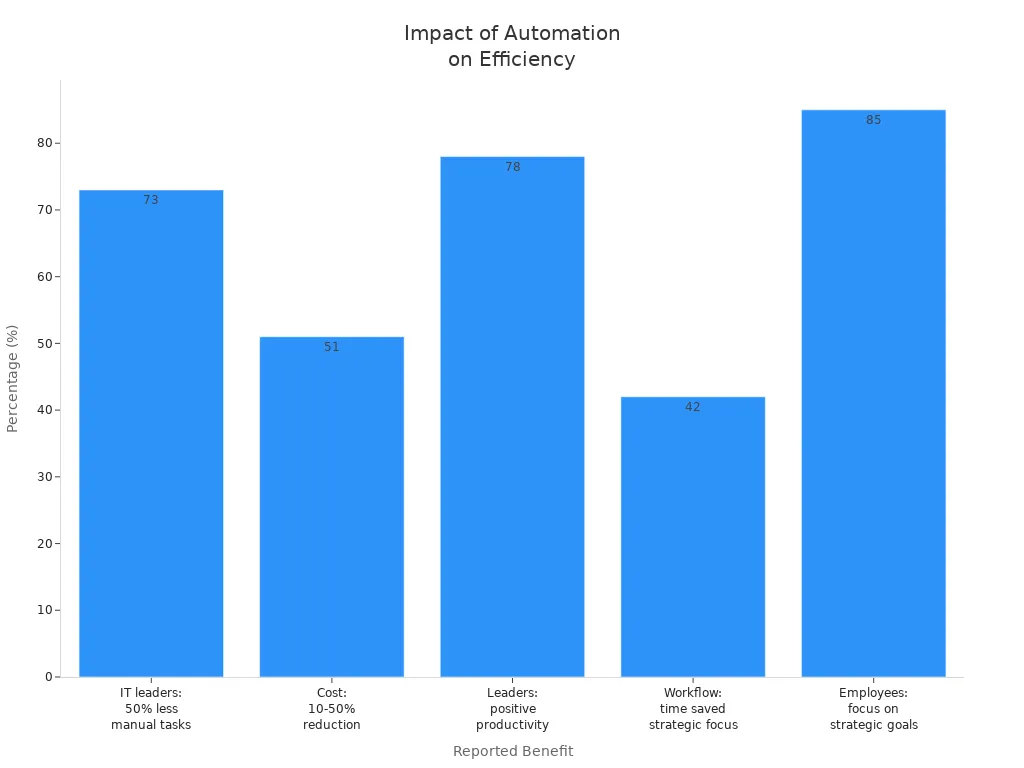
Event-Based Data Flows
Event-based data flows let you automate responses to real-time data changes. You can set up triggers that launch workflows, notify teams, or start compliance checks as soon as an event occurs.
Data Ingestion
You can ingest data from multiple sources in real-time. This ensures that your ai models and automation workflows always have the latest information. Real-time data ingestion supports continuous monitoring and immediate action.
External Integrations
You can connect to external systems using APIs. This allows you to trigger workflows based on external events, such as market changes or customer actions. You can design customizable responses for every scenario.
Best Practice: Use context filters and guardrails to make sure your automation only triggers when needed. This reduces noise and helps you manage capacity. Always monitor your event-based data flows to ensure reliable performance.
By following these practices, you build a robust real-time automation system. You gain the ability to act on ai insights, automate repetitive tasks, and keep your business responsive.
Configuring Triggers and Playbooks
Trigger Setup Steps
You can configure triggers in Microsoft Fabric Data Activator to automate responses to real-time events. The process starts with creating rules that define when your system should act. You select actions such as running a pipeline, launching a Spark job, executing a notebook, or creating a custom action. You specify parameters for each Fabric item to ensure the action fits your real-time needs. After you finish the configuration, you start the rule and test it to confirm it works as expected.
Here is a step-by-step guide:
- Create rules for triggers based on real-time data conditions.
- Select actions like 'Run Pipeline', 'Run Spark job', 'Run Notebook', or 'Create custom action'.
- Specify parameters for each action to match your ai and data requirements.
- Start the rule after configuration.
- Test the rule to ensure it responds to real-time events correctly.
You can use a no-code interface to set up these triggers. This makes it easy for domain experts to monitor real-time data and respond to operational needs without writing code. You gain the ability to automate notifications or workflows whenever real-time conditions are met.
Tip: Always test your triggers with sample real-time data before deploying them in production. This helps you catch errors early and ensures your ai-driven automation works smoothly.
Best Practices
You should follow best practices when designing intelligent triggers and playbooks. Start by creating an operations agent. Select the ellipsis icon on the Fabric home page and choose 'Create'. Configure the agent by defining business goals, providing instructions, and selecting a relevant data source. Define actions that the agent can take based on real-time ai insights. Name each action and describe its purpose. Create a connection and use the flow builder to set up the trigger. Save the agent to generate its playbook, which outlines goals, instructions, data, and actions.
Here are recommended best practices:
- Start with high-impact triggers that solve urgent real-time problems.
- Scale thoughtfully to avoid capacity overload and maintain reliable ai automation.
- Use context filters and guardrails to minimize noise and ensure triggers only activate when necessary.
- Monitor your real-time data flows to maintain performance and data quality.
- Document your playbooks so your team understands the ai-driven workflows.
You can design triggers for different scenarios. In logistics, monitor temperature for sensitive items and alert when packages exceed a threshold. In retail, configure alerts for inventory levels, such as notifying when inventory exceeds $50,000. For fleet management, set triggers to notify operators when bike availability drops below a certain level. These real-time triggers help you respond quickly to changing data and operational needs.
Note: Intelligent triggers and playbooks let you automate responses to real-time ai insights. You move from manual monitoring to proactive management of your data environment.
You build a robust system by starting with high-impact triggers and scaling as your real-time data needs grow. You ensure your ai automation delivers measurable results and keeps your business agile.
Practical Use Cases
Inventory Automation
You can transform your inventory management with real-time automation. Microsoft Fabric Data Activator helps you track stock levels, shipments, and supply chain events as they happen. You do not need to wait for batch updates or manual checks. The system monitors real-time data from sensors, sales, and supplier feeds. When inventory drops below a set level, the Activator can place orders, notify your team, or update your ERP system instantly.
This approach reduces errors and keeps your shelves stocked. You save time by automating repetitive tasks and allow your employees to focus on more valuable work. Real-time, event-driven responses help you adapt quickly to market changes. You can streamline data preparation for analytics, which leads to cost reductions in inventory management.
| Evidence Type | Description |
|---|---|
| Automating Repetitive Tasks | Reduces manual processes, allowing employees to focus on more valuable work, thus enhancing productivity. |
| Enabling Real-Time, Event-Driven Responses | Transforms operations from reactive to proactive, ensuring businesses can adapt quickly to market changes. |
| Faster Data Readiness and Operational Efficiency | Streamlines data preparation for analytics, leading to cost reductions in inventory management. |
Tip: Use real-time triggers to reorder products before you run out. This keeps your business running smoothly and customers happy.
Predictive Maintenance
You can use real-time data to keep your equipment running at its best. Microsoft Fabric Data Activator collects sensor data from machines and analyzes it instantly. The system looks for signs of wear, overheating, or other problems. When it detects an issue, it can schedule maintenance, alert your team, or even shut down equipment to prevent damage.
You get a complete view of your factory’s health. Real-time maintenance analytics show you what is happening right now. Predictive insights help you plan repairs before breakdowns occur. You can monitor maintenance activities and see how they affect production and costs. This approach improves equipment availability and reduces downtime.
| KPI Type | Description |
|---|---|
| Real-time maintenance analytics | Immediate insights into equipment data for maintenance decisions. |
| Equipment overview | Comprehensive view of factory equipment health status and maintenance indicators. |
| Predictive insights | Displays predictions and forecasts for equipment health, aiding in proactive maintenance. |
| Maintenance analytics | Real-time monitoring of maintenance activities and performance trends across equipment. |
| Production impact analysis | Correlation of maintenance activities with production efficiency and operational costs. |
| Predictive maintenance ROI | Evaluation of maintenance costs, equipment availability, and effectiveness of predictive strategies. |
Note: Real-time data helps you move from fixing problems after they happen to preventing them before they start.
Data Quality Firewalls
You can protect your business from bad data using real-time data quality firewalls. Microsoft Fabric Data Activator checks incoming data for errors, missing values, or out-of-range numbers as soon as it arrives. When the system finds a problem, it can pause data pipelines, alert your team, or trigger a cleanup process.
This real-time approach stops bad data from spreading through your reports and analytics. You keep your insights accurate and your decisions reliable. You can set up rules to catch common issues and respond automatically. This saves time and reduces the risk of costly mistakes.
Callout: Real-time data quality firewalls help you trust your data and act with confidence.
Revenue Rescue Campaigns
You can use Microsoft Fabric Data Activator to boost your revenue by acting on real-time opportunities. Revenue rescue campaigns help you recover lost sales, engage customers at the right moment, and prevent revenue leakage. You do not have to wait for end-of-month reports or delayed analytics. Instead, you can spot issues and respond instantly.
Imagine a customer abandons their shopping cart on your website. With Fabric Data Activator, you can trigger a personalized offer or reminder within seconds. You can also detect when a high-value client stops engaging with your service. The system can alert your sales team or launch a targeted campaign to win them back. These actions help you capture revenue that might otherwise slip away.
You can set up triggers for many scenarios:
- Cart abandonment in e-commerce
- Subscription cancellations
- Missed renewal opportunities
- Drops in customer engagement
- Sudden changes in buying patterns
Fabric Data Activator connects to your CRM, marketing tools, and sales platforms. You can automate emails, send SMS messages, or start a workflow in Dynamics 365. This real-time approach keeps your team proactive and your customers engaged.
Many organizations see strong results from these campaigns. You can look at recent industry findings:
- 65% of enterprises that are considered 'intermediate' or 'advanced' in being insights-driven reported increased revenue.
- These enterprises are eight times more likely to experience a 20% growth compared to those classified as 'beginners'.
- A 2024 study by Forrester Consulting indicated that Microsoft Fabric customers achieved a 379% return on investment over three years.
- The payback period for this investment was less than six months.
You can see how real-time automation leads to measurable business outcomes. Revenue rescue campaigns powered by Fabric Data Activator help you act fast, reduce lost sales, and improve customer satisfaction.
Tip: Start by identifying your most common revenue leaks. Set up triggers to catch these events in real time. Over time, expand your campaigns to cover more scenarios and maximize your growth.
You gain a powerful tool to protect and grow your revenue. With Microsoft Fabric Data Activator, you turn insights into action and keep your business moving forward.
Integration and Advanced AI
Microsoft Fabric Ecosystem
You can unlock the full power of real-time ai by connecting Microsoft Fabric Data Activator with the broader Microsoft Fabric ecosystem. This integration lets you move data seamlessly between tools and automate complex workflows. You can use real-time data from multiple sources and trigger actions across your organization.
Power BI Integration
You can connect real-time data streams directly to Power BI. This connection allows you to visualize ai insights as soon as they happen. When a data event occurs, Microsoft Fabric Data Activator can update dashboards instantly. You see the latest trends and patterns without waiting for manual refreshes. This real-time feedback helps you make better decisions and respond quickly to changes.
Synapse and Lakehouse
You can process large volumes of real-time data using Synapse and Lakehouse. Microsoft Fabric Data Activator connects to these platforms for efficient data handling. You can run ai models on fresh data and automate responses based on the results. This setup supports advanced analytics and ensures your data pipelines stay up to date.
| Integration Point | Description |
|---|---|
| Microsoft Fabric Tools | Integrates with tools like Power BI, Power Automate, and Azure Synapse for enhanced workflows. |
| API Connectors | Extends integration to external systems, ensuring smooth data flows and synchronization. |
| Azure Synapse & Data Lakes | Connects to Azure Synapse and Data Lakes for efficient processing of large datasets. |
| Power Automate | Triggers workflows that interact with third-party applications based on data events. |
| Power BI | Automatically triggers real-time data visualizations and updates for dashboards. |
External Systems and APIs
You can extend your real-time ai automation beyond Microsoft tools. Microsoft Fabric Data Activator uses API connectors to link with external systems. You can synchronize data with ERP, CRM, and SaaS platforms. When a real-time event happens, you can trigger workflows in other applications. This flexibility ensures your data flows smoothly across your entire business.
Tip: Use API connectors to automate tasks like order processing, customer notifications, or compliance checks in real time.
Copilot and Machine Learning
You can use advanced ai features like Copilot to simplify your work. Copilot uses Azure OpenAI Service to help you create dataflows and pipelines with conversational language. You can describe what you want, and Copilot builds the workflow for you. This makes it easier to set up real-time triggers and automate responses.
| Feature | Description |
|---|---|
| Copilot | Integrated ai tool that assists users in creating data visualizations, automating tasks, and generating insights. |
| Fabric data agents | Enhances decision-making by allowing users to interact with data using natural language. |
| AI Functions | Provides advanced capabilities for data manipulation and analysis. |
| Machine Learning | Users can build machine learning models and visualize results using conversational language. |
| Trigger Setup | Enables software engineers to set up triggers based on data changes, such as sending alerts. |
- Copilot helps you set up triggers and monitor real-time data changes.
- You can describe conditions for actions, like sending emails when data crosses a threshold.
- You can build machine learning models and see results in real time.
Block Quote: Copilot and machine learning features in Microsoft Fabric Data Activator help you automate complex tasks and gain deeper ai insights from your real-time data.
You can use these advanced ai tools to make your data workflows smarter and more efficient. Microsoft Fabric Data Activator gives you the power to act on real-time data, automate decisions, and keep your business ahead.
Security and Governance
Data Privacy
You need to protect sensitive information in your organization. Microsoft Fabric Data Activator gives you strong data privacy features. These features help you follow privacy laws and keep your data safe. You can use built-in tools to classify, protect, and monitor your data at every stage.
Here is a table that shows how Data Activator helps you manage data privacy:
| Measure Type | Description |
|---|---|
| Sensitivity Labels | Enable consistent classification and application of security policies like encryption and access restrictions. |
| Domain-level Default Sensitivity | Automatically applies protection policies to new data items, reducing human error and ensuring compliance. |
| Information Protection Policies | Enforce access restrictions based on sensitivity labels, ensuring data remains protected across platforms. |
| Persistent Data Protection | Ensures classification and protection travel with the data, even when exported or moved. |
| Automated Governance | Reduces manual security configurations, ensuring consistent application of data policies. |
| Simplified Compliance | Provides an auditable trail of data classification and protection, aiding in regulatory adherence. |
| Secure Collaboration | Empowers users to work with sensitive data confidently, guided by sensitivity labels. |
You can see that these measures help you keep control over your data. Sensitivity labels and protection policies work together to stop unauthorized access. Automated governance reduces mistakes and keeps your data secure, even when you share it with others.
Tip: Always use sensitivity labels for your most important data. This helps you stay compliant and avoid data leaks.
Compliance
You must follow strict rules when you handle data. Microsoft Fabric Data Activator supports compliance with many regulations. The platform gives you tools to track, audit, and report on your data activities. You can show regulators that you protect sensitive information and follow best practices.
You can use information protection policies to set access rules. These rules make sure only the right people see your data. The system keeps a record of every action, so you can review changes and prove compliance. You also get help with data retention and deletion policies. This makes it easier to meet legal requirements.
Note: Keeping an auditable trail of data actions helps you respond quickly to audits and investigations.
Governance Controls
You need strong governance controls to manage who can see and use your data. Microsoft Fabric Data Activator fits into your data governance setup. You can use several controls to keep your data safe:
- Set up access permissions for users and groups.
- Apply sensitivity labels to control how data is shared.
- Use automated governance to enforce policies across your organization.
- Monitor data usage and get alerts for unusual activity.
- Review audit logs to track changes and spot risks.
These controls help you protect your data and keep your organization secure. You can trust that only authorized users can access sensitive information. Automated policies make it easy to manage security at scale.
Callout: Good governance keeps your data safe and builds trust with your customers.
You can use Microsoft Fabric Data Activator to meet your privacy, compliance, and governance needs. This gives you confidence as you automate and analyze real-time data.
You gain real-time AI insights and automation with Fabric Data Activator. This tool helps you act fast and improve your business. Many organizations see strong results. Over 24,000 customers use activator. Adoption has grown six times in the past year. You find activator in retail, healthcare, manufacturing, energy, distribution, and pharmaceuticals. You can use activator for passenger flows, baggage tracking, omnichannel retail, hospital logistics, and supply chain automation.
| Metric | Value |
|---|---|
| Total Customers | 24,000+ |
| Adoption Growth | 6x in the past year |
| Industries Impacted | Retail, Healthcare, Manufacturing, Energy, Distribution, Pharmaceuticals |
| Examples of Use Cases | Real-time passenger flows, baggage tracking, omnichannel retail, hospital logistics, supply chain automation |
You can start with activator today. Explore its features and see how it fits your needs. Try activator for your next project and measure the results. For more learning, visit Microsoft’s documentation and community forums.
Microsoft Fabric Data Activator Checklist
Use this checklist to plan, configure, and maintain Data Activator solutions in Microsoft Fabric.
- Define clear business objectives and success metrics for Microsoft Fabric Data Activator workflows
- Identify data sources (Lakehouse, warehouse, Power BI datasets, external services) to drive activations
- Validate data quality and lineage for source datasets before creating activations
- Design triggers: real-time, scheduled, or event-based triggers appropriate to use case
- Configure filtering and conditions to minimize false positives and unnecessary activations
- Select and configure activation actions (emails, alerts, Power Automate, webhooks, notebooks)
- Secure credentials and secrets using Azure Key Vault and managed identities
- Set least-privilege access for Data Activator service principals and users
- Establish governance: naming conventions, environment separation (dev/test/prod) and change control
- Build and test sample activations in a non-production environment
- Plan retry, failure handling, and escalation paths for activation errors
- Implement logging and telemetry for triggers, evaluations, and actions
- Monitor performance and cost impact of Data Activator workflows
- Document activation logic, conditions, and expected outcomes for stakeholders
- Create automated tests and validation for activation rules and downstream effects
- Review compliance and privacy requirements for data used in activations
- Enable audit trails for who created/modified activations and when
- Train operations and business teams on interpreting activation outputs
- Schedule regular reviews to retire or optimize stale activations
- Keep Microsoft Fabric and Data Activator documentation and release notes up to date
Get started with data activator in microsoft fabric: create an alert, use data activator, and preview activator in microsoft fabric
What is Microsoft Fabric Data Activator and how does it work?
Microsoft Fabric Data Activator is a feature within Microsoft Fabric that monitors data (including real-time streaming data and eventstreams) and initiates actions when patterns or conditions are detected. The activator works by connecting to datasets, event stream sources like Azure Event Hubs, or streaming data pipelines, evaluating triggers based on rules or machine intelligence, and then firing activator alerts or orchestrating actions automatically, such as sending Teams notification or invoking downstream processes.
How do I get started with Data Activator in Microsoft Fabric?
To get started with data activator, open your Fabric workspace, choose the dataset or event data source you want to monitor, and create a data activator or alert. Define a data activator trigger or condition (for example specific patterns are detected in an eventstream), select the action to take (Teams notification, HTTP webhook, or Fabric pipeline), and enable the activator. Microsoft Learn and the Fabric preview documentation provide step-by-step guides to help you set up your first activator.
What types of data can Data Activator monitor in Microsoft Fabric?
Data Activator supports several types of data in Microsoft Fabric including batch datasets, real-time streaming data, eventstreams, and event data from sources like Azure Event Hubs. You can use it to monitor Fabric datasets, Power BI report metrics, or streaming inputs to detect when patterns are detected and trigger activator alerts or automated actions.
Can Data Activator work with Power BI and Power BI reports?
Yes. Data Activator can be used alongside Power BI to monitor metrics in datasets that feed Power BI reports and dashboards. You can create an alert tied to a dataset that underlies a Power BI report, and when the data activator’s condition is met, it can trigger notifications or integrate with Power BI flows to drive further actions and surface intelligence to business users.
How does Data Activator handle real-time streaming data and event stream processing?
Data Activator is designed to handle real-time streaming data and eventstream scenarios by subscribing to eventstreams or streaming inputs and continuously evaluating triggers. When an event stream contains event data matching your defined patterns or conditions, the activator trigger fires and can initiate actions automatically, enabling near real-time responses to critical events.
What actions can I initiate when Data Activator detects a condition?
You can initiate many actions when an activator detects patterns or conditions: send Teams notification messages, call webhooks or APIs, start Fabric pipelines, update business objects or databases, or integrate with downstream systems. The activator’s orchestration capabilities let you act on your data and automate incident response or workflows.
What are common use cases for Data Activator in Fabric workspaces?
Common use cases include monitoring business objects for state changes, alerting on anomalies in user session metrics, sending alerts when specific patterns are detected in eventstreams, triggering scaling or remediation workflows based on streaming telemetry, and integrating alerts into reports and dashboards for operational intelligence.
How do I create an alert with Data Activator in Microsoft Fabric?
To create an alert, navigate to the dataset or event stream in your Fabric workspace, select create an alert or create a data activator, define the trigger conditions (thresholds, pattern matches, or analytics-based signals), configure the action(s) such as Teams notification or webhook, and save and enable the activator. The preview interface and Microsoft Learn tutorials can walk you through sample configurations.
Is Data Activator still in preview and what limitations should I expect?
Parts of data activator features may still be in preview depending on your tenant and the Fabric release cadence. During preview you might see limitations around connector availability, scale for very high-volume eventstreams, or advanced integrations. Check the Fabric release notes and Microsoft Learn for current preview statuses and feature roadmaps.
How does Data Activator compare to other alerting tools or services (vs other solutions)?
Compared to traditional alerting tools, Data Activator is tightly integrated within Microsoft Fabric, offering direct access to Fabric datasets, streaming inputs, and Power BI report contexts. Versus external monitoring services, it simplifies workflow automation inside the Fabric ecosystem and provides seamless actions like starting pipelines or sending activator alerts directly to teams that use Fabric for analytics and BI.
Can Data Activator connect to Azure Event Hubs and other external event sources?
Yes. Data Activator supports connectors for external event sources such as Azure Event Hubs and other event stream platforms. By ingesting event data into Fabric or connecting directly to eventstreams, you can define activator triggers that detect patterns or conditions and then act on those events inside Fabric.
How do I tune triggers and avoid false positives when using Data Activator?
Tuning triggers involves selecting appropriate thresholds, windowing and aggregation over streaming data, using pattern detection logic, and combining multiple conditions to reduce noise. Use historical data from datasets or eventstreams to model expected behavior, leverage statistical or machine learning–based intelligence if available, and test activator alerts in a staging workspace before enabling them in production.
Can Data Activator integrate with automation platforms and external systems?
Yes. Activator offers integration points such as webhooks, REST APIs, and connectors to automation platforms so you can initiate actions outside Fabric. This allows you to orchestrate broader workflows, update external business objects, or push notifications to external incident management systems when activator alerts trigger.
How do I monitor and troubleshoot Data Activator performance and failures?
Monitor activator runs and logs in your Fabric workspace to review trigger evaluations, delivered actions, and any errors. Use built-in metrics and diagnostic logs for eventstreams and connectors, inspect payloads and response codes for webhooks, and replay test events to reproduce issues. Regularly review activator alert history to refine rules and maintain reliability.
Does Data Activator provide templates or presets to create common alerts?
Data Activator often includes templates or guided experiences (especially in preview and initial releases) to help you create common activator alerts, such as threshold breaches, anomaly detection, or event pattern matches. These templates accelerate get started with data activator scenarios and help you learn best practices from Microsoft Learn and documentation.
How do Data Activator alerts appear in Teams or other notification channels?
When configured to send Teams notification, activator alerts post messages to specified Teams channels or users with details about the detected condition and relevant context. You can format the payload to include links to reports and dashboards, dataset snapshots, or remediation instructions so recipients can quickly act on the alert.
Can I use Data Activator to drive scheduled or time-based checks as well as real-time events?
Yes. Data Activator supports both real-time triggers for streaming data and time-based or scheduled evaluations over datasets. Use time windowing and scheduled checks to monitor trends or periodic business rules, and use streaming triggers for real-time incident detection and fast automated responses.
What security and governance considerations apply when using Data Activator in Fabric?
Ensure activator permissions and workspace roles are correctly configured so only authorized users can create or modify activators. Secure connectors to external eventstreams like Azure Event Hubs with managed identities, and audit activator actions and logs for compliance. Apply data governance policies to datasets used by activators to prevent unauthorized access to sensitive event data.
Apple Podcasts · Spotify · YouTube
Host: Mirko Peters