 EN
EN Deutsch
 Español
 Français
 Italiano
 Português
 Nederlands
 Polski
 Bahasa Indonesia
 Русский
 Українська
 العربية
 עברית
עברית हिन्दी
 日本語
日本語 한국어
한국어2025-11-03
Use Copilot in Dynamics 365 Business Central

You can unlock efficiency and productivity with Copilot in business central by using actionable prompt examples. Copilot streamlines your tasks and improves accuracy through features like predictive analytics, process automation, and real-time dashboards. When you ask clear, direct questions, Copilot provides helpful bc answers and guides you to better results. Integration with Microsoft 365 empowers you to automate routine tasks and optimize inventory, financial, and customer service processes.
| Actionable Use | Description |
|---|---|
| Predictive Analytics | Forecast sales trends and cash flow, enabling proactive adjustments. |
| Process Automation | Suggests opportunities to reduce manual effort and errors. |
| Real-Time Analytics | Delivers live insights through dashboards for quick decisions. |
| Aspect of Productivity Improvement | Description |
|---|---|
| Automating Routine Tasks | Copilot automates tasks, letting you focus on strategic work. |
| Optimizing Inventory Management | Predictive analytics help prevent stockouts and improve turnover. |
Key Takeaways
- Use clear and direct prompts to get the best answers from Copilot. Specific questions lead to more accurate insights.
- Leverage predictive analytics to forecast sales trends and cash flow. This helps you make proactive business decisions.
- Automate routine tasks with Copilot to save time and reduce errors. Focus on strategic work instead of repetitive tasks.
- Utilize prompt templates for reporting and workflow automation. These templates help you structure requests for better results.
- Ask Copilot for real-time insights on financial management, inventory, and sales. This boosts efficiency and improves decision-making.
- Break complex tasks into smaller steps when interacting with Copilot. This approach helps you get targeted feedback and actionable results.
- Regularly evaluate Copilot's performance and adjust your prompts. Refining your questions can lead to more precise answers.
- Engage in continuous learning and training for users. This ensures everyone stays updated on Copilot's features and capabilities.
7 Surprising Facts about Copilot in Business Central
- Copilot in Business Central leverages Microsoft’s large language models to generate context-aware suggestions directly inside records, not just in a separate chat window.
- It can create and modify business documents (invoices, purchase orders) using natural language prompts, accelerating routine accounting tasks.
- Copilot integrates with telemetry and system data to propose actions based on real-time ERP metrics—so suggestions adapt as your company data changes.
- It supports role-specific guidance: finance, sales, and inventory users receive tailored prompts and templates relevant to their workflows.
- Copilot can produce explainable audit trails by summarizing the reasoning behind recommended actions, helping compliance and review processes.
- It connects to Power Platform tools, enabling non-developers to turn Copilot prompts into automated workflows and Power Automate flows without code.
- Privacy controls let admins scope Copilot’s access to tables and fields, so sensitive data can be excluded while still benefiting from AI assistance.
Common Copilot Questions in Business Central
When you use copilot in business central, you can quickly get helpful bc answers to your most pressing business questions. Many users rely on copilot to handle daily finance, inventory, and sales tasks. You can chat with copilot using natural language, making it easy to ask for insights or automate routine work. This approach boosts productivity and helps you make better decisions.
Financial Management Queries
Account Balance Prompts
You often need to know your current cash position or check specific account balances. Copilot in business central lets you ask questions like, "What is my cash balance today?" or "Show overdue invoices above $10,000." Copilot provides instant analysis and even highlights trends or anomalies in your financial data. You can also ask copilot for help with cash flow forecasts, which helps you spot potential gaps and plan strategies to maintain liquidity.
Invoice Status Answers
Tracking invoice status is a common task. You can ask copilot, "Which invoices are overdue?" or "Summarize this customer’s last six months of activity." Copilot automates the process by analyzing your data and generating clear, actionable answers. It can also link payments to invoices, giving you a detailed view of your receivables. This real-time guidance improves efficiency and accuracy for your finance team.
Tip: Use natural language when you chat with copilot. For example, "Show me customers with overdue balances over 30 days" gives you immediate insights.
Inventory and Supply Chain
Stock Level Checks
Managing inventory requires up-to-date information. Copilot in business central helps you check stock levels, analyze trends, and determine reorder points. You can ask, "Are any items below their reorder point?" or "Is inventory trending up or down?" Copilot uses ai-driven data analysis to provide instant answers, so you can avoid stockouts and keep your supply chain running smoothly.
Purchase Order Tracking
You can track purchase orders easily with copilot. Ask, "What is the status of my open purchase orders?" or "Which orders need attention today?" Copilot improves efficiency by giving you quick access to purchase order information and highlighting any issues. It also supports inbound and outbound operations, quality assurance, and inventory control, all through seamless integration with your business processes.
| Key Capability | Description |
|---|---|
| Inbound Operations | Improves receiving through barcode scanning and automated validation. |
| Inventory Activities | Enables real-time tracking of on-hand quantities and adjustments. |
| Copilot for Supply Chain | Uses predictive alerts to identify and address issues proactively. |
Sales and Customer Management
Payment History Prompts
You can ask copilot to summarize a customer’s payment history or highlight overdue payments. For example, "Show this customer’s payment history for the last six months." Copilot provides detailed breakdowns and helps you spot trends or issues quickly.
Sales Order Status
Tracking sales orders is simple with copilot. Ask, "What is the status of my open sales orders?" or "Which orders are delayed?" Copilot analyzes your sales data and delivers real-time updates, helping you respond to customer needs faster.
- Most frequent questions users ask copilot in business central:
- Show overdue invoices above $10,000
- Summarize this customer’s last six months of activity
- Which vendors are affecting my cash flow this quarter?
Copilot’s capabilities include natural language chat, guided insights, task automation, and embedded assistance. You can rely on copilot for actionable answers, real-time data analysis, and improved efficiency across your business.
Helpful BC Answers and Prompts
You can unlock the full potential of copilot in business central by using effective prompt templates and understanding how to phrase your requests. Well-crafted prompts help you get helpful bc answers that are clear, actionable, and tailored to your needs. When you use prompt templates, you turn vague requests into specific tasks. This approach improves your experience and makes your work more efficient.
Effective Prompt Templates
Prompt templates guide you to ask questions that copilot understands best. These templates help you get the most accurate and helpful bc answers. You can use them for reporting, workflow automation, and more.
Reporting Requests
You can use prompt templates to generate reports, summaries, and data narratives. Here is a table with some of the most effective templates for reporting and analysis:
| Prompt Type | What It Does | Stronger Prompt Template Example |
|---|---|---|
| The ‘plain English’ data narrative | Converts spreadsheet trends into a human-readable narrative. | Explain trends in columns B–F over the last 6 months, highlighting anomalies and suggesting next steps in plain English. |
| The executive summary shortcut | Extracts key outcomes and next steps from long documents. | Create a short executive summary from this document focused on outcomes, risks, and next steps, flagging any unsupported claims. |
| The presentation architect | Converts documents into slide outlines with notes. | Using this document, generate an 11-slide presentation outline with headings, bullet points, speaker notes, and visual suggestions. |
Tip: When you ask for a report, include details like the time period, data columns, and the type of summary you want. This helps copilot deliver more accurate insights.
Workflow Automation
You can use prompt templates to automate tasks and streamline operations. Here are some examples:
- "List five topics likely to come up in my next meeting with [Name], based on our last 90 days of interactions. Include suggested questions and follow-up actions."
- "Draft a reply to [Sender] about the delayed timeline, using an apologetic tone, proposing check-in dates, and assigning next steps."
- "Identify the three weakest arguments in this proposal and suggest improvements and supporting data."
These templates help you use copilot and ai capabilities for automation, making your daily operations smoother and more efficient.
Sample Copilot Answers
You can get helpful bc answers by using clear, natural language and, when needed, 'if-then' statements. This approach improves the accuracy of copilot’s responses and helps you get the information you need quickly.
Financial Reports
You can ask copilot for a financial report by saying, "Show me a summary of expenses by department for the last quarter." Copilot will analyze your data and provide a clear breakdown. If you want to add conditions, you can use an 'if-then' statement, such as, "If any department’s expenses increased by more than 10%, highlight those departments in the report." This method gives you actionable insights and helps you focus on important trends.
Vendor Payments
You can ask, "List all vendor payments made this month." Copilot will return a table with payment dates, amounts, and vendor names. For more detail, you can say, "If any payment is above $5,000, flag it for review." This helps you monitor cash flow and maintain control over your finances.
- Using clear and specific prompts enhances the productive responses generated by copilot.
- Maintaining a conversational tone helps you structure requests as questions or instructions, improving your interaction.
- Providing detailed instructions, including the topic, purpose, tone, and required length, leads to better outcomes.
Note: Copilot features rely on official Microsoft documentation and real-time data analysis. This ensures that the helpful bc answers you receive are accurate and grounded in your business data.
Prompt templates and answer samples enhance your productivity by turning ambiguous requests into actionable tasks. This clarity helps you estimate work, streamline implementation, and improve efficiency. When you use copilot in business central, you gain access to advanced ai and automation tools that support your business operations and decision-making.
You can reconcile with copilot, generate reports, and automate workflows with ease. These capabilities help you save time, reduce errors, and focus on strategic goals. As a user, you benefit from a seamless experience that connects data, insights, and automation across your organization.
Question Phrasing for Copilot
When you interact with copilot, the way you phrase your questions can make a big difference in the quality of the answers you receive. Clear, direct queries help you unlock the full capabilities of copilot and ai capabilities in business central. By following a few best practices, you can boost efficiency, get more accurate insights, and make your business operations smoother.
Clear Query Tips
Using Specific Keywords
You should use specific keywords when you ask copilot for information. This helps the system understand exactly what you want. For example, instead of saying "Show me reports," you can say "Show me sales reports for Q2." This approach narrows the focus and leads to better analysis. Including details about the context, such as "during customer onboarding" or "for product demos," helps copilot deliver more relevant answers. If your first attempt does not give you the results you expect, refine your question and try again. Real-time feedback lets you adjust your queries for even better results.
- Be specific about the feature or data you want.
- Add contextual details to clarify your request.
- Use terms that clearly separate similar concepts.
- Simplify your language and avoid complex logic.
- Refine your prompt if you need more precise answers.
Avoiding Ambiguity
Ambiguous questions can confuse copilot and lead to less helpful answers. You should avoid generic terms and instead use clear, direct language. For example, instead of "List issues," try "List overdue invoices for March." This method helps the user get actionable insights faster. You should also use inclusive, nongendered language and maintain a professional tone in your prompts. Filtering out harmful content and handling prompts safely ensures that copilot remains a trusted tool for your business.
Multi-Step Requests
Breaking Down Tasks
When you have a complex task, break it into smaller steps. Copilot responds better to focused requests. For example, start by asking, "Summarize the financial highlights of Q2." Once you have that summary, follow up with, "Convert the summary into three slides focusing on key growth areas." This step-by-step approach helps copilot provide targeted feedback and makes it easier for you to review and act on the results.
| Benefit | Explanation |
|---|---|
| Directing the Agent’s Focus | Narrows attention to actionable steps instead of large, vague tasks. |
| Logical Sequencing | Lets you complete tasks step by step in a structured way. |
| Targeted Feedback & Iteration | Smaller requests make it easier and faster to review and improve responses. |
Sequencing Questions
Sequencing your questions helps you guide copilot through a logical process. Present clear instructions early in your prompt, then add specific context or examples. Adjust the order of your requests based on the complexity of the task. This method ensures that copilot and ai capabilities deliver the most relevant and accurate answers for your business needs.
- Start with a clear, specific request.
- Add details or examples to give context.
- Adjust the sequence to match the task’s complexity.
By mastering question phrasing, you help copilot in business central deliver powerful analysis and insights. This skill lets you maximize efficiency and get the most out of your copilot experience.
Top Copilot Features in Business Central

You can unlock new levels of productivity by using the top copilot features in business central. These capabilities help you work smarter, not harder, by combining AI-driven insights, automation, and contextual help. With seamless integration into Microsoft 365 and SharePoint, you can connect your business processes and data for a unified experience.
Reporting and Analytics
Copilot gives you powerful tools for reporting and analytics. You can ask questions in natural language and get instant answers, making it easy to understand your business performance.
Pivot Table Views
You can use copilot to create pivot table views that summarize large amounts of data. This feature helps you spot trends and compare results across different periods. For example, you can ask copilot to show sales by region or expenses by department. Copilot interprets your financial data and explains variances between actuals and budgets. This makes it easier for you to make informed decisions.
Custom Data Insights
Copilot provides custom data insights by analyzing historical patterns and highlighting important changes. You can get explanations for cash flow movements or inventory shifts. The natural language interface lets you make intent-based queries, so you do not need to know complex formulas. Copilot highlights inventory inefficiencies and supports proactive supply chain decisions by correlating inventory movements with past data.
Tip: Use clear, specific questions to get the most accurate insights from copilot.
Data Entry and Updates
Copilot streamlines data entry and updates, saving you time and reducing errors. You can automate routine tasks and focus on higher-value work.
Bulk Import
You can import large sets of data quickly with copilot. The unified platform ensures that data flows smoothly between applications. This reduces manual entry and helps you avoid mistakes. Copilot automates invoice and accounts payable processes by extracting and matching invoice data, flagging any discrepancies for review.
Error Correction
Copilot helps you correct errors by scanning statement lines and auto-matching transactions. It suggests adjustments when needed, improving the accuracy of your records. Natural language processing lets you automate customer service interactions and streamline order processing with simple commands.
| Feature | Description |
|---|---|
| Unified Platform | Data flows effortlessly between applications, enhancing productivity and reducing errors. |
| Invoice and AP Automation | Extracts and matches invoice data, flags discrepancies. |
| Bank Reconciliation | Scans statement lines, auto-matches transactions, and suggests adjustments. |
| Inventory Forecasting | Analyzes historical data to predict demand and warn of shortages. |
Workflow Automation
Copilot transforms workflow automation by handling repetitive tasks and guiding you through complex processes.
Approvals
You can speed up approvals with copilot. It automates invoice matching and payment processing, reducing bottlenecks in accounts payable. Copilot provides instant guidance and step-by-step support, so you can complete approvals faster and with fewer errors.
Recurring Tasks
Copilot manages recurring tasks like journal entries and bank reconciliations. This saves you hours during month-end close and improves the accuracy of your financial reporting. Businesses using copilot in business central often see productivity increases of up to 18% and cost savings of thousands of dollars each year. Teams can focus on strategic initiatives instead of repetitive work.
Note: Copilot connects to workflows and AI tools in your daily applications, creating synergies that save time and boost team productivity.
| Feature | Description | Impact on Productivity |
|---|---|---|
| Natural Language Prompts | Enables users to interact with the system using natural language. | Makes navigation 10-fold easier, streamlining workflows. |
| Bank Reconciliation | Simplifies reconciliation tasks using AI to validate transactions. | Expedites reconciliation, saving time. |
| Content Creation and Listings | Allows quick content generation and product listing suggestions. | Reduces time spent on content creation. |
| Inventory Forecasting | Predicts inventory needs and detects shortfalls. | Prevents stockouts and excess inventory. |
| Cash Flow Analysis | Provides in-depth analysis of cash position and market share. | Aids in making informed financial decisions. |
| Summarizing and Sharing Info | Summarizes data and reports for easy sharing. | Facilitates informed decision-making across teams. |
| Simplified Sales Order Process | Streamlines order management by suggesting relevant items. | Reduces time spent on order processing. |
With these copilot features, you can automate routine tasks, simplify data analysis, and receive instant guidance. The integration with Microsoft 365 and SharePoint ensures that you always have access to the latest tools and information. As a user, you benefit from guided walkthroughs and smart recommendations that help you achieve your business goals faster.
Troubleshooting Copilot Answers
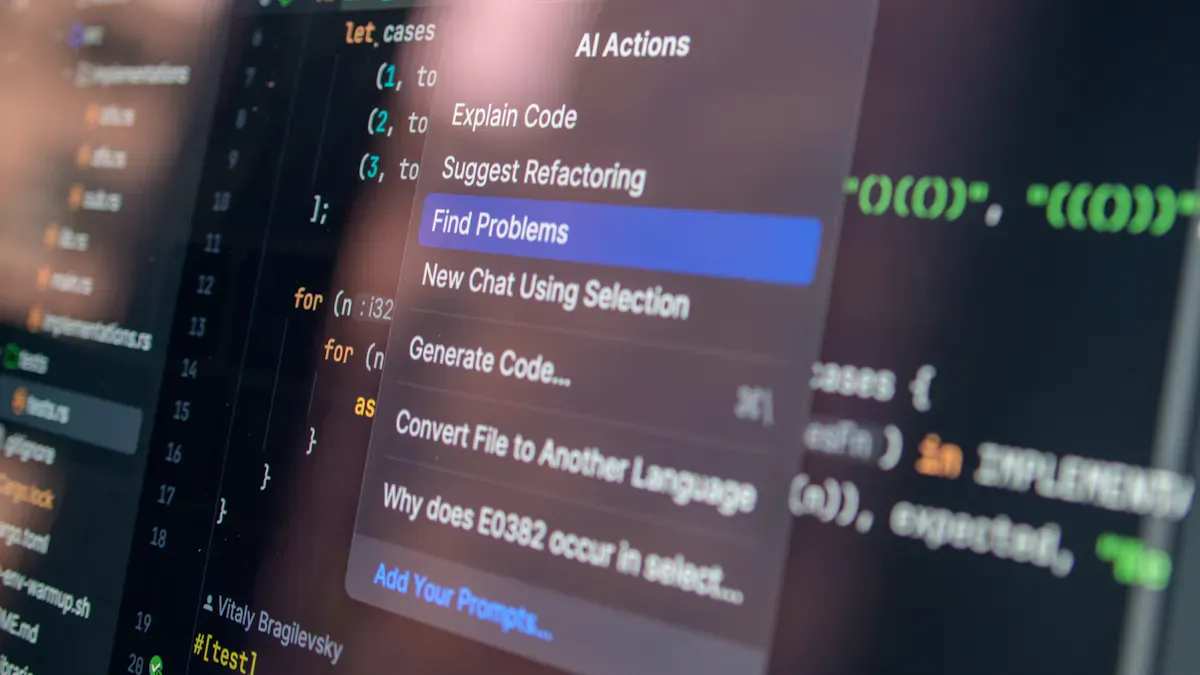
When you use copilot in business central, you sometimes need to troubleshoot answers to get the best results. You can improve accuracy and handle limitations by following a few simple strategies.
Improving Accuracy
Refining Prompts
You can refine your prompts to make copilot deliver more precise answers. Start by structuring your questions clearly. Use direct language and avoid vague terms. For example, instead of asking, "Show me sales," you can ask, "Show me sales orders for Q1 by region." This approach helps copilot understand your request and reduces confusion.
Tip: If you do not get the answer you expect, rephrase your question. Try to add details or break the task into smaller steps.
Adding Context
Adding context makes copilot's responses more accurate. You should include information like project history, audience expectations, or specific goals. Copilot cannot infer these details on its own. When you supply context, you guide copilot to generate relevant and helpful answers. Structured prompting leads to more predictable outputs and saves you time.
For example, you can say, "Summarize the financial highlights for the last quarter, focusing on marketing expenses and comparing them to last year." This prompt gives copilot the background it needs to deliver a targeted response.
Handling Limitations
Unsupported Tasks
Copilot has some limitations you should know. It works best with certain types of data and tasks. You may encounter situations where copilot cannot process your request. Here is a table that shows some main limitations:
| Limitation | Description |
|---|---|
| Geographic and language availability | Copilot is only available in certain regions and languages. It may not function in unsupported languages. |
| Emailing | Copilot cannot process attachments. It may request human help for large emails or incorrect information. |
| Entities and data | Copilot works with sales quotes and orders. It does not support other sales documents or new entities. |
| Item lines | Copilot supports a maximum of 15 item lines per sales document. Variant Code is not supported. |
If you face an unsupported task, you can try to adjust your request or use another method to complete the job.
Escalating Issues
Sometimes, you need to escalate issues when copilot cannot solve your problem. You can reach out to your administrator or support team for help. Document the steps you took and share any error messages. This information helps your team find solutions faster.
Note: Keeping a record of your troubleshooting steps makes it easier to resolve issues and improves future interactions with copilot.
By refining prompts, adding context, and understanding limitations, you make copilot a more effective tool in business central. You gain more accurate answers and streamline your workflow.
Best Practices for Copilot in Business Central
You can boost productivity and maximize workflow efficiency by following best practices for using Copilot in Business Central. These strategies help you get the most from your ai-powered assistant and improve your business operations.
User Training
Onboarding Tips
You should start with a structured onboarding process. New users benefit from clear guidance and hands-on practice. Create an evergreen Copilot hub that offers updated training materials and step-by-step instructions. Use a four-tier curriculum, like the Copilot Competency Pathway, to help users build skills from basic to advanced. Connect training to real business tasks so users see immediate results. Recognize team progress with monthly Copilot Champion Spotlights. This approach encourages learning and celebrates achievements.
| Best Practice | Description |
|---|---|
| Continuous Learning Programs | Offer ongoing training to adapt to new features and capabilities. |
| Evergreen Copilot Hub | Maintain a resource hub with the latest guidance and materials. |
| Cadence-based Learning Rituals | Schedule regular forums for users to share experiences and learn together. |
| Targeted Refreshers | Provide focused training for advanced users and specific needs. |
| Loop Insights into Training | Update materials using feedback from help-desk tickets and user experiences. |
| Recognize Team Progress | Celebrate achievements to foster a culture of improvement. |
| Evolving Content | Refresh training materials regularly to match platform changes. |
| Data-driven Training Refinement | Use analytics to measure effectiveness and adapt programs. |
Continuous Learning
You should keep learning as Copilot enhancements roll out. Schedule regular forums, like Copilot Thursdays, where users share new skills and insights. Use feedback from help-desk tickets to update training materials. Data analysis helps you refine training and target areas for improvement. Continuous learning ensures users stay current with artificial intelligence assistant capabilities and adapt to changes quickly.
- Monthly Copilot Champion Spotlights highlight innovative skills and measurable impacts.
- Connect training to real client work for high immediate application.
- Use analytics to measure training effectiveness and adjust programs.
Performance Tuning
Regular Evaluation
You need to evaluate Copilot’s performance regularly. Review user feedback and analyze business outcomes. Use data analysis to identify areas where Copilot can improve efficiency. Schedule periodic assessments to ensure Copilot meets your business needs. Adjust training and workflows based on these evaluations.
Tip: Ask copilot for help when you need to reconcile with copilot or review business operations. This keeps your experience smooth and productive.
Custom Settings
You can customize Copilot to fit your business. Context tuning lets you define goals and criteria for tasks. Tool tuning enhances capabilities by integrating extra tools and setting instructions for their use. Model tuning improves reasoning and output quality by using organizational data for training. These custom settings help you get better insights and analysis from Copilot.
- Context tuning defines tasks, domains, and examples relevant to your operations.
- Tool tuning integrates additional tools and orchestrates their use.
- Model tuning uses organizational data to improve reasoning and output quality.
You can chat with copilot to adjust settings and optimize your experience. Customization ensures Copilot delivers accurate answers and supports your business goals.
Note: Following these best practices helps you unlock Copilot’s full potential. You improve productivity, efficiency, and business operations with ai and automation.
You can boost results in Business Central by using clear prompts and building prompt libraries. Successful teams train with specificity and create feedback loops. See how top organizations compare:
| Successful Organizations Traits | Failing Organizations Traits |
|---|---|
| Train with specificity | Roll out licenses without enablement plans |
| Build prompt libraries | Offer minimal or one-time training |
| Create feedback loops | Assume early adopters will teach the rest |
| Align with leadership | Ignore governance, leading to trust issues with AI |
Focus on these strategies:
- Emphasize core skills for lasting change.
- Map workflows for each department.
- Address mistakes with real examples.
To maximize productivity, follow these steps:
- Set a clear strategy with leadership.
- Run a pilot and gather feedback.
- Evaluate, expand, and optimize.
- Scale across teams and monitor progress.
Keep learning and experimenting with Copilot to unlock its full potential.
Copilot in Business Central: Implementation Checklist
Use this checklist to plan, configure, secure, and optimize Copilot in Business Central for your organization.
- Define business goals — Identify scenarios where Copilot in Business Central will add value: sales, customer service, finance, inventory, reporting.
- Assess prerequisites — Verify required Business Central version, Microsoft 365 licensing, Azure OpenAI / Copilot licensing, and tenant readiness.
- Data readiness — Ensure master data (customers, vendors, items, chart of accounts) is clean, consistent, and accessible to Copilot features.
- Security & access controls — Review roles and permissions; create least-privilege roles for Copilot usage; enable conditional access and multi-factor authentication.
- Privacy & compliance — Validate data residency, retention, and handling policies; configure data loss prevention (DLP) for Copilot in Business Central.
- Integration mapping — Document integrations (ERP, CRM, Power Platform, external systems) and ensure Copilot has correct context and connectors.
- Configuration & enablement — Enable Copilot features in Business Central admin center, configure feature flags, and set tenant-level settings.
- Prompt and template design — Create standard prompts, response templates, and guided flows for common tasks and queries in Copilot in Business Central.
- User training — Train end users on how to interact with Copilot, interpret recommendations, and escalate when needed.
- IT/admin training — Train administrators on configuration, monitoring logs, troubleshooting, and governance for Copilot in Business Central.
- Pilot testing — Run a controlled pilot with representative users and real scenarios; collect feedback and measure outcomes.
- Performance & accuracy validation — Test response accuracy, latency, and impact on Business Central performance; tune prompts and models as needed.
- Rollback & fallback planning — Define rollback steps and manual processes if Copilot features are unavailable or produce incorrect outputs.
- Monitoring & alerts — Implement telemetry, usage metrics, and alerting for errors, unusual activity, and performance degradation.
- Feedback loop — Establish channels to collect user feedback and a process to update prompts, templates, and training data.
- Governance policy — Define acceptable use, audit requirements, approval workflows, and ownership for Copilot in Business Central.
- Continuous improvement — Schedule regular reviews to refine prompts, expand use cases, and update security and compliance controls.
- Documentation — Maintain runbooks, user guides, admin guides, and incident procedures specific to Copilot in Business Central.
- Risk & mitigation — Identify risks (data leakage, incorrect recommendations) and document mitigation actions and escalation paths.
- Full deployment & change management — Plan phased rollout, communicate changes, update training, and monitor adoption metrics after deployment.
Explore Microsoft Copilot in Dynamics 365 Business Central to Unlock AI, Productivity, and Business Operations
What is Copilot in Business Central and how does it integrate with dynamics 365 business central?
Copilot in Business Central is Microsoft’s AI assistant built into Microsoft Dynamics 365 Business Central that helps users automate business tasks, analyze ERP data, and streamline business operations. Using Microsoft Copilot, users can chat with Copilot to get analysis assist, generate marketing text, draft invoices, and handle sales order workflows inside Business Central’s environment while leveraging Azure AI and Microsoft 365 Copilot integration.
How does Microsoft Copilot in Business Central help with sales order processing?
Microsoft Copilot in Business Central can act as a sales order agent by suggesting line items, validating pricing and inventory, generating sales order drafts, and automating routine entry tasks. By using Copilot, teams can speed up order fulfillment and reduce errors, integrating ERP data and business systems to streamline the sales order lifecycle.
Can I use Microsoft Copilot in Dynamics 365 for bank reconciliation and accounting tasks?
Yes. Within Business Central, Copilot enhances bank reconciliation by suggesting matches between bank transactions and ledger entries, flagging anomalies, and helping prepare reconciliations. The AI capabilities and analysis assist reduce manual effort and help accountants focus on exceptions and decision-making.
What licensing or business central licenses are required to access 365 Copilot features?
Access to Microsoft Copilot features in Business Central often requires specific business central licenses and may depend on Microsoft’s licensing model for Dynamics 365 and Microsoft 365 Copilot. Organizations should consult their business central partner or Microsoft account team to confirm which subscriptions, add-ons, or Copilot Studio access are needed.
How secure is using microsoft copilot in business central with sensitive ERP data?
Microsoft’s Copilot uses secure Microsoft cloud infrastructure and Azure AI controls to protect business central data. Built-in governance, role-based access, and compliance features help ensure data privacy. Businesses should review policies, configure permissions within the business central environment, and work with their IT and Business Central partner to enforce security.
What kinds of tasks can copilot automate within microsoft dynamics 365 business central?
Copilot automates tasks such as invoice generation, sales order creation, bank reconciliation suggestions, reporting, routine GL entries, and customer communications. It can also generate marketing text, produce analysis assist outputs for managers, and integrate with other Microsoft Power tools to extend automation across business systems.
How do new users get started using Microsoft Copilot in Business Central?
New users should start by exploring Microsoft’s documentation, enabling Copilot features in their Business Central environment, and trying simple prompts for common tasks like creating a sales order or drafting an invoice. Business Central partners can provide training and help configure Copilot to leverage business central data and automate common workflows.
Can Copilot be extended or customized to fit specific business processes or ERP solutions?
Yes. Organizations can extend Copilot using Copilot Studio and Microsoft Power tools to connect to custom business central data, tailor prompts, and embed AI agents across specific business operations. Partners and developers can integrate Copilot with bespoke ERP solutions and workflows to create powerful AI-driven assistant experiences.
How does Copilot compare to traditional automation or macros within Business Central?
Unlike static macros, Copilot provides conversational, context-aware assistance and leverages AI to interpret intent, provide analysis assist, and suggest next steps. It can adapt to complex business scenarios, surface insights from across business central’s data, and combine automation with natural language guidance, improving productivity for small and medium-sized businesses and larger enterprises alike.
What are common use cases for analysis assist and reporting with dynamics 365 copilot?
Common use cases include variance analysis, cash flow summaries, aging reports, sales trends, and root-cause insights for exceptions. Copilot can generate narrative explanations, visual summaries, and suggested actions by pulling data from across Business Central, enabling faster decision-making and clearer stakeholder communication.
Does Copilot work with Microsoft 365 apps and other microsoft cloud services?
Yes. Copilot integrates with Microsoft 365, Power Platform, and Azure AI to share insights, export reports to Excel, draft communications in Outlook, and automate cross-application workflows. This seamless connectivity helps teams use Microsoft Copilot across business central and broader business systems.
How can a Business Central partner help me implement and leverage copilot in dynamics 365 business?
A Business Central partner can assess business needs, configure Copilot access, map ERP data sources, train users, and develop tailored Copilot Studio solutions. Partners also guide deployment, ensure compliance with business central’s governance, and help uncover new capabilities from release wave updates and the latest features.
What limitations or considerations should businesses know before relying on Copilot?
Limitations include the need for accurate, well-structured business central data for best results, dependency on proper licensing, and potential variance in responses depending on prompt quality. Organizations should validate critical outputs, apply governance, and combine Copilot suggestions with human oversight for complex or regulated business processes.
How does Copilot enhance productivity for finance, sales, and operations teams?
Copilot saves time by automating routine entries, generating documents like invoices and sales orders, surfacing insights for decisions, and reducing manual reconciliation work. By enabling chat with Copilot and offering intuitive AI tools, it helps teams across finance, sales, and operations focus on strategic tasks rather than repetitive data entry.
Can Copilot help create marketing text and customer-facing content from Business Central data?
Yes. Copilot can generate marketing text, personalized emails, and product descriptions using product and customer data within Business Central. It helps craft consistent messaging, target communications based on ERP insights, and accelerate content production while maintaining alignment with sales and inventory information.
Apple Podcasts · Spotify · YouTube · YouTube Music
Host: Mirko Peters