 EN
EN Deutsch
 Español
 Français
 Italiano
 Português
 Nederlands
 Polski
 Bahasa Indonesia
 Русский
 Українська
 العربية
 עברית
עברית हिन्दी
 日本語
日本語 한국어
한국어2025-12-17
Connect Microsoft Copilot to Salesforce, ServiceNow, and APIs

You may face data blindness when Microsoft 365 Copilot cannot access all the information you need. This issue limits your ability to make accurate decisions and reduces productivity because Copilot only sees part of your data. Custom agents can help by connecting Copilot to more systems, giving it the full context it needs. By using these agents, you empower Copilot to provide smarter, more reliable assistance tailored to your business needs.
Tip: Recognizing and fixing data blindness unlocks the true power of your AI assistant.
Key Takeaways
- Data blindness limits Microsoft 365 Copilot's effectiveness by restricting access to essential information.
- Custom agents can connect Copilot to external systems, providing the context needed for accurate insights.
- Recognizing symptoms of data blindness, like outdated information and inconsistent outputs, is crucial for improving productivity.
- Regular audits of permissions and user behavior help maintain data security and prevent oversharing.
- User training on Copilot's functionalities and data sensitivity is vital for responsible usage and minimizing risks.
- Implementing best practices, such as monitoring data access and establishing risk baselines, enhances Copilot's performance.
- Addressing misconfigurations and integration gaps can significantly reduce instances of data blindness.
- Continuous improvement through feedback and testing ensures that custom agents meet business needs effectively.
Understanding Data Blindness
What is Data Blindness
Data blindness occurs when Microsoft 365 Copilot cannot access all relevant information. This limitation prevents you from seeing the complete picture. Copilot primarily pulls data from Microsoft 365 applications like Outlook, Teams, and SharePoint. However, it often misses critical insights from external systems such as Salesforce or ServiceNow. As a result, you may find yourself making decisions based on incomplete or outdated information.
Effects on Productivity and Decisions
The impact of data blindness on your productivity and decision-making can be significant. When Copilot lacks access to essential data, it generates outputs that may not align with your actual needs. This situation can lead to:
- Inaccurate Insights: You might receive suggestions that do not reflect the current state of your business.
- Delayed Responses: Without timely access to data, you may struggle to respond quickly to changes in your environment.
- Poor Decision-Making: Relying on incomplete information can result in decisions that do not support your goals.
Consider the following statistics that highlight the risks associated with limited data access:
| Statistic | Value |
|---|---|
| Percentage of business-critical data overshared | 16% |
| Average number of files at risk due to oversharing | 802,000 files |
| Percentage of at-risk files overshared within the company | 83% |
| Percentage of at-risk files overshared with external parties | 17% |
| Percentage of business-critical documents shared outside the C-suite | 90% |
| Percentage of business-critical files at risk from oversharing | 15% |
| Percentage of sensitive data shared organization-wide without concern | 3% |
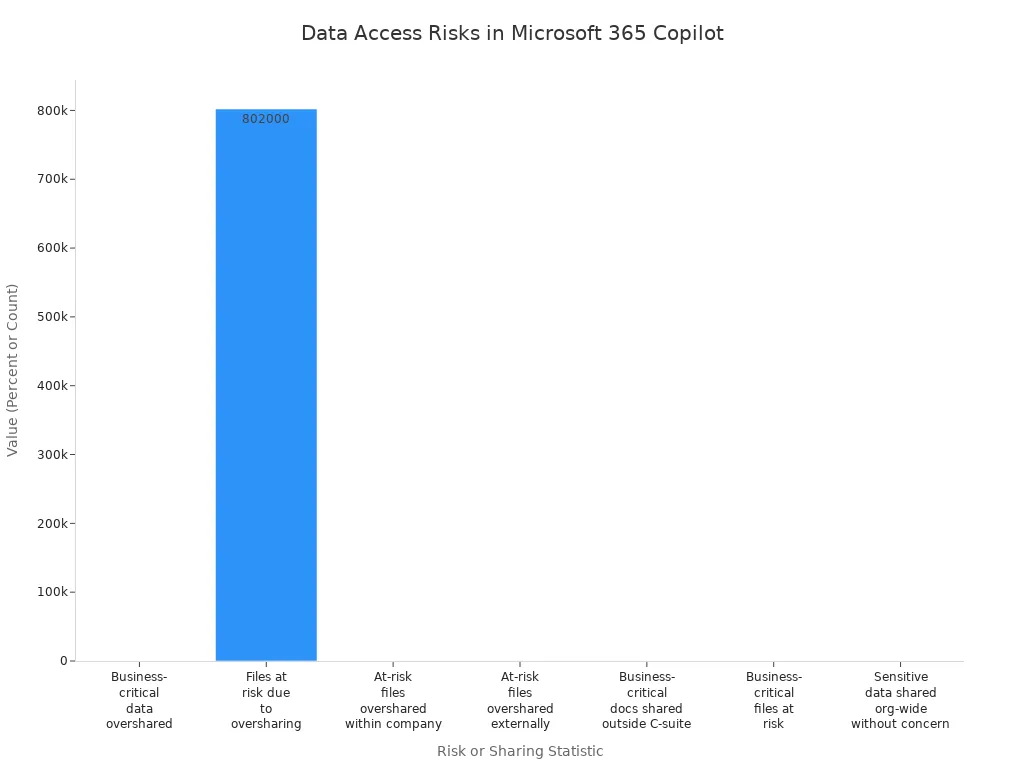
These figures illustrate how data blindness can lead to oversharing and increased risk. When you do not have a complete view of your data landscape, you may inadvertently expose sensitive information. This exposure can compromise your organization’s security and integrity.
By recognizing data blindness, you can take steps to enhance Copilot's capabilities. Addressing this issue will empower you to make informed decisions and improve overall productivity.
Causes of Data Blindness and Access Issues

Misconfigurations
Misconfigurations often lead to data blindness in Microsoft 365 Copilot. You may encounter several common issues that can restrict access to vital information. These include:
- Issues related to permissions
- Problems with authentication
- Governance misconfigurations
- Agents capable of email-based data exfiltration
- Dormant connections, actions, or agents
These agent misconfigurations can create significant barriers to effective data access. A report indicates that misconfigurations related to permissions and access controls are a major factor in data access issues. In fact, 16% of an organization’s business-critical data is overshared, leading to potential data exposure risks. Companies face an average of 802,000 files containing business-critical data at risk due to oversharing, with 83% of at-risk files overshared within the organization.
Settings Errors
Settings errors can also contribute to data blindness. If you misconfigure sharing settings, you may inadvertently limit Copilot's ability to access necessary data. This situation can lead to data leakage and privilege escalation, where unauthorized users gain access to sensitive information.
Integration Gaps
Integration gaps between Microsoft 365 and external systems can further exacerbate data blindness. Without proper workflow integration, Copilot cannot pull in critical insights from platforms like Salesforce or ServiceNow. This lack of integration means you miss out on valuable data that could inform your decisions.
Limited Data Access
Limited data access is another significant cause of data blindness. Copilot's access to data depends on your existing permissions and governance policies in Microsoft 365. It operates under the principle of least privilege, meaning it can only access content that you are authorized to view.
Permissions and Security
Your permissions and security settings play a crucial role in determining what data Copilot can access. For example, if you have restricted access control (RAC) in place, it enforces default access restrictions for critical sites during provisioning. Additionally, sensitivity labels require site sensitivity labels to enforce privacy and sharing controls.
| Mechanism | Description |
|---|---|
| Restricted Access Control (RAC) | Enforces default access restrictions for critical sites during provisioning. |
| Sensitivity Labels | Requires site sensitivity labels to enforce privacy and sharing controls. |
| DLP Policies | Restricts Copilot from processing files and emails with specific sensitivity labels. |
External Systems Exclusion
Finally, external systems exclusion can limit Copilot's effectiveness. Microsoft enforces data residency controls to ensure compliance, which can restrict data access based on regional regulations. For instance, the EU Data Boundary initiative mandates that data for EU customers remains within the EU, affecting how Copilot processes data.
By addressing these causes of data blindness, you can enhance Copilot's capabilities and ensure it provides the insights you need.
Identifying Data Blindness Symptoms
Common Indicators
Recognizing data blindness in Microsoft 365 Copilot is crucial for improving your productivity. Here are some common indicators that may signal data blindness:
- Inconsistent Outputs: If Copilot provides suggestions that frequently contradict each other, it may lack access to complete data.
- Outdated Information: When Copilot references data that seems old or irrelevant, it likely cannot access the latest updates from your external systems.
- Limited Contextual Understanding: If Copilot struggles to grasp the nuances of your requests, it may not have the necessary context to provide accurate responses.
- Frequent Errors: If you notice an increase in errors or inaccuracies in Copilot's outputs, this could indicate a lack of comprehensive data access.
- Repetitive Suggestions: If Copilot keeps suggesting the same solutions despite changing circumstances, it may not be pulling in new data.
By being aware of these indicators, you can take proactive steps to address data blindness and enhance Copilot's effectiveness.
Diagnostic Tools
To effectively diagnose data blindness, you can utilize various tools and methods. Here are some options to consider:
- Data Access Reports: Use built-in reporting features in Microsoft 365 to analyze data access patterns. These reports can help you identify which data sources Copilot can access and which it cannot.
- Audit Logs: Review audit logs to track Copilot's interactions with data. This can reveal any discrepancies in data access and highlight potential misconfigurations.
- User Feedback: Encourage team members to provide feedback on Copilot's outputs. Their insights can help you identify recurring issues and areas where data blindness may be affecting performance.
- Testing Scenarios: Create specific scenarios to test Copilot's responses. By simulating different data access situations, you can pinpoint where Copilot struggles to provide accurate information.
Using these diagnostic tools, you can gain a clearer understanding of data blindness in your Copilot experience. This awareness will empower you to implement solutions that enhance data access and improve decision-making.
AI Coding Assistants and Copilot’s Context Limits
Copilot as an AI Coding Assistant
Microsoft 365 Copilot serves as an AI coding assistant by embedding intelligent features into applications like Word, Excel, and PowerPoint. This integration enhances your productivity by automating repetitive tasks and assisting with content creation. Unlike specialized tools like GitHub Copilot, which focuses on programming tasks, Copilot aims to improve workflows within the Microsoft 365 ecosystem. It helps you draft documents, summarize information, and transform content while ensuring data security and compliance. This approach allows you to maintain control over your work while benefiting from AI assistance.
Role of Context in AI Responses
The effectiveness of Microsoft 365 Copilot heavily relies on context. However, it faces several limitations that can hinder its performance. For instance, Copilot's features are only available with a Microsoft 365 Copilot license. Additionally, certain functionalities are not accessible in government cloud environments, such as GCC or DoD. These restrictions can limit your ability to leverage Copilot fully.
A lack of a robust context engine can lead to unreliable AI outputs. When Copilot cannot access comprehensive data, it may produce cautious responses, especially on sensitive topics. This cautiousness often manifests as hedging language, where the AI adds disclaimers about variability and potential adverse outcomes. Such responses can create a "credibility illusion," making you perceive the AI's polished outputs as trustworthy, even when they lack strong evidentiary support.
Moreover, when documents are not managed within Microsoft’s native systems, Copilot struggles to provide accurate and relevant results. This limitation can diminish your trust in the AI and lower adoption rates. The AI's performance also varies by language and cultural context, with responses in languages like Japanese being less accurate than in English. These factors highlight how context limitations directly impact the quality and reliability of AI-generated responses in Microsoft 365 Copilot.
By understanding these context limits, you can better navigate the capabilities of Copilot and enhance your overall experience. Addressing these challenges will empower you to make informed decisions and utilize Copilot more effectively in your daily tasks.
Custom Agents and the Context Engine Fix
What Are Custom Agents?
Custom agents serve as a powerful solution to enhance Microsoft 365 Copilot's capabilities. They act as a bridge, connecting Copilot to external systems and providing it with the necessary context to deliver accurate insights. Here are some key characteristics and functionalities of custom agents:
| Characteristic/Functionality | Description |
|---|---|
| Custom orchestration | Full control of workflows and integration of external API calls. |
| Custom models | Selection of suitable models for specific use cases. |
| Autonomy and proactive support | Ability to initiate workflows and make decisions independently. |
| Hosting | Requires external hosting, typically on cloud services like Azure. |
| Tooling | Built using low-code or pro-code tools, supporting various programming languages. |
| Channels | Operates within Microsoft 365 apps and external applications. |
| Collaboration | Supports communication between agents for task delegation. |
By leveraging these features, you can create agents that cater specifically to your business needs, ensuring that Copilot has access to the right data at the right time.
Enhancing Context and Access
Custom agents significantly enhance context and data access for Microsoft 365 Copilot. They enable secure, real-time interactions between Copilot and other enterprise systems. This capability allows you to utilize enterprise data securely, take actions across applications, and boost productivity within Microsoft 365 applications.
For instance, consider the Sales Agent for Copilot. This agent automates lead management by converting contacts into sales leads within Dynamics or Salesforce. It sets up meetings and reaches out to customers while securely accessing Microsoft 365 and enterprise data to personalize interactions. Such context-aware support ensures that Copilot provides relevant and timely insights, reducing the risk of making decisions based on outdated information.
Security and Compliance Considerations
When deploying custom agents, you must prioritize security and compliance. Here are some critical considerations:
- Compliance management for Microsoft 365 Copilot interactions spans multiple applications, including Word, Excel, PowerPoint, Outlook, Teams, and more.
- Audit data is crucial for data security and compliance. It provides visibility into interactions, helping you identify risks and ensure regulatory compliance.
- Sensitivity labels manage information and are essential for ensuring that AI-generated content adheres to security protocols.
Additionally, governed identities and audit trails enhance the security of custom agents. Each agent must have a distinct, traceable identity to prevent unauthorized access. This identity allows for monitoring activities and detecting privilege escalation. Without proper identity management, agents may leak sensitive data or perform unintended actions.
| Key Point | Explanation |
|---|---|
| Unique Identity | Each agent must have a distinct, traceable identity to prevent unauthorized access. |
| Monitoring Activities | This identity allows for monitoring activities and detecting privilege escalation. |
| Security Risks | Without proper identity management, agents may leak sensitive data or perform unintended actions. |
By implementing these security measures, you can ensure that your custom agents operate within a secure framework, minimizing risks while maximizing the benefits of enhanced context and access.
Step-by-Step Guide to Building Custom Agents
Setting Up Custom Agents
To set up custom agents using Copilot Studio and Teams Toolkit, follow these essential steps:
- Configure Business Central: Start by setting up MCP configurations, exposing the Items API, and activating the configuration.
- Create the Custom Agent: In Copilot Studio, provide a description, specify data sources, and set filtering criteria.
- Add the Business Central Tool: Connect to the MCP server and configure the environment and MCP configuration.
- Test the Agent: Within Copilot Studio, ensure the agent functions correctly.
- Publish the Agent: Deploy the agent to platforms like Microsoft Teams and Microsoft 365 Copilot.
- Use the Published Agent: Select it in the chat interface and interact via predefined or custom prompts.
While setting up custom agents, you may encounter challenges. Common concerns include who should create the agents, how to manage numerous agents within your organization, and uncertainty about the outcomes of having custom agents. Addressing these questions early can streamline your development process.
Testing and Validation
Testing and validation are crucial steps in ensuring your custom agents work as intended. After creating your agent, conduct thorough tests to verify its functionality. Here are some tips for effective testing:
- Simulate Real-World Scenarios: Test the agent in various situations to see how it responds.
- Gather User Feedback: Involve team members in the testing phase. Their insights can help identify issues you might overlook.
- Iterate Based on Results: Use the feedback to refine the agent. Continuous improvement leads to better performance.
Maintaining Secure Access
Maintaining secure access is vital when deploying custom agents. Here are strategies to ensure protection:
| Strategy | Description |
|---|---|
| Control Access | Restrict who can create, share, and deploy Copilot Studio agents. Publishing should be a controlled action, not a default. |
| Scope Permissions to the Agent’s Purpose | Agents should only have access required for their specific workflow. Sensitive actions deserve extra scrutiny. |
| Monitor Agent Behavior Over Time | Focus on how agents behave, including new systems accessed and unusual activity volume or timing. |
Additionally, prepare your organization for agent deployment by following these steps:
- Prepare: Set the foundation before enabling agents.
- Deploy: Enable agents in a controlled manner.
- Manage: Focus on ongoing operation, governance, and optimization.
By following these guidelines, you can build effective custom agents that enhance Microsoft 365 Copilot while ensuring secure access and compliance.
Best Practices for Sustaining Access and Context
Regular Audits
Conducting regular audits is essential for maintaining data access and context in Microsoft 365 Copilot. These audits help you identify potential issues and ensure that your security posture remains strong. Here are some best practices for effective audits:
- Continuous Monitoring of User Behaviour: Regularly track user interactions to spot unauthorized or unusual activities.
- Regular Audits for Permission Changes: Consistently review permission modifications to ensure they align with job roles.
- Anomaly Identification and Real-Time Alerts: Set up alerts for suspicious activities to quickly address potential data leaks.
- Role-Based Access Controls (RBAC): Implement strict access controls to limit data access based on user roles.
- Risk Assessment and Policy Reviews: Conduct periodic reviews of governance policies to adapt to new risks.
- Monitoring of Shadow IT and External Plugins: Identify and manage unapproved integrations that may pose security risks.
By following these practices, you can enhance your security posture and reduce the chances of data blindness recurring.
User Training
User training plays a crucial role in preventing data blindness in Microsoft 365 Copilot environments. Educating your team ensures they understand how to use Copilot effectively and responsibly. Consider these training strategies:
- Conduct training sessions explaining how Copilot works and what data it can access.
- Educate users on their responsibility to apply sensitivity labels correctly.
- Teach employees how to verify Copilot outputs and not blindly trust AI-generated content.
- Explain the risks of oversharing and how to use appropriate sharing settings.
- Provide guidance on acceptable Copilot use cases and prohibited activities.
- Train users to recognize and report suspected data exposure incidents.
- Create quick reference guides and job aids for common Copilot security scenarios.
- Implement regular security awareness refreshers as Copilot capabilities evolve.
These training initiatives empower your team to use Copilot effectively while minimizing risks associated with data access.
Monitoring and Updates
Effective monitoring and updates are vital for sustaining access and context in Microsoft 365 Copilot. Here are some strategies to consider:
- Use reporting tools integrated with Microsoft 365 and Azure to monitor content sharing and governance, leveraging out-of-the-box functionality before building custom solutions.
- Share reports with designated stakeholders such as content champions, content owners, legal, and security teams to review, validate, and act on oversharing incidents.
- Educate content owners on compliance and governance policies to reduce oversharing risks.
- Track improvements over time by enforcing policies and monitoring their effectiveness.
- Employ proactive detection strategies to quarantine risks from Copilot while maintaining collaboration.
- Collaborate with internal communications professionals to develop effective communication strategies when oversharing is detected.
- Customize report content to meet the needs of different stakeholder groups, ensuring relevant information is delivered appropriately.
- Use advanced management tools like SharePoint Premium to identify and remediate sites sharing highly confidential data excessively.
By implementing these monitoring and update strategies, you can ensure that Microsoft 365 Copilot remains a reliable tool for your organization, enhancing performance and security.
Recognizing and addressing data blindness in Microsoft 365 Copilot is crucial for enhancing your productivity. By implementing custom agents and context engines, you transform Copilot into a reliable AI assistant that can access the data you need.
Consider these key actions to improve your Copilot experience:
| Key Action | Description | Importance for Copilot Security |
|---|---|---|
| Audit and Rationalize Permissions | Review and remove excessive access across SharePoint, OneDrive, Teams, and mailboxes before deploying Copilot. | Limits the amount of overshared data accessible to Copilot from the start, reducing unintended data exposure. |
| Establish Copilot-Specific Risk Baselines | Identify what sensitive data AI can access and through which permission paths. | Provides a baseline to detect new or increasing data exposure risks over time. |
| Continuously Monitor AI-Accessible Data and Permissions | Track changes in data access and visibility as the environment evolves. | Prevents unnoticed permission creep that could increase AI data exposure. |
| Prioritize Remediation Based on Exposure and Business Impact | Address the most sensitive and impactful access issues first. | Focuses efforts on reducing meaningful risks without hindering productivity. |
By applying the step-by-step guide and best practices outlined in this blog, you can enhance your Copilot experience and ensure it meets your business needs effectively.
FAQ
What is data blindness in Microsoft 365 Copilot?
Data blindness occurs when Copilot cannot access all relevant information, leading to incomplete insights and potentially poor decision-making.
How can I identify data blindness symptoms?
Look for inconsistent outputs, outdated information, limited contextual understanding, frequent errors, and repetitive suggestions from Copilot.
What are custom agents?
Custom agents connect Microsoft 365 Copilot to external systems, enhancing its ability to access relevant data and provide accurate insights.
How do I set up custom agents?
Use Copilot Studio and Teams Toolkit to configure business settings, create the agent, test functionality, and publish it for use.
Why is security important for custom agents?
Security ensures that custom agents operate within a safe framework, preventing unauthorized access and protecting sensitive data.
How often should I conduct audits?
Regular audits should occur at least quarterly to monitor permissions, user behavior, and compliance with governance policies.
What training should users receive?
Train users on Copilot's functionalities, data sensitivity, verification of outputs, and the importance of proper sharing settings.
How can I maintain secure access for custom agents?
Control who can create and share agents, scope permissions to specific workflows, and monitor agent behavior over time.
🎧 Listen to this episode
Want a practical explanation of Connect Microsoft Copilot to Salesforce, ServiceNow, and APIs? This episode breaks down the topic in clear language and shows why it matters for Microsoft 365, Azure, Power Platform, security, AI, and modern work.
Listen to this episode if you want to:
- Understand the key concepts behind Connect Microsoft Copilot to Salesforce, ServiceNow, and APIs
- See how it fits into the wider Microsoft technology ecosystem
- Learn where it can create practical value for your organization
You may also enjoy these related M365 FM episodes:
- Connect Microsoft Copilot to Predictive Power BI
- Connect Azure SQL to Copilot Studio Through a Data Gateway
- Connect Copilot Studio to Word Policy Files
- Connect External Business Data with Microsoft 365 Copilot Connectors
- Connect Internal Data to Microsoft 365 Copilot Safely
Discover more practical Microsoft conversations on M365 FM.
Apple Podcasts · Spotify · YouTube · YouTube Music
Host: Mirko Peters