 EN
EN Deutsch
 Español
 Français
 Italiano
 Português
 Nederlands
 Polski
 Bahasa Indonesia
 Русский
 Українська
 العربية
 עברית
עברית हिन्दी
 日本語
日本語 한국어
한국어2026-07-22 · Season 3
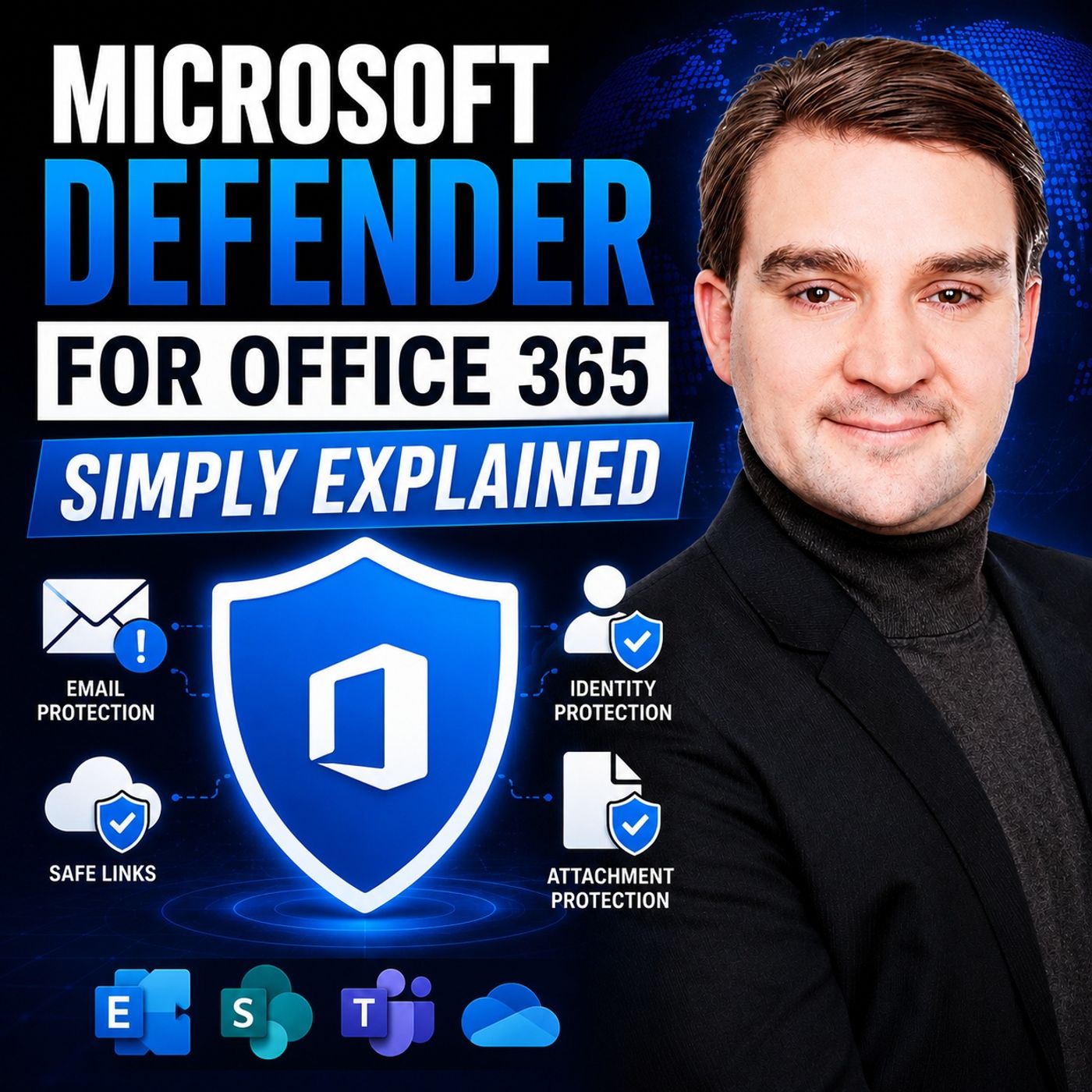
Microsoft Defender for Office 365 - Simply Explained
Show notes
Email remains the number one entry point for cyberattacks, making it one of the biggest security risks for every organization. While many people think Microsoft Defender for Office 365 is simply an advanced spam filter, it's actually a comprehensive cloud-based security platform designed to stop phishing, malware, ransomware, business email compromise (BEC), and sophisticated AI-powered attacks before they ever reach your users. In this episode of Microsoft Knowledge Nuggets, we explain Microsoft Defender for Office 365 in plain English and explore the five protection layers that keep millions of Microsoft 365 users secure every day. WHY EMAIL IS STILL THE BIGGEST CYBERSECURITY THREAT Cybercriminals no longer rely on poorly written phishing emails with obvious spelling mistakes. Today's attacks are highly personalized, often generated using artificial intelligence, and frequently impersonate executives, colleagues, customers, or trusted vendors. A single click on a malicious link or attachment can compromise an entire organization. That's why modern email protection requires much more than traditional spam filtering—it requires multiple intelligent security layers working together. WHAT MICROSOFT DEFENDER FOR OFFICE 365 ACTUALLY DOES Microsoft Defender for Office 365 is Microsoft's cloud-native email security solution built directly into the Microsoft 365 ecosystem. Rather than relying on a single filter, Defender combines multiple security technologies that continuously inspect incoming emails, attachments, links, sender identities, and user behavior. Every email is evaluated through several independent protection mechanisms, dramatically reducing the likelihood that malicious content reaches an employee's inbox. THE FIVE LAYERS OF DEFENDER FOR OFFICE 365 This episode walks through the five core protection layers that make Defender so effective. Anti-Spam Protection filters unwanted messages using machine learning and sender reputation. Safe Attachments opens suspicious files inside isolated virtual sandboxes before users can access them. Anti-Phishing Protection detects impersonation attempts and fraudulent messages designed to steal credentials. Safe Links checks every URL at the exact moment a user clicks, protecting against websites that become malicious after an email has already been delivered. Finally, Anti-Spoofing and Impersonation Protection verifies sender identities using SPF, DKIM, DMARC, and advanced identity analysis to stop business email compromise attacks before they begin. HOW DEFENDER PROTECTS YOUR MICROSOFT 365 ENVIRONMENT One of Defender for Office 365's greatest strengths is its deep integration across Microsoft 365. Protection extends beyond Outlook into Microsoft Teams, SharePoint, OneDrive, and Office documents, ensuring that malicious links and attachments remain protected wherever users collaborate. Every protection layer shares intelligence with the others, allowing Microsoft Defender to continuously learn from new threats and strengthen the organization's overall security posture in real time. COMMON MISCONCEPTIONS ABOUT MICROSOFT DEFENDER FOR OFFICE 365 Many organizations underestimate Defender because they assume it's "just another spam filter." In reality, it's a sophisticated threat protection platform built specifically for Microsoft 365. It doesn't simply block unwanted emails—it analyzes behavior, validates identities, examines attachments inside secure environments, inspects links when users click them, and automatically adapts to emerging attack techniques. Many Microsoft 365 customers already own some Defender capabilities through their existing licensing but never enable the advanced protection features available to them. Become a supporter of this podcast: https://www.spreaker.com/podcast/m365-fm-microsoft-365-azure-cloud-power-platform-ai--6704921/support.
Apple Podcasts · Spotify · YouTube · YouTube Music · Deezer
Host: Mirko Peters
Related articles
Transcript
Read the full transcript
Welcome to another episode of Microsoft Knowledge Nuggets here on M365. FM, I'm your host, Mirko Peters. Today's topic is one that almost everyone has heard of, but few people actually understand. Microsoft Defender for Office 365. Most people think it's just antivirus for email. It isn't. By the end of this episode, you'll understand the five protection layers and how they work together to keep your business safe. Grab your coffee and let's dive in. The problem. Email is still the number one threat. Email is the most common way attackers get into your business. It's not a matter of if but when. 20 years ago, spotting a suspicious email was easy. Bad spelling, blurry logos, terrible grammar. But today attackers use AI and real looking branding. They copy your CEO's writing style, use your company's actual logo, and send emails that look exactly like the ones you get every day. The old approach, just a spam filter, doesn't work anymore. Spam filters were designed to catch obvious junk mail, not targeted attacks that look legitimate. And the stakes are high. One click on the wrong link can lock your entire company's data. Attackers know this so they send emails that look urgent, maybe from your boss or an invoice you're expecting. Now, here's the good news. Microsoft built a multi-layer defense system that works behind the scenes and you probably don't even notice it. It's not a single tool. It's five layers of protection. Each one catching something the others might miss. Let's break down what Defender for Office 365 actually is. What is Defender for Office 365? Here's the simplest definition. Defender for Office 365 is a cloud-based security service that protects your email, calendar and documents from malicious threats. Think of it like a security team for your office building. You don't see them, but they're screening every single person who walks in, checking IDs, watching cameras and keeping an eye on the parking lot. It's not a separate app you install. It lives inside the Microsoft 365 platform and works automatically. There are two main plans, plan one and plan two, but we'll focus on the features, not the licensing. Most users never notice it's there, but it's a core service, especially for businesses. The real power lies in having multiple protection layers, not just one. A single filter is easy to bypass, but five layers. Each one checks something different and each one catches what the others might let through. So what are those layers? Let's start with the first one. Layer one. Anti-spam protection. This is the oldest and most basic layer, the gatekeeper at the front door. Spam isn't just annoying. It clogs up your inbox and makes you miss real messages. When your inbox is full of junk, important emails get buried and you might miss a client's request or an urgent message from your boss. Here's how it works. Defender analyzes millions of signals. Defender reputation, email content, sending patterns and uses machine learning to separate junk from legitimate email. But here's where it gets interesting. Spam filtering today is much smarter than it was five years ago. It looks at behavior, not just keywords. If a sender suddenly starts sending from a new country, Defender flags it. If an account that normally sends three emails a day, suddenly sends 300 Defender flags it. A common misconception is that spam filters block too much legitimate email, but modern Defender is trained to minimize false positives. It learns from what uses report as spam and what they mark is not spam. Over time, it gets better at telling the difference between junk and real messages. The first layer catches the obvious junk, but the dangerous stuff needs deeper inspection that's where the next layer comes in. Layer 2, anti-malware and safe attachments. Spam is annoying, but malware is dangerous. Malware is software designed to damage or break into your systems. It can steal passwords, lock your files or give attackers access to your entire network. Often it arrives in an email that looks completely normal. Defender scans every attachment before it reaches your inbox. Even if the email looks perfectly normal, think of it like a quarantine room. Every package gets opened and inspected in a safe isolated environment before it's allowed inside. That feature is called safe attachments. Let me explain how it works. When an email arrives with an attachment, Defender opens it in a virtual sandbox. That's a fake computer that looks and acts like a real one. The attachment runs inside and Defender watches what it does. If it tries to run malicious code, Defender sees it and blocks the email. The attachment never touches your computer. This is different from traditional antivirus software. Traditional antivirus checks files against a list of known threats like a wanted poster. If a virus is new and hasn't been seen before, traditional antivirus might miss it. Safe attachments watch its behavior, not just signatures. It doesn't matter if the malware is brand new. If it acts suspicious Defender catches it, most users never know this is happening. The email either arrives safely or doesn't arrive at all. You don't see the sandbox. You don't see the inspection. You just see the email in your inbox. Or you don't. You're a real world example. Imagine you receive an invoice PDF from a vendor you work with regularly. The email looks legitimate. The subject line is correct. The sender address matches. But the PDF contains hidden malware. When you open it, the malware installs silently on your computer. With safe attachments, that PDF gets opened in the sandbox first. The malware tries to run. Defender sees it. The email gets blocked before you ever see it. But malware isn't the only danger. Attackers don't always send files. Sometimes they send links. That's where the next layer does something completely different. There are three, anti-fishing protection. Fishing is the most common attack that works. It's not about malware. It's about tricking you. The attacker doesn't need to break into your system. They just need you to hand over the keys. Here's how it works. You receive an email that looks like it's from your bank, your boss, or a service you use. The email asks you to click a link or enter your password. The design looks real. The logo looks real. The language sounds like the real company. But the email is fake. The link takes you to a fake website that steals your credentials. Defender analyzes every email for signs of fishing. It checks the content, the sender's identity, and the sender's behavior. It asks several questions at once. Does this sender normally email you? Is the domain slightly misspelled? Does the link in the email match the apparent sender? If an email claims to be from your bank but the link goes to a random domain, Defender flags it. One of the most powerful features here is called impersonation protection. Defender learns who you normally email with. It learns your CEO's name, your colleagues names, and the domains your company uses. When an email arrives that pretends to be someone you know, Defender checks if it's really them. Imagine your CEO sends an email asking you to buy gift cards for a client. That's a classic fishing attack. Defender knows this is unusual behavior. It knows your CEO has never sent an email like this before. It blocks the message and alerts you that something is wrong. This layer is smart because it learns over time. The more you use it, the better it gets at spotting fakes. It builds a profile of normal communication patterns for your organization. When something deviates from that pattern, Defender raises a flag. But even with all this protection, there's one more layer that's very specific. E-mail often contain links and those links are dangerous even if the email itself passes every check. That's where the next layer comes in. Layer 4. Safe links. Most people don't know safe links exist and it's one of the most powerful features. Here's the problem. And email passes all the checks. It looks legitimate, the center is real and the content is normal. But the link inside takes you to a dangerous website. How do you catch that? Here's how safe links works. It rewrites every URL in your email and checks it at the moment you click. Think of it like a security guard who walks with you to every door, checking the room before you enter. You don't see the guard but the guard is there. Opening the door crack, looking inside and only letting you in if it's safe. The key is timing. A link might be safe when the email is sent, but an hour later that same link could be compromised. Attackers know this. They send emails with safe links, wait for the filters to pass them and then change the destination. That's called a time of click threat. Traditional filters miss it because the link was safe when they checked. Safe links catches it because it checks at the moment you click, not when the email arrives. The links works across email, teams and even office documents. Someone sends you a link in a Teams chat. Safe links checks it. You open a Word document with a hyperlink. Safe links checks it. It's everywhere. Here's a real world scenario. You get an email with a link to a shared document. The link looks normal saying it goes to a SharePoint site you use every day. Behind the scenes defender rewrites that link. When you click it, Defender checks the destination before your browser loads anything. If the destination has been compromised, Defender blocks the page and shows you a warning. You never see the dangerous site. Safe links also scans short and URLs and redirects. Attackers love these because they hide the real destination. A link that looks like it goes to a news article might actually redirect to a fishing site. Safe links follows every redirect, checks every destination and blocks anything suspicious. There's one more layer that protects you from a different kind of trick. Safe links catches dangerous destinations. But what about emails that pretend to be someone you trust? Layer 5. Anti-spoofing and impersonation. Detailing is when an attacker fakes the "from" address so an email appears to come from someone you trust. The email looks like it's from your colleague, but it's actually from a completely different server. The attacker doesn't break into your colleague's account. They just pretend to be them. How does Defender catch this? It checks the email's authentication using standards called SPF, DKIM and DMARK. Technical checks that verify the email actually came from the server it claims to come from. Think of it like checking someone's ID at the door. Even if they look like your friend, you still check the badge. SPF checks if the sending server is authorized to send email for that domain. DKIM checks if the email was signed with a valid digital signature. DMARK tells the receiving server what to do if the checks fail, but attackers are clever. They don't always spoof the domain. Sometimes they use a domain that looks almost identical, like registering your company security, com, instead of your company.com. Defender catches these look alike domains too. Impersonation goes further. Defender learns your organization's internal names and domains and builds a list of people who matter. The CEO, your CFO, your IT manager. When an email arrives that claims to be from one of these people, Defender checks if it's really them by looking at the sending pattern, the email content and the domain. If something doesn't match, Defender blocks it. This layer is especially important for executives and finance teams. They're common targets because they have access to money and sensitive data. An attacker who spoofs the CEO can ask for wire transfers, gift cards or password resets. Defender catches these attacks before they reach the inbox. So now you know the five layers, spam filtering, catches the junk. Safe attachments catches malware. Anti-fishing catches the tricks. Safe links catches dangerous destinations. And anti-spooping catches the fakes. But how do they actually work together? How all five layers work together? The five layers don't work in isolation. They work as a single pipeline. Every email that arrives in your organization goes through all five checks, spam, malware, phishing, links and spoofing in a matter of seconds. It happens so fast you never notice it. If any layer flags a threat, the email gets blocked, quarantined or sent to junk. The user sees almost nothing. The email either arrives in your inbox or it doesn't with no pop-ups, warnings or notifications. It just works. But here's where the real power comes in. The layers share information. When one layer detects a new threat, all the others learn from it. Say safe attachments, finds a new type of malware hidden inside a PDF. That information gets passed to the anti-fishing layer, which starts looking for emails that try to deliver that same malware and it also gets passed to safe links, which starts checking URLs that might lead to it. The whole system gets smarter in real time. This is what makes Defender different from a collection of separate tools. It's not a static filter. It's a learning system that gets better the more you use it. Admins get detailed reports about what was blocked and why. Users get peace of mind and attackers get blocked before they can do any damage. Most people never notice the protection. But the moment it's turned off, you'd see the difference. Your inbox would fill with junk, suspicious emails would slip through and eventually someone would click the wrong link. That's the value of having five layers working together instead of one. Common myths and misconceptions. Let's clear up a few myths before we wrap up. First myth. Defender for Office 365 is just antivirus for email. It isn't. It's a multi-layered security platform that catches threats traditional antivirus with myths. Antivirus checks files against a list of known threats, but Defender checks behavior, identity, and timing. Second myth. It's too expensive for small businesses. Actually many features are included with standard Microsoft 365 plans. You might already be paying for it and not even know. Make your subscription before you assume it's out of reach. Third myth. It blocks too much legitimate email. Modern Defender is trained to minimize false positives. It learns from user behavior and admin adjustments and if something gets blocked that shouldn't be, you can release it with one click. Fourth myth. I don't need it because I use Gmail. The principles of email security apply to any provider, but Defender is built specifically for Microsoft 365. It integrates deeply with exchange online, teams, and SharePoint. And integration is what makes it powerful. Fifth myth. I can just use a third party spam filter. Third party tools can help, but they don't have the same deep integration with Microsoft 365. They can't scan attachments in the same sandbox or check links across teams and office documents. They're a bandaid not a security system. If you use Microsoft 365 for email, you already have some protection. But to get the full five layers, you need Defender for Office 365. So those are the five layers of Defender for Office 365. Some filtering, malware protection, phishing detection, safe links, and anti-sproofing. Think of it as a security guard working behind the scenes to keep your business safe. Here's your homework. Go check if your Microsoft 365 plan already includes Defender. Most people are paying for it and don't even know if this helped, shared with someone starting their email security journey. Subscribe on your favorite podcast platform and we'll see you in the next episode.