 EN
EN Deutsch
 Español
 Français
 Italiano
 Português
 Nederlands
 Polski
 Bahasa Indonesia
 Русский
 Українська
 العربية
 עברית
עברית हिन्दी
 日本語
日本語 한국어
한국어2025-11-12
Migrate Power Automate Cloud Flows to Agent Flows

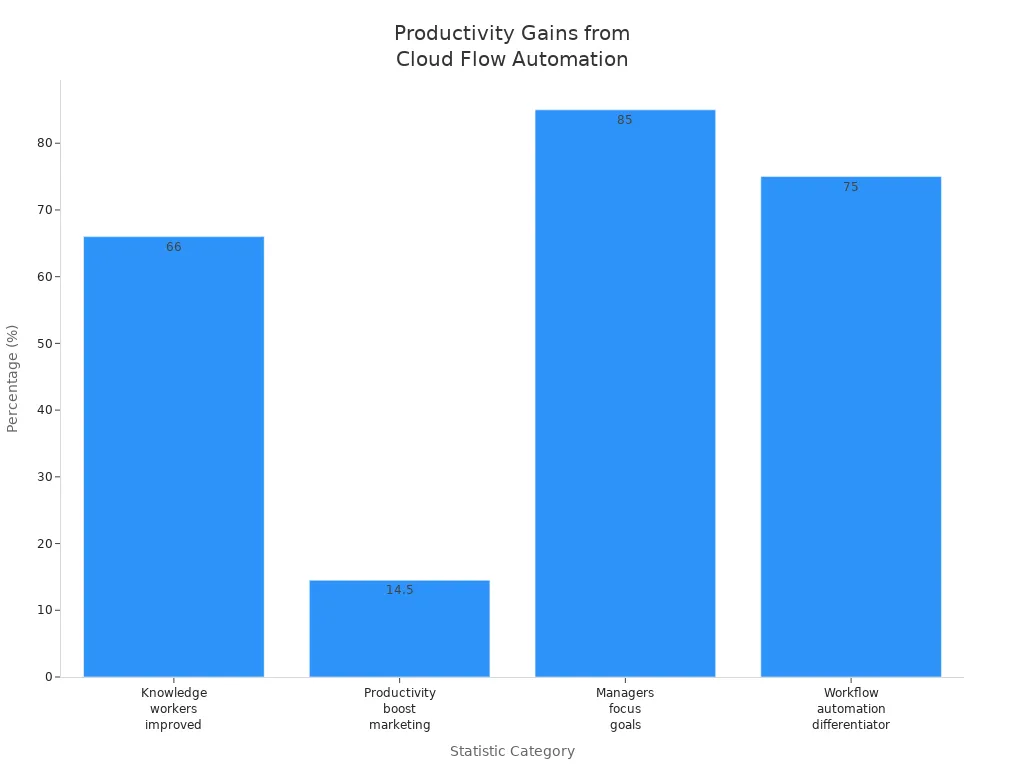
Are you looking to boost your productivity? Building cloud flows can be a game changer! With automation, you can streamline your tasks and save valuable time. In fact, studies show that up to 66% of knowledge workers report improved productivity thanks to tools like cloud flows. Imagine cutting down on manual tasks by 10-50%—that’s the power of automation!
You don’t need to be a tech expert to create a cloud flow. Start by identifying your workflow needs, and you'll be on your way to a more efficient process. Embrace the benefits of automation and watch your productivity soar!
Key Takeaways
- Identify your workflow needs to determine which tasks can be automated.
- Set clear goals for your cloud flows to stay focused and measure success.
- Use flowcharts to visualize your workflow and enhance team collaboration.
- Choose the right triggers to ensure your cloud flows operate smoothly.
- Select a user-friendly platform like Microsoft Power Automate for easy flow creation.
- Follow best practices for naming and organizing your flows to improve clarity.
- Implement error handling strategies to manage issues effectively.
- Regularly monitor your flows to optimize performance and identify bottlenecks.
Planning to Create a Cloud Flow

Creating effective cloud flows starts with a solid plan. You need to identify your workflow needs and understand how to streamline your processes. Let’s break this down into manageable steps.
Identifying Workflow Needs
Assessing Current Processes
Before diving into building cloud flows, take a moment to assess your current processes. Ask yourself:
- What tasks consume most of your time?
- Are there repetitive tasks that could be automated?
- Where do you face bottlenecks or delays?
Many organizations encounter common workflow challenges, such as integration failures, user resistance, and privacy concerns. By identifying these issues early, you can focus on areas that will benefit most from automation.
Defining Goals
Once you’ve assessed your processes, it’s time to define your goals. What do you want to achieve with your cloud flows? Here are some examples of goals you might consider:
- Automate new employee onboarding processes.
- Streamline document approval workflows.
- Facilitate feedback collection and ticket management.
Setting clear goals helps you stay focused and measure your success as you implement your cloud flows.
Mapping Triggers and Actions
Creating Flowcharts
Visualizing your workflow can make a significant difference. Creating flowcharts helps you see the big picture and understand how different tasks connect. Here’s why flowcharts are beneficial:
- They provide clearer visualization of your workflow.
- They simplify maintenance since updates happen in one place.
- They enhance team collaboration by allowing different members to focus on specific modules.
Selecting Triggers
Triggers are the events that start your cloud flows. Choosing the right triggers is crucial for effective automation. When selecting triggers, consider the following:
- Is this a Before-Save Flow when only updating the triggering record?
- Are entry conditions as strict as possible?
- Have you explicitly asked: "Could this Flow re-trigger itself?"
By carefully selecting your triggers, you ensure that your flows operate smoothly and efficiently.
Tools and Cloud Flows Designer Platforms

When it comes to building cloud flows, Microsoft Power Automate stands out as a leading platform. It offers a variety of tools that help you automate tasks and improve your workflow. Let’s explore the key features of Power Automate and how it compares to other cloud flows designer platforms.
Microsoft Power Automate Overview
Power Automate provides a user-friendly interface that allows you to create and manage your cloud flows with ease. Here are some of its standout features:
- Robotic Process Automation (RPA): This feature automates repetitive tasks by mimicking human interactions within a graphical user interface. It enhances accuracy and speeds up workflows.
- AI Builder: With this tool, you can integrate machine learning into your automation processes. This capability is not available in many other platforms, making Power Automate unique.
- User-Friendly Interface: The drag-and-drop functionality makes it accessible for users without coding experience. You can quickly set up flows without needing extensive technical knowledge.
| Feature | Description |
|---|---|
| Robotic Process Automation | Automates repetitive tasks by emulating human interactions within a GUI. |
| AI Builder | Integrates machine learning capabilities to enhance automation processes. |
| User-Friendly Interface | Allows users to create workflows using a simple drag-and-drop interface. |
Organizations using Microsoft Power Automate can achieve a remarkable 502% return on investment (ROI) within three years. This statistic highlights its effectiveness in improving productivity and streamlining operations.
Traditional Cloud Flows
Traditional cloud flows in Power Automate allow you to automate tasks across various applications and services. They are designed to handle straightforward automation needs, such as sending notifications or updating records. While effective, they may involve additional costs for premium connectors and complex integrations.
Agent Flows in Copilot Studio
Agent Flows represent a new approach within Power Automate. They operate on a message-based billing model, which means you only pay for the actions you take. This model eliminates hidden costs associated with traditional cloud flows. Agent Flows also leverage advanced AI capabilities, making them ideal for environments driven by conversation and intent. You can easily convert existing cloud flows into Agent Flows, ensuring you benefit from the new billing structure and enhanced features.
Choosing the Right Designer
When selecting a cloud flows designer platform, consider several criteria to ensure it meets your organization’s needs:
- Ease of Use: Look for a platform that allows your team to create and manage flows without extensive training.
- Integration Capabilities: Ensure the platform can seamlessly connect with your existing systems, including Customer Relationship Management (CRM) and analytics tools.
- Deployment Models: Decide whether you prefer a cloud-based solution, on-premises, or a hybrid model. Cloud solutions often offer scalability and reduced maintenance.
- Security Measures: Assess how the platform enforces data security and compliance with your organization’s policies.
| Aspect | Microsoft Power Automate | FlowForma Process Automation |
|---|---|---|
| Starting Price | From $15 per user/month (Premium plan) | Process-based pricing starting from $2,347 per month |
| Licensing Model | User, bot, or flow-based tiers | Single license covering unlimited workflows |
| Hidden Costs | Additional fees for AI Builder, RPA, connectors | Transparent pricing with all core features included |
| Ease of Use | Low-code platform, may require technical setup | No-code workflow design for business users |
| AI and Workflow Features | AI Builder and Copilot Studio require add-ons | Built-in AI Copilot, AI Agents, Summarization, etc. |
| Scalability | Costs increase as automation expands | Scales under a single license model |
| Compliance & Governance | Basic audit trails | Built-in governance dashboards and audit tracking |
| Best For | IT-led automation in Microsoft environments | Business-led workflow automation with IT oversight |
By carefully evaluating these factors, you can choose the right cloud flows designer that aligns with your goals and enhances your workflow efficiency.
Building Cloud Flows Step-by-Step
Creating cloud flows can seem daunting, but breaking it down into manageable steps makes the process much easier. Let’s walk through how to set up your environment, create a cloud flow, and ensure it runs smoothly.
Setting Up Your Environment
Signing In to Power Automate
First, you need to sign in to Microsoft Power Automate. If you don’t have an account yet, you can easily create one. Just visit the Power Automate website and follow the prompts. Once you’re signed in, you’ll have access to all the tools you need to start building cloud flows.
Accessing the Cloud Flows Designer
After signing in, navigate to the cloud flows designer. This is where the magic happens! The designer provides a user-friendly interface that allows you to visualize your flows. You can start by selecting “Create” and then choose “Automated cloud flow” to begin your journey.
Tip: To ensure a secure and efficient environment for building cloud flows, consider these best practices:
- Group related actions within scopes to manage errors collectively.
- Define actions based on the success or failure of previous steps.
- Set up alerts to notify stakeholders of failures or issues.
- Use environment variables to manage configuration data, promoting reusability.
Creating the Flow
Adding Triggers
Now it’s time to create a cloud flow! Start by adding triggers. Triggers are events that kick off your flow. You can choose from various options, such as API triggers or webhook triggers, depending on your needs. Here’s a quick guide to help you select the right one:
- Use API triggers when you control requests and need OAuth2 authentication.
- Opt for webhook triggers when working with platforms that support them but don’t allow OAuth2 requests.
Once you’ve selected your trigger, you can move on to the next step.
Configuring Actions
Next, you’ll want to configure actions. Actions are the tasks your flow will perform after the trigger activates. To add an action, follow these steps:
- Select the location for your new action in your cloud flow.
- Add an action to your cloud flow.
- Enter the necessary information for the action.
Make sure to think about how each action connects to the previous one. This ensures your flow runs smoothly and efficiently.
Testing and Saving
Running Tests
Before you publish your flow, it’s crucial to test it. Testing helps you catch any issues before they affect your workflow. Use the built-in debug tool to test your flow thoroughly. Make sure to go through the full end-to-end process to ensure everything works as expected.
Note: Always test your flows before pushing them into production. This step is vital to avoid unexpected errors.
Finalizing the Flow
Once you’re satisfied with your tests, it’s time to save your flow. Click on the “Save” button in the command bar. After saving, you can publish your flow to make it live. Remember to document your flow’s purpose and structure to help others understand it.
Tip: Create flow tests for every business-critical automation. This helps catch dependency and configuration issues that could lead to production failures.
By following these steps, you’ll be well on your way to building effective cloud flows that streamline your workflow!
Best Practices for Cloud Flows
Creating effective cloud flows requires more than just technical skills; it also involves following best practices that enhance clarity, security, and performance. Let’s dive into some key strategies you can implement.
Naming and Organization
Clear Naming Conventions
Using clear naming conventions is crucial for maintaining your cloud flows. Here are some tips to help you:
- Start flow names with a verb and describe the outcome, including the trigger type.
- Action names should begin with the original action description and provide context.
- Trigger names must include relevant details about the event or schedule.
For example, consider this table:
| Good Examples | Bad Examples | Bad Reason |
|---|---|---|
| Send Daily Status Report (Scheduled) | Send Daily Status Report | No trigger type at end of name |
| Get Currency Rates From Web (Automated) | Currency Rates From Web | No verb at beginning of name |
| Change App Ownership (Instant) | Change app ownership (Instant) | Not proper case |
By following these conventions, you’ll make it easier for yourself and your team to understand and manage flows over time.
Using Descriptive Labels
Descriptive labels help you and your team quickly identify the purpose of each flow. Maintain clear naming conventions to indicate both the object and the scenario the flow handles. This practice not only aids in organization but also enhances long-term maintenance and scalability.
Error Handling and Security
Implementing Error Checks
Error handling is essential for robust cloud flows. Here are some effective strategies:
- Configure the 'Catch' scope to run if the 'Try' scope fails.
- Utilize retry policies to manage temporary issues effectively.
Design your workflows to gracefully handle errors by defining alternate paths or fallback mechanisms. Thoroughly test these scenarios during development to ensure reliability.
Ensuring Data Security
Protecting sensitive data is paramount. Implement the following security measures:
| Security Measure | Description |
|---|---|
| Data Encryption | Use AES-256 and TLS 1.3 to encrypt data, making it unreadable without the correct key. |
| Tokenization | Converts sensitive data into unreadable substitutes to prevent unauthorized access. |
| Rights Management | Define access privileges based on user attributes to ensure only authorized users can access sensitive data. |
These measures will help safeguard your data and maintain compliance with regulations.
Performance Optimization
Avoiding Over-Complexity
Keep your cloud flows simple. Avoid combining multiple, unrelated tasks in a single flow. Instead, focus on specific scenarios to maintain clarity and flexibility. Modular flows improve maintainability, making it easier to update and manage automation.
Monitoring Flow Performance
Regularly monitor the performance of your cloud flows. Use tools like Application Insights and Dataverse to track execution history and gain insights into your flows. This proactive approach helps you identify bottlenecks and optimize performance.
By following these best practices, you’ll create cloud flows that are not only efficient but also easy to maintain and secure. Embrace these strategies to enhance your workflow and drive productivity!
Troubleshooting Cloud Flows
When you work with cloud flows, you might run into some bumps along the way. Don't worry; troubleshooting is part of the process! Let's look at some common issues you might face and how to resolve them.
Common Issues
Connection Failures
Connection failures can be frustrating. They often happen due to misconfigured settings or network issues. Here are some common reasons for connection failures:
- Manual Deployment Steps: Forgetting to update configuration files can lead to errors.
- Big Bang Deployments: Deploying many changes at once complicates issue isolation.
If you encounter a connection failure, it’s essential to check your settings. You can follow these steps:
- Access the Microsoft Entra admin center and navigate to Protection > Conditional Access > Policies.
- Adjust your policy to target the Office 365 app or all cloud apps.
- Confirm that Microsoft Flow Service is included with matching requirements alongside the host applications like SharePoint or Teams.
- If your policy includes Terms of Use, exclude service accounts and dedicated flow connection owners from that policy.
Trigger Problems
Trigger problems can also disrupt your flows. Triggers are the events that start your automation, and if they don’t fire correctly, your flow won’t run. Common issues include:
- Triggers not firing due to incorrect conditions.
- Misconfigured settings that prevent the trigger from activating.
Solutions
Permission Checks
Sometimes, permission issues can cause your flows to fail. Make sure you have the right permissions set up for all users involved. Check that everyone who needs access has the necessary rights to run the flow. This step is crucial for ensuring smooth operation.
Reviewing Logs and Errors
Reviewing logs and error messages can help you diagnose and fix issues effectively. Here’s how:
- Error messages provide detailed insights into what went wrong, including error codes and specific details about the failed operation.
- Timestamps in error messages help you correlate errors with specific events, making it easier to identify triggers.
- Detailed messages often include information about which data field caused the issue, aiding in pinpointing the root cause.
By keeping an eye on these logs, you can proactively address issues before they escalate into bigger problems.
Building cloud flows can significantly enhance your workflow. Start by assessing your current processes, defining clear goals, and mapping out triggers and actions. Remember to follow best practices like using clear naming conventions and implementing error handling.
By adopting tools like Microsoft Agent Flows, you can enjoy cost-effective automation. Here are some key benefits you can expect:
- Higher Productivity: Focus on important tasks instead of repetitive ones.
- Fewer Errors: Automation reduces human error, improving accuracy.
- Lower IT Costs: Cloud solutions cut down on infrastructure expenses.
Embrace these strategies to streamline your processes and watch your productivity soar! 🚀
FAQ
What are cloud flows?
Cloud flows are automated workflows that connect different applications and services. They help you streamline tasks, reduce manual work, and improve efficiency.
How do I start building a cloud flow?
To start, sign in to Microsoft Power Automate. Then, access the cloud flows designer and select “Create” to begin your automation journey.
Can I use cloud flows for any task?
Yes! You can automate various tasks, such as sending notifications, updating records, or managing approvals. The possibilities are vast!
What are triggers in cloud flows?
Triggers are events that initiate your cloud flows. They can be based on specific actions, like receiving an email or a scheduled time.
How do I test my cloud flow?
You can test your flow using the built-in debug tool in Power Automate. Run through the entire process to ensure everything works as expected.
What should I do if my flow fails?
If your flow fails, check the error messages and logs for details. Review your settings and permissions to identify any issues.
Are there costs associated with using cloud flows?
Yes, while some features are free, others may require a subscription or additional fees, especially for premium connectors and advanced functionalities.
What are Agent Flows?
Agent Flows are a new type of cloud flow that uses a message-based billing model. You only pay for the actions you take, making automation more cost-effective.
Apple Podcasts · Spotify · YouTube · YouTube Music
Host: Mirko Peters