 EN
EN Deutsch
 Español
 Français
 Italiano
 Português
 Nederlands
 Polski
 Bahasa Indonesia
 Русский
 Українська
 العربية
 עברית
עברית हिन्दी
 日本語
日本語 한국어
한국어2025-11-03
Run Your Full Stack Locally with .NET Aspire

PowerShell gives you powerful tools to manage Microsoft 365. With PowerShell, you automate tasks and gain advanced control over your Microsoft environment. You complete user administration, automate license assignments, and monitor security across your Microsoft 365 tenant with speed and accuracy. PowerShell reduces manual effort, scales with your needs, and helps you handle complex Microsoft 365 management. When you use PowerShell, you unlock new possibilities for Microsoft administration and make your daily work more efficient.
Key Takeaways
- PowerShell automates Microsoft 365 tasks, saving time and reducing manual effort.
- Ensure your system meets prerequisites for PowerShell, including supported operating systems and necessary modules.
- Use the least privilege principle by assigning only necessary roles to maintain security in your Microsoft 365 environment.
- Install essential PowerShell modules like MSOnline and ExchangeOnlineManagement to manage users and services effectively.
- Connect PowerShell to Microsoft 365 using secure methods, such as multi-factor authentication, for enhanced security.
- Automate user management tasks with PowerShell scripts to streamline onboarding and offboarding processes.
- Regularly audit licenses and permissions to ensure compliance and avoid unnecessary costs.
- Utilize community resources and documentation for troubleshooting and expanding your PowerShell skills.
Manage Microsoft 365 with PowerShell: 9 Surprising Facts
- PowerShell can manage almost every Microsoft 365 workload from a single script: Exchange Online, SharePoint, Teams, Azure AD/MSGraph — you can orchestrate cross-service changes in one runbook.
- The Microsoft Graph PowerShell SDK is replacing many legacy modules (MSOnline, AzureAD, ExchangeOnline) and exposes unified Graph API capabilities, enabling richer automation and reporting.
- You can perform cross-tenant and delegated-administrator operations via PowerShell, making managed service provider (MSP) automation and multi-tenant orchestration much more powerful than the GUI allows.
- PowerShell allows large-scale license optimization: you can detect unused or underused seats, reassign or revoke licenses automatically, and save real money with scheduled scripts.
- Microsoft 365 Cloud Shell and the Admin Center’s in-browser PowerShell let you run management scripts without installing modules locally, which is handy for emergency fixes from any device.
- PowerShell provides access to advanced audit, compliance and eDiscovery functions (searches, hold policies, export) that are either limited or unavailable in the portal, enabling automated incident workflows.
- Role-based access control (RBAC) and Privileged Identity Management (PIM) actions can be automated with PowerShell, including just-in-time elevation and entitlement reviews, improving security posture through automation.
- Teams and policy-level automation is deeper than most expect: you can script creation of channels, meeting policies, app permissions, retention rules and bulk user policy assignments to enforce governance at scale.
- Unattended automation is supported securely: modern auth with app-only tokens, certificate-based authentication and managed identities let you run scheduled PowerShell jobs without storing user credentials.
Microsoft 365 Management Prerequisites
Before you start using PowerShell for Microsoft 365 management, you need to make sure your system and account meet the right requirements. This preparation helps you avoid common issues and ensures a smooth experience as you manage your Microsoft 365 environment.
Supported Systems
You can use PowerShell for Microsoft 365 on both Windows and Mac systems. Most users choose Windows 10 or later, but Mac users can also install PowerShell Core. If you use an older version of Windows, you may need to install the Microsoft Online Services Sign-in Assistant. Always check that your operating system supports the latest PowerShell modules for Microsoft 365 management.
Tip: Keep your system updated. Newer versions of PowerShell and Microsoft 365 modules often include important security and compatibility fixes.
Some users encounter compatibility issues, such as assembly dependency conflicts or problems with Web Account Manager (WAM) integration. If you see errors related to WAM when connecting to Exchange Online, try using the DisableWAM switch as a temporary workaround. Avoid using the RunAs option, as it can cause authentication failures.
Permissions and Roles
You need the right permissions to manage Microsoft 365 with PowerShell. Make sure your account has one or more of these roles:
- Global Administrator
- Exchange Administrator
- SharePoint Administrator
- Teams Administrator
You can check your assigned roles in the Microsoft 365 admin center. If you do not have the required permissions, contact your administrator. Using the least privilege principle helps keep your environment secure. Only assign the roles needed for your specific management tasks.
Environment Setup
Setting up your local environment for Microsoft 365 management with PowerShell involves several steps. Follow this checklist to prepare your system:
- Open Windows PowerShell as an administrator.
- Set the PowerShell Gallery as a trusted repository:
Set-PSRepository -Name 'PSGallery' -InstallationPolicy Trusted - If prompted, install the NuGet provider.
- Install the required modules:
Install-Module MSOnline Install-Module -Name AzureAD Install-Module -Name ExchangeOnlineManagement Install-Module -Name Microsoft.Online.SharePoint.PowerShell Install-Module -Name MicrosoftTeams -Force -AllowClobber - Set the execution policy to allow scripts:
Set-ExecutionPolicy RemoteSigned - Confirm changes when prompted.
Note: If you run into assembly dependency conflicts, make sure your modules do not change the global machine state. For persistent issues, contact Microsoft support.
By following these steps, you prepare your system for efficient Microsoft 365 management with PowerShell. This foundation lets you automate tasks, manage users, and secure your Microsoft 365 tenant with confidence.
Installing PowerShell Modules for Microsoft 365
You need the right tools to manage your microsoft 365 environment with powershell. Installing the correct powershell modules gives you access to advanced features for microsoft 365 administration. You can automate tasks, manage users, and control services across your microsoft 365 tenant.
Module Overview
You use several powershell modules to manage microsoft 365. Each module connects to a different microsoft service and provides unique commands. Here are the most commonly used modules:
- MSOnline: Manage users, groups, and licenses in microsoft 365.
- Exchange Online V3: Control mailboxes, distribution groups, and email settings in microsoft 365.
- SharePoint Online: Administer sites, permissions, and content in microsoft 365.
- Teams: Manage teams, channels, and policies in microsoft 365.
You also use the Azure Active Directory module for user and group management. The MicrosoftTeams module helps you control teams and meetings. The ExchangeOnlineManagement module lets you manage mailboxes and email settings. The Microsoft.Online.SharePoint.PowerShell module gives you access to SharePoint sites and permissions.
Tip: Always install the latest version of each powershell module. New versions include security updates and new features for microsoft 365.
MSOnline
You use the MSOnline module to manage users, groups, and licenses in your microsoft 365 tenant. This module helps you automate user creation and license assignments.
Exchange Online V3
The Exchange Online V3 module gives you control over mailboxes and email settings in microsoft 365. You can create, modify, and remove mailboxes with powershell commands.
SharePoint Online
You use the SharePoint Online module to manage sites, permissions, and content in microsoft 365. This module helps you automate site creation and permission changes.
Teams
The Teams module lets you manage teams, channels, and policies in microsoft 365. You can create new teams, add users, and set meeting policies with powershell.
Installation Steps
You install powershell modules for microsoft 365 on both Windows and Mac systems. Follow these steps to set up your environment:
- Download and install the latest powershell package from GitHub.
- On Mac, install OpenSSL using Homebrew:
- Open Terminal and run:
brew update brew install openssl echo 'export PATH="/usr/local/opt/openssl/bin:$PATH"' >> ~/.bash_profile source ~/.bash_profile - Test OpenSSL by typing
OpenSSLin Terminal.
- Open Terminal and run:
- Install the PSWSMan module for powershell:
- Run:
sudo pwsh
Install-Module -Name PSWSMan
Exit
sudo pwsh
Install-WSMan
- Run:
- Install the Exchange Online Management module:
Install-Module -Name ExchangeOnlineManagement - Verify installation:
Get-InstalledModule ExchangeOnlineManagement | Format-List - Install additional modules for microsoft 365 management:
Install-Module -Name Microsoft.Online.SharePoint.PowerShell Install-Module -Name MicrosoftTeams Install-Module -Name AzureAD - On Windows, open powershell as an administrator. Use the
-Scope CurrentUserparameter if you do not have admin rights.
Note: If you see errors about administrative rights or module versions, run powershell with elevated rights. Use the
-Scope CurrentUserparameter to install modules for your user account.
You may encounter warnings about module versions being in use. Identify where the conflicting module is installed with $env:PSModulePath. Uninstall all versions of the module using:
Uninstall-Module -Name PnP.PowerShell -AllVersions -Force
Then reinstall the desired version:
Install-Module -Name PnP.PowerShell
| Module Name | Primary Function | Install Command |
|---|---|---|
| MSOnline | User, group, license management | Install-Module MSOnline |
| ExchangeOnlineManagement | Mailbox and email management | Install-Module -Name ExchangeOnlineManagement |
| Microsoft.Online.SharePoint.PowerShell | SharePoint site and permission management | Install-Module -Name Microsoft.Online.SharePoint.PowerShell |
| MicrosoftTeams | Teams and meeting management | Install-Module -Name MicrosoftTeams |
| AzureAD | User and group management | Install-Module -Name AzureAD |
You now have the powershell modules needed for microsoft 365 management. These tools help you automate tasks and control your microsoft 365 tenant with precision.
Connecting PowerShell to Microsoft 365 Tenant
When you manage your microsoft 365 tenant, connecting powershell to your environment is a key step. You need to choose the right authentication method and follow the correct process for each microsoft service. This section guides you through the main authentication options and shows you how to connect powershell to Exchange Online and sharepoint.
Authentication Options
You have several ways to authenticate when connecting powershell to your microsoft 365 tenant. Each method offers a different balance of security and convenience. The right choice depends on your organization's needs and the sensitivity of your microsoft 365 data.
| Authentication Method | Description | Security Level Comparison |
|---|---|---|
| Multi-Factor Authentication | Requires extra verification beyond a password. | High, especially with Conditional Access. |
| Federated Identities | Allows single sign-on, more secure but needs extra setup. | Very high, but complex to configure. |
| Per-User MFA | Enables MFA for individual users without extra licensing. | Moderate, less control than Conditional Access. |
Interactive Login
Interactive login is the simplest way to connect powershell to your microsoft 365 tenant. You enter your username and password in a pop-up window. If your account uses multi-factor authentication, you also enter a verification code. This method works well for quick tasks or when you do not need to automate scripts.
Secure Credentials
For more secure or automated connections, you can use stored credentials. You save your username and password in a secure variable. Then, you pass this variable to the powershell command. This method helps you avoid typing your password each time. It also supports automation for regular microsoft 365 management tasks.
Certificate Authentication
Certificate authentication gives you the highest level of security. You use a digital certificate to prove your identity to microsoft 365. This method works best for service accounts or automated scripts that manage your tenant. It requires more setup but reduces the risk of password theft.
Tip: Use multi-factor authentication for all admin accounts in your microsoft 365 tenant. This step greatly improves security.
Connect to Exchange Online
You can manage mailboxes, groups, and policies in your microsoft 365 tenant by connecting powershell to Exchange Online. Follow these steps for a reliable connection:
- Update the Exchange Online powershell module to the latest version.
- Set your powershell execution policy to RemoteSigned:
Set-ExecutionPolicy RemoteSigned - Check your network settings. Make sure no firewall or proxy blocks microsoft 365 connections.
- Connect to Exchange Online with this command:
Enter your microsoft 365 admin credentials when prompted.Connect-ExchangeOnline - If you use multi-factor authentication, follow the prompts to enter your verification code.
- For troubleshooting, add the
-EnableErrorReportingflag to collect logs:Connect-ExchangeOnline -EnableErrorReporting - When you finish, always disconnect your session:
Disconnect-ExchangeOnline
Note: If you have issues with Windows Authentication Manager, try disabling it with the
-DisableWAMswitch.
Connect to SharePoint Online
You use powershell to manage sharepoint sites, permissions, and content in your microsoft 365 tenant. The SharePoint Online Management Shell makes this process easy.
- Open the SharePoint Online Management Shell. You can search for "sharepoint" in the Start menu.
- To connect with a username and password, run:
Enter your microsoft 365 password when prompted.Connect-SPOService -Url https://contoso-admin.sharepoint.com -Credential admin@contoso.com - For accounts with multi-factor authentication, use:
Follow the prompts to enter your microsoft 365 account details and verification code.Connect-SPOService -Url https://contoso-admin.sharepoint.com
You now have a secure connection to sharepoint in your microsoft 365 tenant. You can automate site creation, manage permissions, and control content across your 365 environment.
Connect to Teams
You can manage your organization's collaboration and communication by connecting PowerShell to teams. This connection gives you control over settings, users, and policies in microsoft teams. You can automate tasks, create new teams, and monitor activity without using the web interface.
To get started, you need the MicrosoftTeams PowerShell module. This module provides commands for managing teams and their resources. If you have not installed it yet, run:
Install-Module -Name MicrosoftTeams
After installation, you can connect PowerShell to your microsoft teams environment. Use the following command to start the connection:
Connect-MicrosoftTeams
A sign-in window will appear. Enter your admin credentials. If your account uses multi-factor authentication, follow the prompts to complete the process. You now have access to manage teams from your PowerShell session.
Tip: Always use an account with the Teams Administrator or Global Administrator role. This ensures you have the right permissions to manage all teams features.
Once connected, you can perform many tasks. Here are some common actions:
- List all teams in your organization:
Get-Team - Create a new team:
New-Team -DisplayName "Project Alpha" -Visibility Private - Add a user to a team:
Add-TeamUser -GroupId <TeamGroupId> -User user@domain.com - Set a policy for meetings:
Grant-CsTeamsMeetingPolicy -PolicyName "Standard" -Identity user@domain.com
You can also automate bulk operations. For example, you can add multiple users to a team by importing a list from a CSV file. This saves time and reduces errors.
| Command | Description |
|---|---|
| Get-Team | List all teams |
| New-Team | Create a new team |
| Add-TeamUser | Add a user to a team |
| Remove-TeamUser | Remove a user from a team |
| Set-Team | Update team settings |
If you need to disconnect, use:
Disconnect-MicrosoftTeams
This command ends your session and helps keep your environment secure.
Managing microsoft teams with PowerShell gives you speed and flexibility. You can handle large numbers of teams, apply policies, and monitor usage with simple commands. You do not need to click through the web portal for every change. PowerShell makes teams management efficient and reliable.
Essential Scripts for Microsoft 365 Management

User Management
Managing users in your microsoft 365 tenant is one of the most important tasks. You use powershell to create, modify, and report on user accounts. These powershell commands help you automate user administration and keep your environment organized.
Create and Modify Users
You can create new users and update existing accounts with powershell. This process saves time and reduces errors compared to manual entry in the microsoft 365 admin portal. You start by connecting to your tenant and running commands to add or change user details.
To create a new user, use the following powershell command:
New-MgUser -DisplayName "Alex Johnson" -UserPrincipalName "alex.johnson@contoso.com" -AccountEnabled $true -MailNickname "alexjohnson" -PasswordProfile @{ ForceChangePasswordNextSignIn = $true; Password = "P@ssw0rd!" }
You modify user properties with commands like:
Set-MgUser -UserId "alex.johnson@contoso.com" -Department "Marketing" -JobTitle "Marketing Specialist"
You can also reset passwords, update contact information, and enable or disable accounts. These powershell commands give you full control over user accounts in your microsoft 365 tenant.
Tip: Always check user details before making changes. Use
Get-MgUserto review current settings.
Bulk Operations
You often need to manage many users at once. Powershell makes bulk operations easy. You can import a list of users from a CSV file and run commands to create, modify, or remove accounts in your microsoft 365 tenant.
Here is a sample script for bulk user creation:
Import-Csv "C:\Users\newusers.csv" | ForEach-Object {
    New-MgUser -DisplayName $_.DisplayName -UserPrincipalName $_.UserPrincipalName -AccountEnabled $true -MailNickname $_.MailNickname -PasswordProfile @{ ForceChangePasswordNextSignIn = $true; Password = $_.Password }
}
You can also update properties for multiple users:
Import-Csv "C:\Users\updateusers.csv" | ForEach-Object {
    Set-MgUser -UserId $_.UserPrincipalName -Department $_.Department -JobTitle $_.JobTitle
}
Bulk operations help you onboard new employees, update departments, or offboard users quickly. You reduce manual work and ensure consistency across your microsoft 365 tenant.
Note: Always validate your CSV files before running bulk scripts. Mistakes in the file can cause errors in user creation or modification.
You can generate reports to monitor user activity and security. Common powershell scripts include:
- Listing users and their last logon time to find inactive accounts.
- Exporting MFA status for all users to a CSV file.
- Reporting password change dates and expiry.
- Tracking user logon history and activity.
- Removing or disabling inactive users based on last activity.
- Automating user offboarding, including disabling accounts and converting mailboxes.
These scripts help you maintain a secure and efficient microsoft 365 environment.
License Management
Managing licenses in your microsoft 365 tenant ensures users have access to the right tools. You use powershell commands to assign, remove, and audit licenses. This process helps you control costs and maintain compliance.
The following table shows key powershell commands for license management:
| Cmdlet | Description | Example Scenario |
|---|---|---|
| Get-MgUser | Retrieves user information, including assigned licenses. | Audit your user base before major projects, ensuring all users have the necessary licenses. |
| Set-MgUserLicense | Assigns or removes licenses for a user. | Update licenses when employees change roles or need advanced tools. |
| Get-MgSubscribedSku | Lists the subscribed SKUs for the tenant. | Keep an inventory of license entitlements for compliance and management. |
| Get-MgDirectorySubscription | Provides details on the directory's subscriptions. | Audit active subscriptions to maintain only necessary licenses and streamline costs. |
You start by reviewing license assignments with Get-MgUser. You can export this information to a CSV file for analysis. When you need to assign or remove licenses, use Set-MgUserLicense. This command lets you update user access quickly.
You check your tenant's available licenses with Get-MgSubscribedSku. This helps you plan for new hires or changes in your microsoft 365 environment. You audit subscriptions with Get-MgDirectorySubscription to avoid unnecessary costs.
Tip: Regular license audits help you stay compliant and avoid paying for unused licenses.
You can automate license assignments for new users. For example, when you onboard employees, run a script to assign the standard microsoft 365 license:
Set-MgUserLicense -UserId "alex.johnson@contoso.com" -AddLicenses @{SkuId="your-sku-id"}
You remove licenses when users leave or change roles:
Set-MgUserLicense -UserId "alex.johnson@contoso.com" -RemoveLicenses "your-sku-id"
Automating license management with powershell commands keeps your tenant organized and efficient.
Group and Team Management
Groups and teams play a central role in microsoft 365 administration. You use powershell to manage membership, audit access, and monitor activity. These scripts help you control collaboration and security in your tenant.
You can retrieve all groups in your tenant with:
Get-MgGroup
You use Get-UnifiedGroup to find Unified Groups in Exchange Online. For sharepoint sites connected to groups, run:
Get-SPOSite -Template GROUP#0
You audit group membership and guest access with powershell commands. You track changes and monitor for suspicious activity. Teams analytics and sharepoint file sharing scripts help you understand how users collaborate.
Common powershell scripts for group and team management include:
- Auditing group membership to ensure only authorized users have access.
- Tracking guest access to identify external accounts in your tenant.
- Delegating Exchange mailbox access for shared work.
- Monitoring email activity for compliance.
- Analyzing teams usage and sharepoint file sharing.
You benefit from speed and repeatability. Run a single script to update thousands of users. You automate bulk changes and save time. Scripts can be reused for consistent workflows.
Note: Always review group membership and guest access regularly. This practice improves security and keeps your microsoft 365 tenant safe.
Powershell commands for group and team management give you advanced control. You can make large-scale changes, audit activity, and maintain a secure environment. You improve efficiency and reduce manual work in your microsoft 365 administration.
Security Audits
Security audits help you protect your Microsoft 365 environment. You can use PowerShell to check for risks, monitor activity, and keep your data safe. You need to know what happens in your tenant, especially when you manage many users and groups. PowerShell gives you tools to track changes, review access, and find problems before they grow.
Audit Logs
Audit logs show you what happens in your Microsoft 365 tenant. You can use PowerShell scripts to collect these logs and review important actions. This helps you spot suspicious activity, such as unauthorized access or changes to settings.
You can use different methods to monitor and audit PowerShell activity:
| Method | Description |
|---|---|
| PowerShell Scripts | Retrieve admin operation logs from unified audit logs. Export details to CSV for analysis. |
| Azure AD Audit Logs | Track admin actions like user additions and policy updates in the Microsoft Entra admin center. |
| Unified Audit Logs | Access all admin activity records in the Microsoft 365 Purview portal. Download for review. |
| Search-UnifiedAuditLog | Use this cmdlet for detailed searches and automation across Microsoft 365 services. |
You can run scripts to check mailbox admin activities. For example, you can see who accessed a mailbox or changed settings:
Search-MailboxAuditLog -Identity john -LogonTypes Admin,Delegate -StartDate 1/1/2019 -EndDate 12/31/2019 -ResultSize 2000
You can also audit mailbox quota changes:
New-AdminAuditLogSearch -Name "Mailbox Quota Change Audit" -Cmdlets Set-Mailbox -Parameters UseDatabaseQuotaDefaults, ProhibitSendReceiveQuota, ProhibitSendQuota -StartDate 01/24/2019 -EndDate 02/12/2019 -StatusMailRecipients john@example.com
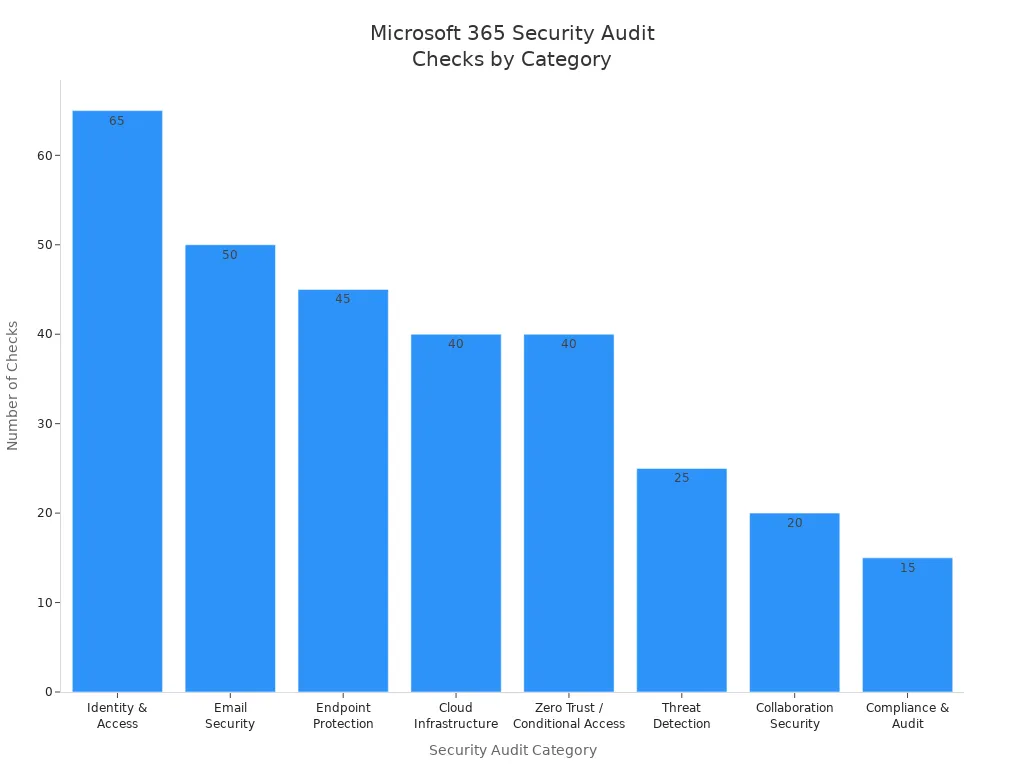
PowerShell helps you check many security areas. You can review identity and access, email security, endpoint protection, cloud infrastructure, and more. The table below shows how many checks you can run in each category and what you gain:
| Category | Checks | Key Benefit |
|---|---|---|
| Identity & Access | 65+ | Stop account compromise before it happens |
| Email Security | 50+ | Block phishing, BEC, and malware attacks |
| Endpoint Protection | 45+ | Ensure only secure devices touch your data |
| Cloud Infrastructure | 40+ | Eliminate Azure misconfigurations |
| Zero Trust / Conditional Access | 40+ | Enforce modern access controls |
| Threat Detection | 25+ | Find attackers hiding in your tenant |
| Collaboration Security | 20+ | Enable sharing without data leaks |
| Compliance & Audit | 15+ | Stay audit-ready, always |
You can also use PowerShell to generate reports for Data Loss Prevention (DLP) policies, mailbox retention, and password expiration. Here are some useful commands:
- DLP policy report:
Get-MailDetailDlpPolicyReport -StartDate 03/01/2019 -EndDate 03/07/2019 - Mailbox retention policy report:
Get-Mailbox -ResultSize unlimited | Format-Table UserPrincipalName,RetentionPolicy,RetentionUrl,RetentionComment,RetentionHoldEnabled,StartDateForRetentionHold,EndDateForRetentionHold - Password never expires report:
Get-AzureADUser -All $true | Select-Object UserPrincipalName,@{ N="PasswordNeverExpires";E={$_.PasswordPolicies -contains "DisablePasswordExpiration"} }
You should run these scripts often. This helps you find risks and keep your users and groups safe.
MFA Checks
Multi-factor authentication (MFA) adds another layer of security for your users. You can use PowerShell to check which users have MFA enabled and who needs it. This helps you protect accounts from attacks.
To check MFA status for all users, you can use:
Get-MsolUser | Select-Object UserPrincipalName,StrongAuthenticationMethods
You can export the results to a CSV file for review. This makes it easy to see which users need MFA. You can also use scripts to remind users to set up MFA or to report on changes.
You should check MFA status for all users, including those in special groups. This keeps your tenant secure and helps you meet compliance rules.
Automation Tasks
Automation saves you time and reduces mistakes. PowerShell lets you automate many tasks in Microsoft 365. You can manage users, update groups, and create reports without doing everything by hand.
Here are some ways automation helps you:
- Streamline user and access management. You can automate user creation, password resets, and group membership changes. This makes onboarding and offboarding faster and more consistent for all users.
- Improve reporting, monitoring, and alerting. You can set up scripts to generate reports on security and compliance. These reports run on a schedule, so you do not need to remember to check them. You get alerts if something changes, which helps you act quickly.
You can use PowerShell to automate these common tasks:
- Add new users from a CSV file.
- Update group membership for many users at once.
- Remove users who no longer need access.
- Schedule regular security audits and export results.
- Monitor mailbox activity and send alerts for unusual actions.
Automation helps you manage large numbers of users and groups. You save time, reduce errors, and keep your Microsoft 365 environment secure.
Tip: Start with simple scripts. As you learn more, you can build advanced automation to handle complex tasks for your users and groups.
Best Practices for Microsoft 365 and PowerShell
Script Organization
Organizing your scripts helps you manage microsoft 365 tasks with less confusion. You should use clear file names and folder structures. Group scripts by function, such as user management or license reporting. Add comments to explain what each part does. This makes it easier for you and your team to update or troubleshoot scripts later. You can also use version control tools like Git to track changes and share scripts safely.
Tip: Store reusable functions in separate files. This lets you call them from different scripts and keeps your code clean.
Error Handling
You will face errors when you manage microsoft 365 with powershell. Good error handling keeps your environment stable and secure. Here are some best practices:
- Use try/catch blocks to handle errors. This lets you take action when something goes wrong.
- Add logging to your scripts. Logs help you track errors and understand why a try block failed.
- Parameterize your scripts. This makes them flexible and easy to use in different microsoft 365 scenarios.
You can see an example of a try/catch block below:
try {
    # Your microsoft 365 command here
}
catch {
    Write-Error "An error occurred: $_"
}
Always test your scripts in a safe environment before using them in your live 365 tenant.
Security
Security should guide every step you take with powershell in microsoft 365. You protect your data and users by following strong security practices.
| Security Measure | Description |
|---|---|
| Script Block Logging | Logs commands and scripts to the Microsoft-Windows-PowerShell/Operational event log. |
| AMSI Support | Sends script blocks to an antimalware scanner to block malicious code. |
| Constrained Language Mode | Limits what commands and .NET types you can use for better security. |
| Application Control | Enforces policies to stop unauthorized code from running. |
| Software Bill of Materials (SBOM) | Lists all components in install packages for better security management. |
| Secure Data Transfer in Remoting | Encrypts SecureString objects during remote powershell sessions. |
You should keep detailed logs of all changes in your microsoft 365 tenant. Track who made changes and when. This helps you find problems and keeps your data safe. Use automated change management to keep your 365 environment consistent and spot configuration drift.
Least Privilege
Always use the least privilege principle. Give users only the permissions they need for their tasks in microsoft 365. This reduces the risk if an account is compromised. Review permissions often and remove extra rights.
Credential Management
Store credentials securely. Never put passwords in your powershell scripts. Use secure methods like Windows Credential Manager or Azure Key Vault. Rotate passwords and secrets on a regular schedule. This keeps your microsoft 365 tenant safe from attacks.
Note: Secure data transfer is important when you use remoting in powershell. Always encrypt sensitive information.
By following these best practices, you make your microsoft 365 management safer, more reliable, and easier to maintain.
Scheduling Automation
Automating your Microsoft 365 management tasks with PowerShell saves you time and reduces errors. You can schedule scripts to run at regular intervals, which helps you keep your environment up to date without manual effort. Choosing the right scheduling method is important for reliability and security.
You have several options for scheduling PowerShell automation in Microsoft 365. The most effective methods use cloud-based tools that work well with modern PowerShell modules. Here are the main approaches:
- Azure Automation: This service lets you run PowerShell scripts in the cloud. You do not need to keep a computer running. Azure Automation supports advanced scheduling, logging, and secure credential management.
- Power Automate: This tool helps you create workflows that trigger PowerShell scripts based on events or schedules. Power Automate works well for simple tasks and integrates with many Microsoft 365 services.
- Windows Task Scheduler: This tool runs scripts on a local machine. However, it has limitations with modern PowerShell modules and cloud authentication. For Microsoft 365 tasks, you should avoid using Task Scheduler and choose cloud-based options instead.
Tip: Cloud-based automation tools like Azure Automation offer better reliability and security than local schedulers.
To use Azure Automation, you start by creating an Automation account in the Azure portal. This account acts as the workspace for your scripts and schedules. Next, you develop a runbook, which is a script that performs your desired task. You can write, test, and edit your runbook directly in the Azure portal.
Before scheduling your runbook, make sure your service principal or managed identity has the necessary permissions in Microsoft 365. This step ensures your script can access the resources it needs. Assign only the permissions required for the task to follow the principle of least privilege.
When your runbook is ready, you set up a schedule. Azure Automation lets you choose how often your script runs—daily, weekly, or at custom intervals. You can monitor the status of each run and review logs for troubleshooting.
Here is a summary of the steps to schedule PowerShell automation with Azure Automation:
- Create an Automation account in Azure.
- Develop and test your PowerShell runbook.
- Assign the correct permissions to your service principal or managed identity.
- Set up a schedule for your runbook.
- Monitor and review logs for each run.
Testing your scripts before scheduling is important. Run your code in the Azure portal to make sure it works as expected. This practice helps you avoid errors and ensures your automation runs smoothly.
Power Automate offers another way to schedule tasks. You can build flows that trigger PowerShell scripts when certain events occur, such as receiving an email or updating a file. Power Automate is user-friendly and works well for straightforward automation needs.
By using these scheduling tools, you keep your Microsoft 365 environment efficient and secure. Automation frees you from repetitive tasks and lets you focus on more important work.
Troubleshooting Microsoft 365 PowerShell Issues
When you manage your microsoft 365 tenant with powershell, you may face errors or unexpected behavior. Knowing how to troubleshoot these issues helps you keep your environment running smoothly. This section guides you through common connection problems, script debugging techniques, and support resources.
Connection Problems
You often encounter connection issues when using powershell to manage your microsoft 365 tenant. These problems can block access to microsoft services or prevent scripts from running. Follow these steps to resolve the most frequent connection errors:
- Check your permissions. Make sure your account has the right roles for microsoft 365 management.
- Confirm your account is licensed for the correct microsoft 365 services.
- Use the correct powershell cmdlets and syntax for your tenant.
- Install the latest version of the Azure AD powershell module.
- If your account uses multi-factor authentication, set up a password credential for authentication.
Tip: Always update your powershell modules before connecting to your microsoft 365 tenant. This reduces compatibility issues.
Script Debugging
Debugging scripts is important for reliable microsoft 365 management. You need to understand where your script fails and what values it returns. Start by testing your automation scripts with regular powershell before moving them to Azure Automation. This makes debugging easier.
You can use several techniques to troubleshoot script errors:
- Log script outputs. Collect detailed information during script execution to identify issues.
- Handle errors with try/catch blocks. This lets you manage failures and take specific actions.
- Pay attention to error messages. Use the
-ErrorActionparameter to control how powershell responds to errors.
try {
    # Example powershell command for microsoft 365 tenant
}
catch {
    Write-Error "An error occurred: $_"
}
Note: Reviewing logs and error messages helps you find the root cause of script failures in your microsoft 365 tenant.
Support Resources
You have access to many resources for help with microsoft 365 powershell issues. Microsoft offers official documentation and community forums. You can also join user groups and online communities to get advice from other administrators.
| Resource Name | Link |
|---|---|
| Microsoft 365 community resources for PowerShell | Microsoft Docs |
| Microsoft 365 Microsoft Tech Community | Tech Community |
| Exchange Server TechNet community forum | TechNet Forum |
You can also explore these communities:
- User Groups
- PowerShell Tech Community
- DSC Community
- PowerShell.org
- Stack Overflow
- r/PowerShell subreddit
- PowerShell Virtual User Group on Slack and Discord
😊 You can solve most microsoft 365 powershell issues by following troubleshooting steps and using community support. Stay proactive and keep your tenant secure.
Expanding PowerShell Skills for Microsoft 365
Advanced Scripting
You can take your microsoft 365 management to the next level by learning advanced powershell scripting techniques. These skills help you automate complex tasks and handle large environments with ease. When you use advanced cmdlets, you gain more control over group membership and user details. Script optimization lets you process data faster and reduce errors. You can write custom functions to handle repetitive jobs, which makes your scripts easier to read and maintain.
The table below shows some advanced scripting techniques that work well for microsoft 365 administration:
| Technique | Description |
|---|---|
| Advanced Cmdlets | Use commands like Get-MsolGroupMember for detailed group membership management. |
| Script Optimization | Streamline scripts with pipelines to retrieve licensed users efficiently. |
| Custom Functions | Create functions for repetitive tasks to improve readability and reusability. |
| Module Creation | Organize scripts into modules for better management and sharing. |
| Advanced Automation | Use event-driven automation to trigger scripts based on specific events. |
| Integrating with APIs | Connect to APIs like Microsoft Graph for advanced management capabilities. |
You can also create your own powershell modules. This helps you organize scripts and share them with your team. When you integrate powershell with APIs, you unlock even more features in microsoft 365. Event-driven automation lets you run scripts when something important happens, such as a new user joining your organization.
Tip: Start by improving one script at a time. Add functions or use pipelines to make your code faster and easier to understand.
Learning Resources
You can find many resources to help you grow your powershell skills for microsoft 365. Microsoft Learn offers step-by-step guides and hands-on labs. The official Microsoft Docs site provides detailed examples and explanations for every powershell command. Community forums and user groups let you ask questions and share ideas with other administrators.
Here are some ways to keep learning:
- Join online communities like PowerShell.org or the Microsoft Tech Community.
- Watch tutorial videos on YouTube that cover real-world microsoft 365 scenarios.
- Read blogs and articles from experts who share tips and best practices.
- Practice by writing your own scripts and testing them in a safe environment.
You can also attend virtual user groups or webinars. These events give you a chance to learn from others and stay updated on new features in powershell and microsoft 365.
Remember, the best way to improve is to practice often and ask questions when you need help. As you build your skills, you will manage your microsoft 365 environment with more confidence and efficiency.
You can transform your microsoft 365 management with powershell. These tools help you automate tasks, control your tenant, and keep your microsoft 365 environment secure. When you follow the steps and scripts in this guide, you save time and reduce errors across your 365 services. Keep learning and apply best practices for ongoing success. Use the table below to guide your daily microsoft 365 administration:
| Best Practice | Description |
|---|---|
| Continuous Security | Make security a daily habit as your 365 environment grows. |
| Automation of Alerts | Set up alerts for important microsoft events to lower risk and effort. |
| Proactive Management | Automate routine powershell tasks and focus on improving your tenant. |
Stay proactive with powershell and microsoft 365 to support a secure, scalable 365 tenant.
Manage Microsoft 365 with PowerShell — Checklist
Use this checklist when managing Microsoft 365 with PowerShell to ensure consistency, security, and automation.
Preparation
- Verify administrative permissions (Global Admin / appropriate role)
- Use a dedicated admin account (no shared personal accounts)
- Secure admin account with MFA and conditional access
- Confirm network and proxy settings allow PowerShell module installs and API access
Install and Update Modules
- Install or update Microsoft Graph PowerShell module (recommended)
- Install Exchange Online Management module (ExchangeOnlineManagement)
- Install Microsoft Teams PowerShell module
- Install SharePoint Online Management Shell
- Remove or archive deprecated modules (AzureAD, MSOnline) if replaced by Graph
Authentication and Connections
- Prefer certificate or app-based authentication for unattended scripts
- Use Connect-MgGraph or Connect-ExchangeOnline with least-privilege scopes
- Test interactive sign-in and service principal flows
- Store credentials securely (Key Vault, Windows Credential Manager)
User and License Management
- List users and export attributes for audit
- Create new users with required attributes and strong initial password policies
- Assign and verify licenses (Validate SKU availability before assignment)
- Remove or reassign licenses for departing users
- Configure usage location and directory roles as needed
Groups and Teams
- Inventory groups (Microsoft 365 groups, security groups, distribution lists)
- Create and configure groups with naming and lifecycle policies
- Manage Teams (create, update settings, add/remove members) via Teams module
- Apply group expiration and ownership policies
Exchange Online
- Audit mailbox permissions and shared mailbox configurations
- Configure mail flow rules and transport settings as required
- Set mailbox retention and litigation hold where needed
- Monitor mailbox sizes and automate archiving/cleanup
SharePoint and OneDrive
- Inventory site collections and storage usage
- Configure sharing settings and external access policies
- Set up site-level permissions and group memberships
- Automate provisioning of sites and templates
Security and Compliance
- Review conditional access and identity protection policies
- Configure MFA enforcement and emergency access accounts
- Manage Azure AD Identity Governance (access reviews, PIM) via PowerShell
- Export and review audit logs, sign-in activity, and alerts
Automation and Scripting
- Store scripts in source control (Git) with change history
- Use parameterization and configuration files (avoid hard-coded secrets)
- Implement error handling and retry logic in scripts
- Schedule automation via Azure Automation, Logic Apps, or task scheduler with managed identities
Monitoring, Logging, and Auditing
- Enable unified audit logs and verify retention settings
- Centralize script execution logs and export job results
- Alert on failed automation runs and critical configuration drift
- Periodically review admin consent and app permissions
Backup and Recovery
- Export critical configuration and user lists regularly
- Backup SharePoint/OneDrive content and mailboxes as per retention policy
- Test restore procedures for users, mailboxes, and sites
Best Practices
- Use least privilege and role-based access controls
- Keep modules and scripts updated and documented
- Use Microsoft Graph where possible for converged APIs
- Validate changes in a test tenant before production rollouts
Post-change Validation
- Verify intended configuration changes and user access
- Run automated smoke tests for impacted services
- Capture and store validation results for audits
Keep this checklist as a template and tailor items to your organization's policies and compliance needs.
use powershell for microsoft 365: connect to microsoft 365 and manage user accounts
What is the recommended way to connect to Microsoft 365 using PowerShell?
The recommended approach is to use the modern Online PowerShell modules such as the Exchange Online PowerShell V2 module and the MSOnline or Azure AD PowerShell modules with modern authentication. Install the appropriate online powershell module, then connect using Connect-ExchangeOnline or Connect-MsolService/Connect-AzureAD (or Microsoft Graph PowerShell) and authenticate with your admin account or Microsoft Authenticator app for MFA.
Which PowerShell modules do I need to manage Microsoft 365 services such as Exchange Online and Azure AD?
Common modules include ExchangeOnlineManagement (Exchange Online PowerShell), AzureAD or AzureAD.Standard.Preview, MSOnline for older scripts, and Microsoft.Graph modules for unified management. Use powershell for microsoft 365 modules like ExchangeOnlineManagement and Microsoft.Graph to manage microsoft 365 services, user accounts, accounts and licenses, and compliance tasks.
Can I use PowerShell 7 or do I need Windows PowerShell 5.1 to manage Microsoft 365?
You can use PowerShell 7 for many Microsoft Graph and newer modules, but some legacy modules and the classic Exchange Online cmdlets historically required Windows PowerShell 5.1. Use a single PowerShell session with the recommended online powershell module versions; consult additional resources to determine if you need windows powershell 5.1 for specific management tool compatibility.
How do I run the following command to list Microsoft 365 users and their licenses?
Use the Microsoft Graph or Azure AD cmdlets, for example: Install-Module Microsoft.Graph; Connect-MgGraph -Scopes User.Read.All; Get-MgUser -Filter "accountEnabled eq true" and then expand license details. If using AzureAD: Connect-AzureAD; Get-AzureADUser | Select DisplayName, UserPrincipalName and then Get-AzureADUserLicenseDetail for accounts and licenses.
What are common admin tasks 365 administrators perform with PowerShell for Microsoft 365?
Admin tasks include creating and managing microsoft 365 users, assigning or removing licenses, bulk import of user accounts, managing Exchange mailboxes, configuring compliance policies, and automating repetitive tasks with powershell script files. Use automation commands to streamline onboarding and offboarding workflows.
How do I manage Microsoft Exchange mailboxes using the Exchange Online PowerShell module?
Install and import the ExchangeOnlineManagement module, connect using Connect-ExchangeOnline, then run Exchange Online PowerShell cmdlet commands like Get-Mailbox, Set-Mailbox, or New-Mailbox. Using the exchange online powershell cmdlets allows you to manage mailbox permissions, retention policies, and mailbox features in your office 365 tenant.
Is there a recommended strategy for running bulk changes or scripts safely in Microsoft 365?
Create and test powershell script files in a non-production environment, use -WhatIf and -Confirm switches where supported, log output, and run changes in small batches. Back up current settings (export to CSV), and learn about using automation commands and version control before applying broad changes to a microsoft 365 subscription or office 365 tenant.
How do I use PowerShell to manage licenses and user accounts in Microsoft 365?
Connect to Azure AD or Microsoft Graph, then use cmdlets like Set-MgUserLicense or Set-MsolUserLicense to assign or remove licenses. For bulk updates, import a CSV of users and iterate with a foreach loop to apply license changes, ensuring you map license skuIds correctly for microsoft 365 enterprise plans.
Can I use PowerShell to interact with Skype for Business Online or Teams settings?
Skype for Business Online management has been largely replaced by Microsoft Teams and its PowerShell modules. Use the Teams PowerShell module and Graph API for modern management; for legacy Skype for Business online tasks, older modules exist but migrating to Teams and modern Graph-based administration is recommended for ongoing support.
What should I do if I lose my admin session or need to close the PowerShell window during a task?
If you need to close the powershell window, save your work and scripts, and reconnect later using the same connect commands. For long-running tasks, run them in a persistent session or use scheduled automation (Azure Automation or runbooks). When closing the powershell window, ensure you properly disconnect sessions like Disconnect-ExchangeOnline to avoid orphaned sessions.
How do I use compliance PowerShell commands to manage retention and auditing in Microsoft 365?
Use the Security & Compliance Center PowerShell or Microsoft Graph Compliance APIs to manage retention policies, audit settings, and eDiscovery. Install the relevant modules, connect with appropriate permissions, and run compliance powershell cmdlet commands to create retention labels, configure audit retention, and export reports for compliance review.
Where can I find additional resources and technical support to learn how to manage Microsoft 365 with PowerShell?
Microsoft Docs, the PowerShell Gallery, GitHub sample scripts, and Microsoft Learn provide tutorials and examples. Look for guides on powershell for microsoft 365, online powershell module documentation, and community blogs. For technical support, use your microsoft 365 subscription support channels or engage with Microsoft technical support and community forums for 365 administrators.
Apple Podcasts · Spotify · YouTube · YouTube Music
Host: Mirko Peters