 EN
EN Deutsch
 Español
 Français
 Italiano
 Português
 Nederlands
 Polski
 Bahasa Indonesia
 Русский
 Українська
 العربية
 עברית
עברית हिन्दी
 日本語
日本語 한국어
한국어2026-07-15 · Season 3
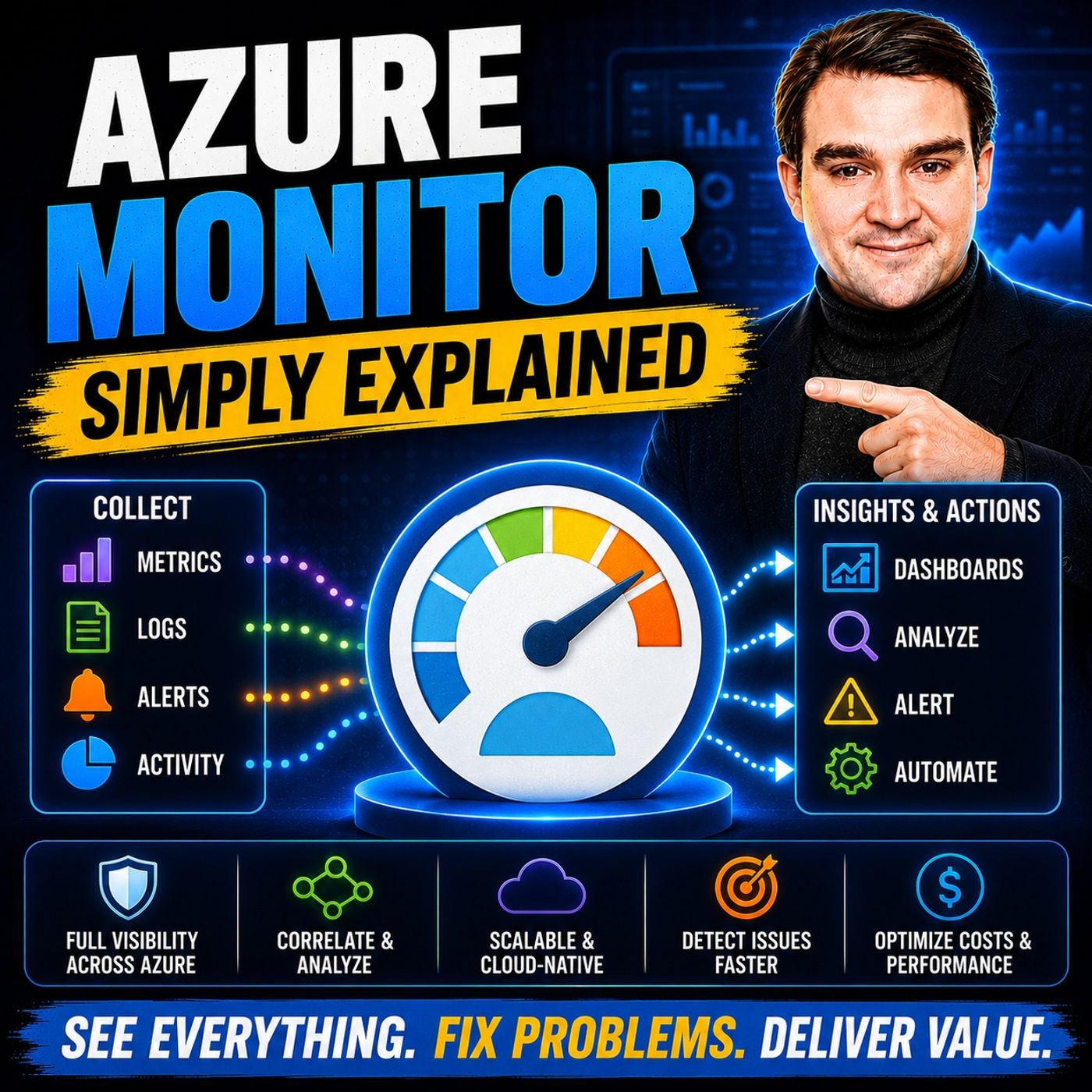
Azure Monitor — Simply Explained
Show notes
Keeping modern cloud environments running reliably requires far more than checking whether a server is online. Today's organizations operate virtual machines, applications, databases, containers, identities, and security services across Azure, on-premises environments, and even multiple cloud providers. In this episode of m365.fm, we explain Azure Monitor in plain English and show why it has become Microsoft's central observability platform for collecting, analyzing, and acting on operational data. You'll learn how Azure Monitor provides a single pane of glass for monitoring infrastructure, applications, security, and identity, making it easier to detect problems before users notice them. Whether you're new to Azure or preparing for Microsoft certifications, this episode provides a practical introduction to one of the platform's most important services. METRICS, LOGS, AND OBSERVABILITY EXPLAINED Azure Monitor collects two fundamental types of telemetry that together provide complete visibility into your environment. We explain the difference between metrics and logs, why metrics deliver near real-time operational insights, and how logs provide the detailed diagnostic information needed to understand the root cause of incidents. You'll also learn how Log Analytics workspaces, Kusto Query Language (KQL), and Azure Monitor create a unified observability platform where performance monitoring, troubleshooting, and operational analytics all work together. Understanding these building blocks is essential for managing modern cloud workloads effectively. COLLECTING DATA FROM ACROSS YOUR ENVIRONMENT Azure Monitor isn't limited to Azure virtual machines. This episode explores how telemetry flows into the platform from Azure resources, Application Insights, Azure Monitor Agent, Azure Arc-enabled servers, Microsoft Entra ID, Microsoft 365, Microsoft Defender for Cloud, and Microsoft Sentinel. Learn how infrastructure metrics, application performance, operating system telemetry, identity logs, audit events, and security signals are collected into one centralized platform, allowing IT operations, security teams, and developers to investigate incidents using the same underlying data. We also explain Workbooks, Dashboards, Metric Explorer, Power BI integration, and how Azure Monitor provides a unified operational view across hybrid and multi-cloud environments. ALERTS, AUTOMATION, AND AI-POWERED MONITORING Monitoring only becomes valuable when it drives action. We explain how Azure Monitor alerts work using both metrics and log queries, how Action Groups automate notifications, and how Logic Apps enable automated remediation when problems occur. You'll also discover the latest Azure Monitor capabilities including dynamic thresholds powered by machine learning, OpenTelemetry support, Service Level Indicators (SLIs), Service Level Objectives (SLOs), Service Groups, improved query-based metric alerts, and Microsoft's transition toward open observability standards. These capabilities help organizations reduce alert fatigue while identifying operational issues faster and with greater accuracy. COST OPTIMIZATION AND BUILDING A MODERN OBSERVABILITY PLATFORM The episode concludes with practical guidance for deploying Azure Monitor efficiently while controlling operational costs. Learn how Analytics, Basic, and Auxiliary log tiers impact pricing, when commitment tiers make financial sense, and how sampling, retention policies, and data tiering reduce monitoring expenses without sacrificing visibility. We also explore how Azure Monitor integrates with Microsoft Sentinel, Microsoft Defender for Cloud, Microsoft Entra ID, Microsoft Purview, and the Microsoft Cloud Adoption Framework to create a comprehensive observability strategy. Whether you're monitoring a single virtual machine or managing enterprise-scale cloud environments, this episode provides the practical foundation needed to build reliable, secure, and cost-effective monitoring solutions with Azure Monitor. Become a supporter of this podcast: https://www.spreaker.com/podcast/m365-fm-microsoft-365-azure-cloud-power-platform-ai--6704921/support.
Apple Podcasts · Spotify · YouTube · YouTube Music · Deezer
Host: Mirko Peters
Related articles
Transcript
Read the full transcript
Today's topic is one that almost everyone has heard of, but few people actually understand. You've probably seen as your monitor in the portal and maybe clicked around a bit, only to feel lost. That's completely normal. Here's the real problem. You've got one dashboard for your virtual machines, another for your apps, another for security, and none of them talk to each other. When something breaks, you're jumping between five different screens, trying to piece together what happens. So what if you could see everything? Matrix, logs, alerts, even identity and email all in one place? By the end of this episode, you'll understand what Azure Monitor actually is and how it gives you that single pane of glass. The big picture. What is Azure Monitor? So what exactly is Azure Monitor? Let's start with a simple definition. Azure Monitor is Microsoft's central observability platform for collecting, analyzing and acting on telemetry data. That's a mouthful, so let's break it down. Think of it like a modern office building. You've got a central security desk at the front entrance that desk sees everyone who comes in, which floor they go to, which room they enter, and when they leave. It's the single point of awareness for the entire building. Azure Monitor is exactly that for your cloud. It's the central nervous system that connects everything together. Here's the thing. Azure Monitor isn't a single tool. It's a platform that pulls together metrics, logs, traces, and alerts from Azure on premises and even other clouds. Twenty years ago, you'd buy separate products for everything. One tool for servers, another for apps, another for networks. They'd sit in silos, never sharing information. Azure Monitor replaces that fragmentation entirely. Now you might wonder, is this just for IT operations? Not at all. Azure Monitor actually underpins Microsoft Defender for Cloud and Microsoft Sentinel, so it's the foundation for security too. The same data platform that tells you your CPU is spiking also feeds your security tools. That's a powerful idea when you stop to think about it. But let's get specific. Azure Monitor handles two main types of data, and understanding the difference between them is key to understanding the whole platform. Two building blocks, metrics and logs. Let's start with metrics. Their numerical values collected at regular intervals, think of them as your vital signs, like heart rate, blood pressure, or body temperature. They show you how things are doing right now. In Azure Monitor, metrics look like CPU percentage, memory usage, or disc reads per second. They're lightweight and come in near real time, perfect for dashboards and triggers. You see a spike the moment it happens. Then you have logs which are completely different. They're detailed records of events like a diary or a black box recorder. The log entry tells you when someone restarted a virtual machine, what error code an application through, who signed in from where and at what exact time. Logs are much richer than metrics, but they're also bulkier. They live in a log analytics workspace, and you query them using something called kusto query language, or KQL for short. So here's the key difference. Metrics tell you something is wrong, logs tell you why. Imagine driving your car. The check engine light comes on, and that's a metric telling you something is wrong right now, but you don't know what. So you pull into a mechanic and they run a diagnostic report. That report tells you exactly which sensor failed and what coded through. That's the log. Metrics are the check engine light. Logs are the mechanics diagnostic report. You need both. Here's a quick practical detail. For free, you get 90 days of log retention. That's a good window for most troubleshooting, but if you need longer for compliance or auditing, you can extend it. Just remember, longer retention costs more, so plan for it. So now you understand the two building blocks. Metrics for the quick pulse check logs for the deep dive, but where does all this data actually come from? That's the next question. Where all the data comes from. Now, where does all this data actually come from? That's the interesting part because Azure Monitor doesn't just watch your virtual machines, it watches everything. Let's start with the easiest source. Every Azure resource you create, like virtual machines, databases, storage accounts, and app services automatically emits platform metrics, CPU usage, disk, IO, network throughput. This is built in. You don't have to configure anything. You get it for free the moment you create the resource, but that's just the surface. For your applications, you need application insights as your monitor's application performance management service. It tracks, request rates, response times, exceptions, and dependency calls. If your web app calls a database or an external API, application insights sees that call and measures how long it took. It's like having a detective inside your code. Now let's go deeper. The platform metrics we talked about tell you what Azure sees from outside your virtual machine, but they don't tell you what's happening inside the operating system. For that, you need the Azure Monitor agent, a small piece of software you install inside your VM. It collects OS level metrics and logs like memory pressure, disk queue length, and specific application crashes. This is where you see what's actually happening inside the machine. The good news is that same agent works outside Azure 2. If you have servers running on premises or in another cloud, you can use Azure Arc to connect them. Once they are connected, the Azure Monitor agent works exactly the same way, giving you the same data, same dashboards, same alerts, no matter where your server lives. There's also the ability to stream Microsoft 365 and enter ID data directly into Azure Monitor. Find and logs audit logs activity data. Every time someone tries to log in from an unusual location, that event can flow into your log analytics workspace. You can correlate it with your application performance data and see the full picture. And finally, security data. Microsoft Defender for Cloud and Microsoft Sentinel sit on top of the same data platform. So when you're investigating a security incident, you're looking at the same logs you use for performance troubleshooting. You don't need a separate tool. It's all in one place. So you've got all this data pouring in from everywhere. VMs, apps, on-premises servers, identity systems, security tools, how do you actually make sense of it? Visualization, your single pane of glass. So how do you actually see all this data? Azure Monitor gives you several ways, but the main tool is Workbooks. Workbooks are interactive reports that combine text, metrics, logs and parameters into custom dashboards. Think of them as your command center. Here's a concrete example. Imagine you create a single workbook that shows three things on one page. VM health, app response times and sign in anomalies. Are your servers running? Is your web app slow? Are there unusual login attempts from outside your country? All three on one screen. You don't need three different tools. Just one workbook and workbooks aren't just static charts. They support color coding, icons and thresholds. A healthy server shows a green check mark. A server approaching capacity shows a yellow warning. A server that's downshows red. You can glance at it and know exactly where your problems are. The killer feature, those charts have clickable links. If you see a server with high CPU, you click it and it takes you directly to that resource in the Azure portal. No searching, no copy pasting, just click and go. Workbooks aren't the only option though. You also have dashboards in the Azure portal. These let you pin tiles from different sources for a quick overview. Think of it as your morning briefing. A quick glance to make sure nothing is on fire. Then there's metric explorer for ad hoc charting. Want to see CPU usage across all your VMs for the last hour? Open metric explorer, select your resources and you get a chart in seconds. No setup required. And if you need to share reports with stakeholders who don't live in Azure, you can integrate with Power BI. Your executive team gets a monthly report showing service health, uptime and performance trends. They don't need to understand KQL or log analytics. They just see the numbers they care about. The goal is simple. One place to go when something feels off. No more jumping between five screens. No more logging into three different tools to figure out what broke. You open Azure Monitor and you see everything. That's the single pane of glass. Alerts and automation. When you need to act. Seeing the data is great, but you also need to know when to act. That's where alerts come in. Azure Monitor alerts work on both metrics and logs. You set a condition and when that condition is met, something happens. Let's break that down. Metric alerts are threshold based and very fast. You say CPU over 90% for five minutes. And when that happens, an alert fires. Simple direct near real time. These are great when you know exactly what bad looks like. Log alerts are different. They're query based and much more flexible. Instead of a simple threshold, you write a query that searches for a specific pattern. And any failed login attempts from outside the US in the last hour. If the query returns results, the alert fires. This lets you catch complex scenarios that a simple threshold would miss. When an alert fires, what happens next? That's where action groups come in. An action group defines the response. It can send an email, an SMS, a push notification to your phone, or trigger a web book that calls another system. But the really powerful option is triggering a logic app for automated remediation. Imagine this. An alert fires because a server is running out of disk space. Instead of waking someone up at 2am, the alert triggers a logic app that automatically runs a clean up script. The problem is fixed before anyone even notices. Now here's something new in 2026 that changes the game. Dynamic thresholds use machine learning to learn what normal behavior looks like for your specific environment. They factor in hourly, daily, and weekly patterns. So if your server normally runs at 40% CPU during the day, but spikes to 70% every Tuesday at 3pm because of a scheduled backup, the system learns that. It doesn't alert you for that spike only when something truly abnormal happens. This dramatically reduces false positives. And there's another new feature, query-based metric alerts. These let you use KQL-style queries over Prometheus and Open Telemetry metrics. So if you're running Kubernetes and using Prometheus for metrics, you can write the same kind of log-style queries against your metric data. It unifies your alerting logic across all your telemetry sources. Here's the bottom line. Monitoring becomes proactive when you set up alerts properly. You catch issues before users notice them. It's the difference between getting a call from your boss at 3am saying the website is down and getting a notification at 3am saying we fixed a potential issue before anyone noticed. What's new in 2026 and why it matters? Now let's talk about what actually changed in Azure Monitor for 2026 because this isn't the same platform it was two years ago. Here's the biggest update. Open Telemetry is now the standard. Native OTLP ingestion works directly with the Azure Monitor agent. What that means for you is you can use vendor neutral instrumentation across all your applications. You're not locked into Microsoft specific SDKs. Write your instrumentation once with open standards and it works whether you're sending data to Azure Monitor, DataDog or any other platform. That's a huge deal if your organization values flexibility. Next up, SLI and SLO support is now first class. You can define service level indicators for availability and latency, group your resources into service groups and track your reliability targets natively. No more exporting data to a spreadsheet to calculate uptime percentage. It's built right into the platform. So here's something you need to act on if you haven't already. The legacy log analytics agent is fully retired. Back on March 2nd, 2026, the back end shutdown. If you're still running that old agent, your data has stopped flowing. Everyone needs to be on the Azure Monitor agent with data collection rules. If you haven't migrated yet, that's your number one priority. And another change coming up. Microsoft EntraID is now required to query application inside's data. The old legacy API keys are going away. The deadline is September 30th, 2026. So if you have any scripts or tools using those old keys, you need to update them to use EntraID authentication. Finally, the new basic and auxiliary log tiers make it much cheaper to store less frequently accessed data. We'll talk more about cost in a moment, but this is a big deal for anyone trying to keep their monitoring bill under control. Practical tips and cost optimization. Speaking of cost, let's dive into how Azure Monitor pricing actually works because it can surprise you if you're not careful. As your monitor is usage based, you pay for log ingestion, retention, custom metrics, and alerts. You can get a flat monthly fee, which is great when you're small, but it can grow fast if you're not paying attention. Here's the most important thing to understand. There are three log tiers. Analytics logs cost about $2.30 per gigabyte. These are your full fidelity logs with complete query capabilities. Basic logs cost about 50 cents per gigabyte. Therefore data you need to keep, but don't query often. And auxiliary logs cost about 5 cents per gigabyte. That's archival pricing. You keep it for compliance, but almost never look at it. You get 5 gigabytes per month free for analytics logs. It's enough for a small environment, but it disappears fast once you start monitoring multiple servers and applications. If your daily ingestion is stable and above 100 gigabytes per day, commitment tiers can save you 15 to 30%. You commit to a certain amount of daily data and Microsoft gives you a discount, but only do this if your usage is predictable. If it fluctuates, wildly pay as you go might actually be cheaper. So what should you actually do to keep costs under control? Start by moving low value logs to basic or auxiliary tiers. But debug logging from your development environment, it doesn't need to be in analytics tier. Next, set retention policies per table. Keep operational data for 31 days. Keep compliance data longer, but don't keep everything forever. Then use sampling and application insights. You don't need every single request logged. A statistically significant sample gives you the same insights at a fraction of the cost. And finally, set up daily spending caps and alerts. Get notified when you hit 80% of your budget so there are no surprises. The biggest mistake people make is sending everything to the analytics tier by default, tier your telemetry, not every log needs full query capabilities. Treat cheap data like cheap data. How it all fits together. So here's the thing about Azure Monitor. It doesn't work alone. It's the centerpiece that connects everything in your Microsoft world. Let me show you what that looks like. Entra ID logs flow into Azure Monitor through diagnostic settings. So when someone says an app is slow, you check the sign in logs right next to the performance data. Was there an authentication delay? Did a conditional access policy kick in? To see it all from one screen, Microsoft Sentinel runs on the same log analytics workspace. Your operations data and security data live side by side. When you investigate an incident, you don't switch tools. You query one data set. That's the real power. A suspicious security event might be explained by a performance issue you already spotted. Defender for cloud pulls from Azure Monitor 2. It doesn't create its own telemetry. It uses the same metrics and logs you already collect. So when Defender flags are VM vulnerability, you can check that VM's performance data right away to see the impact. Even Microsoft's per view governance data can connect in for compliance monitoring. Your data classification and retention policies all tie back to the same observability platform. Microsoft's cloud adoption framework recommends Azure Monitor as your primary monitoring platform. That's their own guidance that telling you to build around this tool. Now imagine someone says SharePoint is slow. With Azure Monitor, you open one workbook, you check SharePoint service health, you look at the VM hosting the web front end, you check Entra ID sign in logs for authentication delays, you see app performance data from application insights. No from one screen, no more jumping between the SharePoint admin center, the VM dashboard, Entra ID and application insights. It's all right there. So here's the bottom line. Azure Monitor is not just another monitoring tool. It's the central dashboard that brings together your apps, infrastructure, identity and security. The real value is the integration, not any single feature. One data platform, one query language, one place to look. If you're starting your cloud journey, enable Azure Monitor on your first VM today. Turn on diagnostic settings and see what you've been missing. Subscribe on your favorite podcast platform and share this episode with someone who's drowning in too many dashboards. I'm Mirko Peters. This is Microsoft Knowledge Nuggets on M365. FM, see you next time.