 EN
EN Deutsch
 Español
 Français
 Italiano
 Português
 Nederlands
 Polski
 Bahasa Indonesia
 Русский
 Українська
 العربية
 עברית
עברית हिन्दी
 日本語
日本語 한국어
한국어2026-07-13 · Season 3
Copilot in Microsoft Entra ID - Simply Explained
Show notes
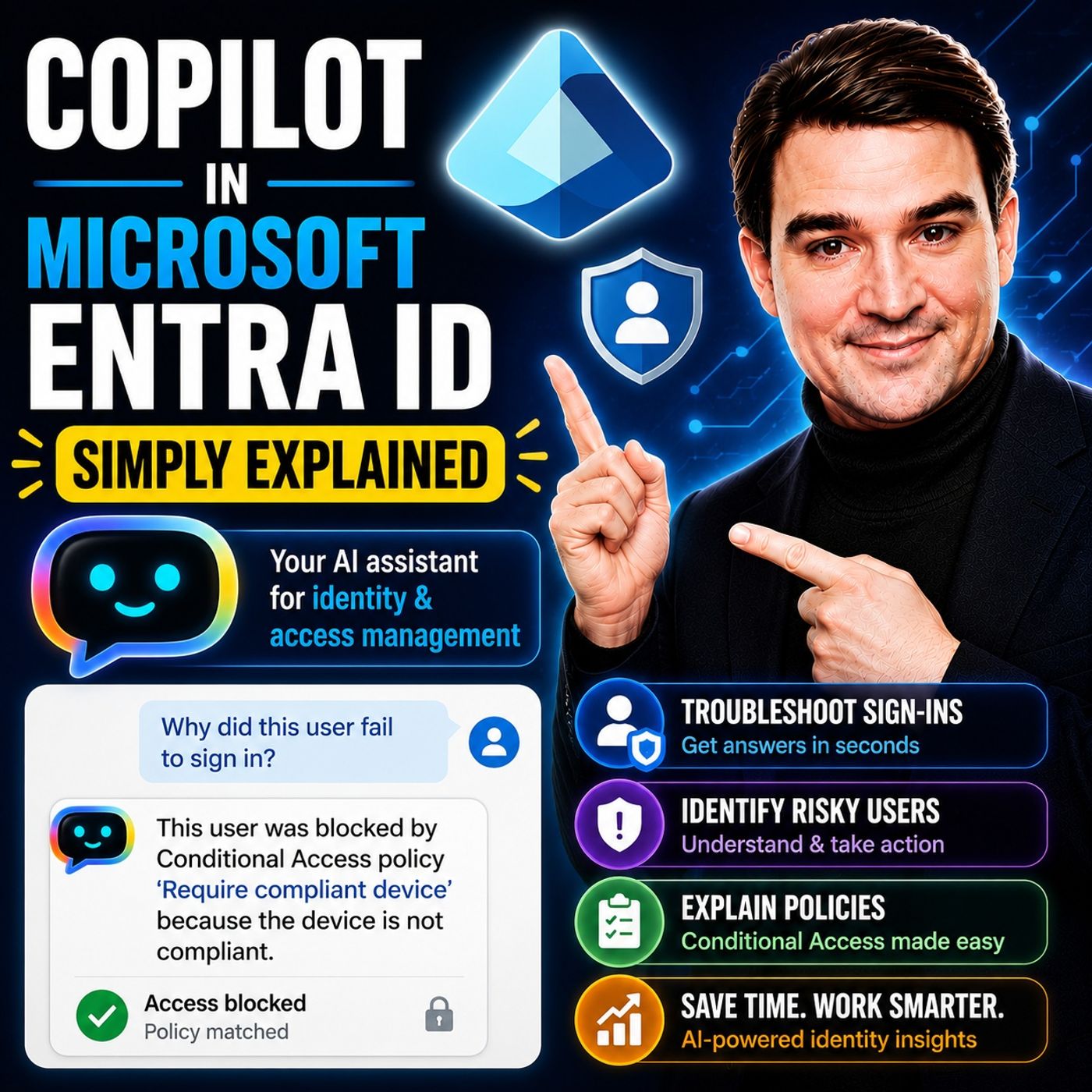
Managing identities has become one of the most challenging responsibilities for modern IT teams. Every day, organizations process thousands of sign-ins, evaluate Conditional Access policies, detect risky users, and investigate authentication failures. Finding the root cause often means jumping between multiple dashboards, logs, and policy views. Copilot in Microsoft Entra ID changes that experience completely. Instead of manually searching through sign-in logs, audit logs, and Identity Protection alerts, administrators can simply ask questions in plain English and receive clear explanations, recommendations, and summaries within seconds. WHY IDENTITY TROUBLESHOOTING IS SO HARD Traditional Entra troubleshooting is time-consuming. A failed sign-in often requires checking Sign-in Logs, Conditional Access evaluations, device compliance, Identity Protection, Audit Logs, and user information across multiple screens. Administrators must interpret technical error codes, correlation IDs, and JSON data before they can determine what actually happened. For experienced identity engineers this is manageable—but for junior administrators and helpdesk teams, it can be overwhelming. AN AI ASSISTANT FOR YOUR IDENTITY PLATFORM Copilot is built directly into the Microsoft Entra admin center. Instead of searching manually, administrators ask questions such as:
- Why did this user fail to sign in?
- Show me high-risk users.
- Summarize sign-in activity from the last 24 hours.
- Which Conditional Access policy blocked this user?
Copilot automatically searches Sign-in Logs, Conditional Access policies, Identity Protection, Audit Logs, and user information before returning a plain-English explanation instead of raw technical data. It also suggests helpful follow-up questions, making investigations much more efficient. FASTER SIGN-IN TROUBLESHOOTING One of Copilot's biggest strengths is investigating failed sign-ins. Instead of manually filtering logs and interpreting error codes, administrators can simply ask why a user couldn't access Microsoft Teams or another application. Copilot reviews recent sign-ins, evaluates Conditional Access policies, checks device compliance, and identifies the exact reason for the failure. It can also provide additional context such as browser information, operating system, IP address, location, and authentication method. Tasks that previously required fifteen minutes of investigation can often be completed in less than a minute. INVESTIGATING RISKY USERS Identity Protection continuously detects suspicious user activity, but understanding those alerts isn't always easy. Copilot summarizes risky users by combining multiple detections into a single narrative. Instead of reviewing numerous individual alerts, administrators receive a complete explanation describing why a user is considered high risk, what suspicious activity occurred, and which remediation steps Microsoft recommends. Suggested actions may include password resets, blocking future sign-ins, or validating whether the activity was legitimate, allowing security teams to respond much more quickly. UNDERSTANDING CONDITIONAL ACCESS Conditional Access policies are powerful—but also incredibly complex. Copilot explains exactly which policies applied during a sign-in, why they were triggered, and what conditions caused the final decision. It can also identify frequently triggered policies, overlapping configurations, and opportunities to simplify policy design. Combined with Microsoft's Conditional Access Optimization Agent, administrators receive recommendations for improving policy quality without manually reviewing every configuration. DOES IT REALLY SAVE TIME? Microsoft's internal studies demonstrate significant productivity improvements. Administrators completed sign-in investigations 46% faster, while investigation accuracy improved by 46.8%. Most participants reported higher confidence in their work, and nearly all wanted to continue using Copilot as part of their daily identity management workflow. Although results vary between organizations, the overall trend is clear: AI dramatically reduces the time spent on repetitive identity investigations. SECURITY AND GOVERNANCE Copilot operates entirely within your existing Microsoft Entra security model. It inherits the administrator's existing permissions, meaning it can never access information that the user isn't already authorized to view. Conditional Access policies continue to apply, prompts are recorded through standard audit logging, and administrators remain responsible for approving sensitive actions. Copilot provides recommendations—it never performs privileged identity operations automatically. WHY COPILOT IN ENTRA ID MATTERS Copilot transforms identity management from searching through technical logs into having conversations about identity. Helpdesk teams can solve sign-in problems without escalating every issue. Identity administrators investigate incidents significantly faster. Security analysts understand risky users more quickly. Even application owners can diagnose authentication failures without becoming Entra experts. Rather than replacing identity professionals, Copilot amplifies their expertise, allowing organizations to resolve problems faster while making Microsoft's identity platform far more accessible to everyone responsible for managing modern authentication and security. Become a supporter of this podcast: https://www.spreaker.com/podcast/m365-fm-microsoft-365-azure-cloud-power-platform-ai--6704921/support.
Apple Podcasts · Spotify · YouTube · YouTube Music · Deezer
Host: Mirko Peters
Related articles
Transcript
Read the full transcript
Today's topic is one almost everyone has heard of, but few actually understand. Copilot in Microsoft, Enter ID. You've probably seen the name in your admin center or heard it mentioned at a conference. So what does it actually do? Is it just a chatbot that answers basic questions or is it something much bigger? Here's the simplest way to think about it. Imagine you're an IT admin and the user calls the help desk frustrated because they can't access the CRM. They're losing time and need an answer now. Your job is to figure out why. You open the Enter Admin Center, navigate to sign-in logs, filter by username, and you're staring at a spreadsheet of raw data. Correlation IDs, error codes, timestamps, JSON blobs, somewhere in that mess is the answer, but finding it takes time. If you're a junior admin or new to Enter, you don't know where to start. That's the problem copilot solves. By the end of this knowledge nugget, you'll understand what copilot in Enter ID actually is, how it turns complex logs into plain English answers and why it's changing identity management. No marketing fluff, just the building blocks others. The identity troubleshooting problem. Let's look at the problem copilot solves because to understand why an AI assistant matters, you first need to see how hard identity troubleshooting can be. Think about the scale of modern identity. In a typical organization, thousands of sign-ins happen every day. Some succeed, some fail, some get blocked by policies. You have hundreds of conditional access policies that interact in unpredictable ways. And on top of that, identity protection generates risk signals for users who might be compromised. That's a lot of data from a lot of different places. Now imagine you're trying to figure out why a specific user was blocked. You start in the sign-in logs and find the event, but it only tells you the sign in fail, not why. So you jump to the conditional access tab, then check the user's device compliance, then the audit logs to see if any policies changed recently, then open identity protection to check for risk detections. Every single one of these is a separate blade with its own view and filters. By the time you've connected all the dots, 15 or 20 minutes are gone. The language barrier makes it worse. Raw logs don't speak plain English. They speak in technical codes, correlation IDs that look like random strings, error numbers you have to look up, JSON blobs with nested fields that are hard to pass. If you're a junior admin or on the help desk, you don't know which field to look at. So you escalate to a senior admin who's already overloaded. Here's a real example. A user calls the help desk and says they can't access Microsoft teams. That's it. That's all the information you have. Where do you even start? Do you check the user's license, their device compliance, the conditional access policies, the sign-in logs, the risk score, without deep-entra knowledge, you're basically guessing and guessing takes time. This is exactly where co-pilot comes in. What is security co-pilot in Entra ID? So what exactly is security co-pilot in Entra ID? Here's the simplest definition. It's an AI assistant built right into the Entra Admin Center. Not some separate website or portal you have to log into separately. It's embedded where you already work, like having a security guard who knows every log, every policy and every user in the building. You don't have to go digging for information anymore. You just ask. Here's how it works. You type a question in plain English, something like, show me high-risk users in my tenant or why did this sign in fail. Or summarize the last 24 hours of sign-in activity. Co-pilot takes that question, queries your Entra data and gives you a natural language answer. It connects to sign-in logs, audit logs, conditional access policies, identity protection, and user details. All that data lives in Entra already, but co-pilot pulls it together in seconds instead of minutes. And here's the key point. Co-pilot doesn't just dump raw data on you. It gives you a summary, a narrative, and explanation. Instead of staring at a table of error codes, you get something like, this user was blocked because conditional access policy X required a compliant device and their device wasn't compliant. That's something you can act on immediately. Co-pilot also suggests follow-up prompts based on context. After answering your first question, it might say, "Would you like to see all sign-in failures for this user in the last seven days?" Or, "Would you like to know which other policies apply?" It guides you step-by-step instead of leaving you to figure out the next move alone. Here's an analogy. Entra data is the library, full of information, but finding the right book takes time. Co-pilot is the librarian who knows exactly where everything is. You tell them what you need and they bring it to you. No wandering aisles, no guessing shelves, just the answer when you need it. Use case one. Sign-in troubleshooting. Let's make this concrete with a real example. An employee reports they can't access Microsoft Teams. They've been trying for an hour, restarted their computer and nothing works. So they called the helpdesk. The old way of handling this, you open the sign-in logs, filter by the user's name, and then you have to guess the right date and time window. Did they try to sign in 10 minutes ago, 20? You scroll through events looking for the failed one, and when you find it, you're staring at a raw error code with a status that just says failure, no explanation. Just a number you have to look up. Then you click into the Conditional Access tab to see if a policy blocked the sign-in, check the device details for compliance and check the user's risk level. Each step is a separate click, a separate view, a separate mental context switch. 50 minutes later, you might have an answer or you might be even more confused. Now here's the co-pilot way. You open the Enter Admin Center and type one sentence. Why was this user unable to sign into Teams? That's it, no filters, no guessing, no jumping between tabs. Under the hood, co-pilot does the work you used to do manually. It pulls the user's recent sign-in logs, checks the Conditional Access evaluation, looks at the device compliance status and identifies the failure reason. Then it gives you back something like this. Sign-in failed because Conditional Access policy require compliant device blocked the session. The user's device was marked as non-compliant. That's the whole story in one sentence. You know exactly what happened and what needs to change. The user's device has to become compliant or you need to create an exception. Either way, you have a clear path forward. But co-pilot doesn't stop there. It can also surface additional context. The device platform, OS version, browser, IP address, location and authentication method. All that information is available with a simple follow-up prompt like show me all sign-in failures for this user in the last seven days or what other policies apply. The time savings are dramatic. What used to take 15 minutes now takes about 30 seconds. And here's the real benefit. Junior staff can handle these issues without escalating. Someone on the help desk who doesn't have deep-entra knowledge can ask co-pilot the same question and get the same clear answer. That means senior admins spend less time on routine troubleshooting and more time on the complex problems that actually need their expertise. Use case two, investigating risky users. Sign-in failures are one thing, but identity risks, that's a whole different level. Entra ID's identity protection generates risk scores for users and while that sounds straightforward, figuring out why someone got flagged as high risk is a whole other challenge. The raw data from identity protection can feel like drinking from a fire hose. You see a risk score and a list of detections but connecting those dots to actual user behavior takes time. You have to check each detection individually, match timestamps, cross-reference sign-in activity and then decide what to do. It's doable, but it's slow. And when you're dealing with hundreds of users, that speed matters. Co-pilot changes the game with something called "risk-a-user summarization". This is one of the most practical features in the embedded co-pilot experience and here's how it works. You open the risk-a-user's report in identity protection and spot a user with a high risk score. Instead of digging through every detection manually, you just ask co-pilot, summarize the risk activity for this user. That's it. Co-pilot pulls the risk detections. Things like unfamiliar sign-in properties, leaked credentials, suspicious IP addresses and correlates them with the user's recent sign-in activity. Then it presents everything as a narrative. The output might look something like this. This user is flagged as high-risk due to two detections, a sign-in from an unfamiliar location in a country they've never accessed before and activity matching known leaked credentials found on the dark web. That's powerful. Instead of a list of events, you get a story. You understand what happened, why it's suspicious, and how serious it is, but co-pilot doesn't stop at the summary. It also gives you recommendations for what to do next reset the password, block further sign-ins or confirm whether the activity was legitimate. These recommendations are tailored to the specific risk detections, not generic advice. This changes the conversation entirely. Instead of asking yourself, is this user compromised? You can ask, how do I respond? Co-pilot gives you a clear path forward so identity teams can respond faster and with more confidence. The real world impact is huge. Instead of spending 20 minutes investigating a risky user and still feeling unsure, you get a complete picture in seconds along with actionable next steps. For organizations dealing with thousands of users and constant risk signals, that's not just convenient. It's essential. Use case three, conditional access insights. Conditional access is one of the most powerful features in intraID. It's also one of the most complex, but when you have dozens or even hundreds of policies, understanding what actually happened during a sign-in can be surprisingly tricky. Here's the manual path. You find the sign-in record, scroll down to the conditional access tab, and you see a list of policy names with their results. Success, failure, not applied. That's useful. But it only tells you part of the story. You still have to figure out which conditions triggered the policy, why it applied to this specific user, and whether the result makes sense. Now here's the co-pilot path. You ask one question, which conditional access policies applied to this sign-in and what did they do? Co-pilot returns a clear list of the policies that were evaluated, their results, and the specific conditions that triggered them. Instead of reading through a table, you get an explanation. Policy X required MFA because the sign-in came from an untrusted location. Policy Y blocked the session because the device was not compliant. That's the kind of insight that saves time and reduces mistakes. Because when you understand exactly why a policy applied, you can make better decisions about whether to adjust it. Co-pilot can also help at a higher level. You can ask, show me policies that block sign-ins most frequently. This is incredibly useful for identifying over restrictive policies or misconfigurations. Maybe a policy is blocking too many legitimate users because its conditions are too broad, or maybe a policy has too many exclusions creating gaps in coverage. Co-pilot surfaces these patterns so you can address them proactively instead of waiting for users to complain. There's a newer development worth mentioning. Microsoft has introduced a conditional access optimization agent that works alongside Co-pilot. This agent analyzes your existing policies and suggests changes. For example, it might say, this policy has too many exclusions, consider narrowing the scope. Or these two policies overlap, consider consolidating them. The suggestions are based on real data from your tenant, not generic best practices. That makes policy adjustments safer and more targeted. The bottom line is this, conditional access is powerful, but it's also easy to get wrong. Co-pilot gives you visibility into how your policies are actually behaving so you can tune them with confidence instead of guessing. The evidence does it actually help? So Co-pilot sounds great in theory, but does it actually work? Microsoft ran a study on Co-pilot in Entra and the numbers are worth looking at. Here's what they found. Admins using Co-pilot wrapped up sign-in troubleshooting tasks 46% faster. That's nearly half the time. Instead of spending 15 minutes hunting through logs, they had answers in minutes or even seconds. And here's the thing, they were also more accurate. Accuracy improved by 46.8%. So not only were they faster, they were more likely to get the right answer. That matters when a mistake could lock out a legitimate user or miss a real threat. 95% of admins said Co-pilot improved the quality of their work. That's a pretty solid endorsement from the people using it day to day. And 96.7% said they want to keep using it in their workflows. When nearly everyone who tries it wants to keep it, that tells you something. What are those numbers actually mean in practice? Fewer escalations to senior admins. Faster incident response times, lower stress for identity teams. Instead of spending hours on routine investigations, admins can focus on the problems that actually need their expertise. Now, one caveat, these numbers come from controlled studies. Your mileage will vary based on your environment, your data quality, and how your team adopts the tool. But the direction is clear. AI is making identity management more accessible and more efficient. And that trend is only speeding up. Is it safe? Governance and security. Now, a question I hear all the time. Is the safe? Does Co-pilot bypass your security and access controls? Fair concern. You're giving an AI assistant access to your sign-in logs, your conditional access policies, your user data. That sounds like a lot of trust. Here's the answer. Co-pilot inherits your existing intra roles and permissions. That's the key point. If you don't have permission to view a specific log or resource, Co-pilot can't see it either. No back door, no privilege elevation. It works within the boundaries you've already set. Conditional access applies to Co-pilot too. If your policy requires MFA for the admin center, Co-pilot respects that. If you block sign-ins from untrusted locations, Co-pilot respects that as well. Same rules, same framework. All Co-pilot prompts and responses are logged in standard intra-audit logs. So if someone asks a question they shouldn't have, that interaction is recorded. Security teams can review those logs just like any other admin activity. No blind spot. Data residency is another point. Co-pilot operates within your tenant. Your data stays where it belongs. The AI works on your data inside your tenant under your control. And here's the principle that really matters. Co-pilot suggests actions, but it doesn't execute them automatically. It might recommend resetting a user's password or blocking a sign in. But it won't do either without an admin approving the action. The human stays in control. Real example, a help desk user with limited permissions can ask Co-pilot about the users they support. They can get summaries of sign-in failures and risk detections. But they can't ask about global admin accounts or sensitive resources they don't have permission to see. Co-pilot enforces those boundaries automatically. This is governance first design. Microsoft built Co-pilot to work within your existing security model, not around it. And that makes it safe to use in production. Who is this really for? So who actually benefits from Co-pilot inside EntraID? Not just the senior admins. Identity admins get the most obvious help. They troubleshoot policies every day. Now a 15 minute investigation turns into a 30 second answer. Co-pilot brings up patterns they might have missed. It helps them manage the complexity without drowning in it. Help desk teams get just as much out of it. First line support staff can solve sign-in issues on their own without escalating. They ask Co-pilot the same question and get the same clear answer. That means fewer tickets stuck in a queue waiting for a senior admin. It's like having an expert right there at the desk. Security analysts get faster response times too. When a possible compromise shows up, they can ask Co-pilot for the full picture, user activity, risk detections, recommended next steps. Instead of spending an hour gathering data, they spend a few minutes understanding it. App owners and citizen developers also win. When their custom app fails to authenticate or hits a policy they didn't know about, they just ask Co-pilot why. No need to be an identity expert. They only need to know what went wrong and how to fix it. Now here's a group people often forget. Managers and non-technical roles. They need to understand the security posture of their department, but don't have time to dig through logs. Co-pilot gives them plain English summaries. Here are your high-risk users. Here's what we recommend. That's useful information they can actually act on. The bottom line is this. Co-pilot makes identity management easier for everyone. It doesn't replace expertise. It spreads it across the team. Identity management used to be a specialized skill locked in a small group. Now more people can participate because they have an AI assistant that speaks their language. Identity management is everyone's job now. Co-pilot makes it everyone's tool. That's Co-pilot and Microsoft EntraID. It turns a complex directory into something you can actually talk to. If this helped you see the big picture, share it with someone just starting their identity journey. Subscribe on your favorite podcast platform and I'll see you in the next Knowledge Nugget.