 EN
EN Deutsch
 Español
 Français
 Italiano
 Português
 Nederlands
 Polski
 Bahasa Indonesia
 Русский
 Українська
 العربية
 עברית
עברית हिन्दी
 日本語
日本語 한국어
한국어2026-07-21 · Season 3
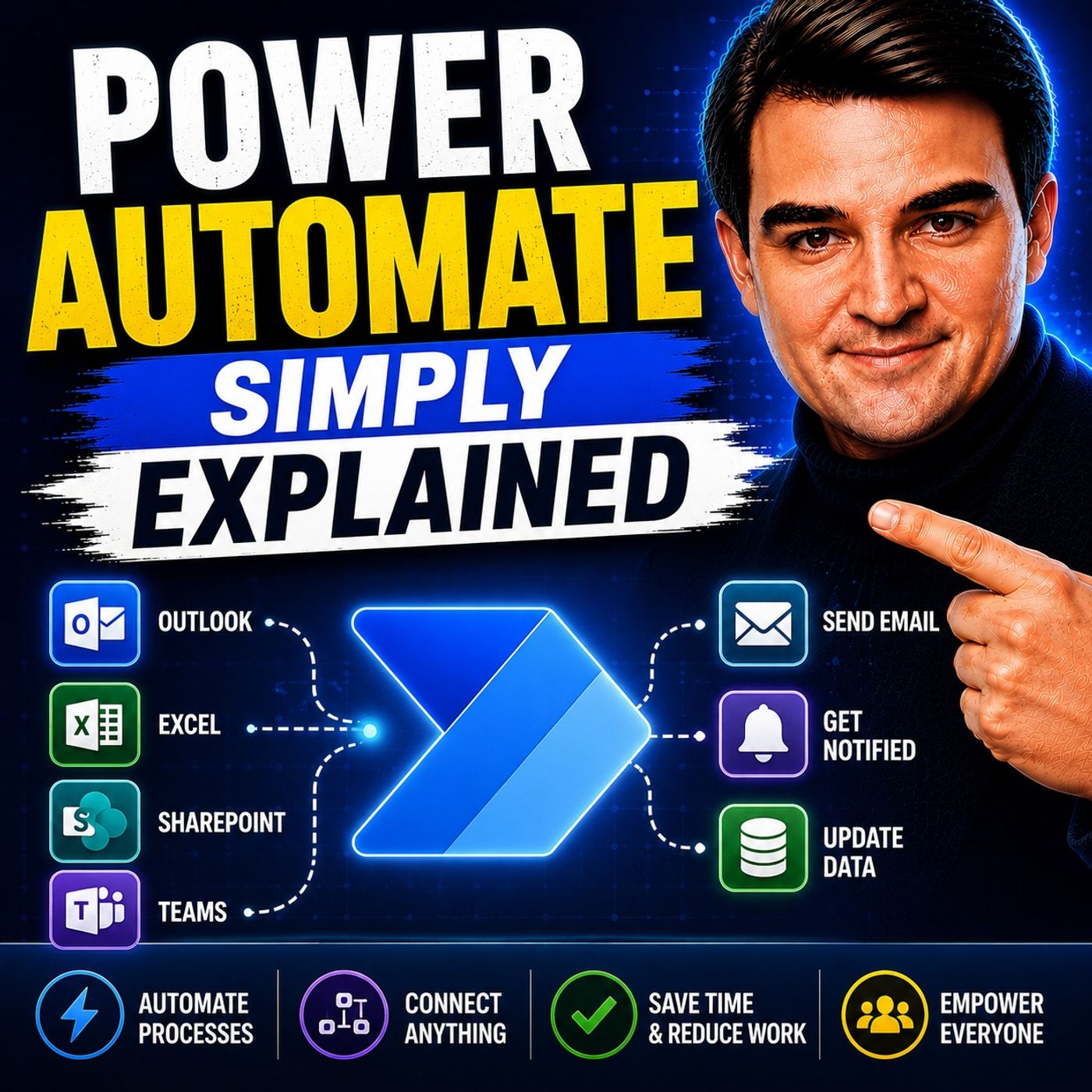
Power Automate - Simply Explained
Show notes
Welcome to another episode of Knowledge Nuggets with Mirko Peters. In this episode, we're exploring Microsoft Power Automate, one of the most powerful productivity tools in the Microsoft ecosystem. Many people think Power Automate is simply a workflow tool or "that flow app" hidden somewhere inside Microsoft 365. In reality, it's a business automation platform that connects hundreds of applications and services, eliminating repetitive manual work without requiring you to write code. Whether you're automating approvals, processing forms, managing documents, or integrating business systems, Power Automate helps you work smarter while saving countless hours every week. WHY POWER AUTOMATE EXISTS Every organization spends countless hours performing repetitive tasks. Employees manually:
- Copy information between systems
- Forward emails
- Move documents
- Update spreadsheets
- Create tasks
- Request approvals
- Send notifications
While these activities are essential, they rarely create business value. They consume time, introduce human error, and prevent employees from focusing on more meaningful work. Before Power Automate, automating these processes often required expensive enterprise software or custom development. Microsoft changed this by creating a platform where anyone can automate business processes using a visual interface instead of writing code. THE CORE CONCEPT: TRIGGERS AND ACTIONS At its heart, Power Automate is built around two simple concepts. A Trigger determines when automation begins. Examples include:
- A new email arrives
- A SharePoint file is created
- A Microsoft Form is submitted
- A Teams message is posted
- A scheduled time occurs
Once the trigger fires, Power Automate executes one or more Actions. Actions can include:
- Sending emails
- Creating files
- Updating SharePoint lists
- Posting Teams messages
- Creating Planner tasks
- Updating Excel rows
- Calling external APIs
Everything inside Power Automate is built from these simple building blocks. The entire platform can be summarized as: When this happens... do that. THE THREE TYPES OF FLOWS Power Automate supports three primary flow types. Automated Flows Automated flows run whenever an event occurs. Examples include receiving a customer email, uploading a document, or creating a new SharePoint item. Once configured, these flows run entirely in the background without user interaction. Instant Flows Instant flows begin when a user manually starts them. These can be launched from:
- Microsoft Teams
- SharePoint
- Mobile devices
- The Power Automate app
They're perfect for actions such as requesting approvals or generating reports on demand. Scheduled Flows Scheduled flows execute at predefined intervals. Examples include:
- Daily reports
- Weekly reminders
- Monthly backups
- Recurring maintenance
- Data synchronization
These automations operate on timers rather than user activity or business events. CONNECTORS: THE REAL SUPERPOWER Power Automate becomes incredibly powerful because of Connectors. A connector allows Power Automate to communicate with another application or service. Microsoft currently provides more than 1,400 connectors, including:
- SharePoint
- Outlook
- Teams
- OneDrive
- Excel
- Dynamics 365
- Salesforce
- Adobe
- DocuSign
- Google Workspace
- Mailchimp
- Thousands of additional services
Each connector exposes its own triggers and actions, allowing organizations to connect virtually every part of their technology landscape. If no connector exists, developers can even create custom connectors for their own APIs. CLOUD FLOWS VS. DESKTOP FLOWS Power Automate actually includes two different automation technologies. Cloud Flows Cloud Flows run entirely inside Microsoft's cloud infrastructure. They automate cloud services using APIs and connectors without requiring your computer to remain online. These are ideal for Microsoft 365, Dynamics 365, SharePoint, Teams, Outlook, and modern SaaS platforms. Desktop Flows Desktop Flows use Robotic Process Automation (RPA). Instead of calling APIs, they literally interact with software like a human user by:
- Moving the mouse
- Clicking buttons
- Typing text
- Reading screen content
- Copying information
- Opening applications
Desktop flows are especially valuable for older legacy applications that don't provide APIs or modern integration capabilities. BUILDING COMPLETE BUSINESS PROCESSES The true value of Power Automate comes from combining multiple actions into complete business workflows. Imagine a customer submits a contact form. Power Automate can automatically:
- Save the submission to SharePoint
- Find the correct salesperson
- Send a Teams notification
- Create a Planner task
- Log the interaction in Excel
- Send a confirmation email
What previously required multiple people and several applications now happens automatically in seconds. Rather than automating individual tasks, Power Automate automates entire business processes. REAL-WORLD USE CASES Organizations use Power Automate across nearly every department. HR teams automate employee onboarding and vacation requests. Finance teams process invoice approvals and expense reports. Sales teams synchronize CRM information and customer notifications. IT departments automate user provisioning, ticket routing, and system monitoring. Managers receive scheduled reports without manually gathering data. Marketing teams connect forms, mailing lists, social media platforms, and approval workflows. The possibilities continue to expand as additional connectors become available. Become a supporter of this podcast: https://www.spreaker.com/podcast/m365-fm-microsoft-365-azure-cloud-power-platform-ai--6704921/support.
Apple Podcasts · Spotify · YouTube · YouTube Music · Deezer
Host: Mirko Peters
Guests
Related articles
Transcript
Read the full transcript
Welcome to another episode of Microsoft Knowledge Nuggets here on M365. FM, I'm your host, Mirko Peters. Today's topic is one that almost everyone has heard of, but very few actually understand. I'm talking about Power Automate. A tool most people dismiss as just that flow thing buried somewhere in Microsoft 365. Maybe you've seen it mentioned in a menu or clicked past it by accident, but here's the thing, Power Automate is one of the most powerful tools in the entire Microsoft platform. By the end of this episode, you'll know exactly what it is, how it works, and why it matters for your everyday work. Think of it like hiring a virtual assistant who never sleeps, never forgets, and never asks for a raise. Grab your coffee and let's dive in. The problem power automate solves. Let's start with the problem first. Think about your typical workday and how many times you repeat the same actions. Moving files between folders, copying data into another system, sending that same email for the hundredth time, forwarding a document for approval, or updating a spreadsheet because someone submitted a form. These tasks eat hours every single week, and the frustrating part is they add almost zero strategic value nobody ever got promoted for being great at copying and pasting, but we do them anyway because they have to get done. 20 years ago, if you wanted to automate these repetitive tasks, you really had only two choices. You could hire someone to do the boring work for you, or you could learn to write complex code yourself. Neither option was great because scripting was fragile and broke all the time, while enterprise automation software cost a fortune and required a whole team of experts to maintain. So most people just kept doing the repetitive work manually. Microsoft looked at that frustrating situation and decided to change it by building a tool that lets anyone, and I mean anyone, automate repetitive tasks without writing a single line of code. That tool is Power Automate, at its simplest, it connects your apps and services so they can talk to each other without you sitting in the middle. Instead of you being the bridge between Outlook SharePoint and Teams, Power Automate becomes that bridge, working around the clock without taking a lunch break or ever making a single typo. The simple definition, trigger plus action. So what exactly is Power Automate? Here's the simplest definition. Power Automate is made of two things, a trigger and one or more actions. That's it, everything else builds on that foundation. Think of a trigger as the starting pistol. It's the when. When a new email arrives in your inbox, when a file is created in a SharePoint folder, when someone submits a Microsoft form, when a calendar event starts, nothing happens until the trigger fires. That's the key. An action is the what happens next. Send a notification, create a file, update a spreadsheet row, post a message in Teams, add a task to plan a send an email. That's what the automation does in response to the trigger. It's that simple. Let's walk through a real scenario. Imagine a customer fills out a contact form on your website. That form submission is the trigger. What happens next? You might save their information to a SharePoint list. That's action number one. Send a notification to your sales team in Teams. Action number two, create a follow-up task in planer for tomorrow morning. Action number three, one trigger, multiple actions, all happening automatically in seconds. No manual work needed. Here's the thing. You don't write a single line of code to build these flows. You connect pre-built pieces together like Lego blocks. Microsoft has already built the blocks for hundreds of different services. You just snap them together. Want to add a send email step? Drag it in. Want to add a create file step? Drag it in. Want to add a condition that checks if something is true before proceeding? Drag it in. It's really that visual and that simple. Most people think power automate is complicated, but strip away all the marketing and technical jargon and it's really just when this happens, do that. That's the whole concept. Once you understand that foundation, everything else starts to make sense when the three types of flows. Now that you know the basic concept, let's dive into the different ways flows can run. Not all flows work the same way. Let's break down the three types you need to know. First is automated flows. These run completely on their own when something happens. A new email lands in your inbox and boom, a task gets created in planer. No human interaction needed. It just runs in the background, doing its job while you focus on something else. This is the most common type of flow for everyday business automation. You set it up once and it runs forever until you turn it off. Second is instant flows. These run when you click a button. From your phone, from inside teams or from a sharepoint side, imagine you're looking at a document in SharePoint and there's a button that says, "Send this for approval." You click it and the flow handles the rest. Instant flows are perfect for actions you want to control. You don't want them running automatically because you need to decide when they fire, but once you decide the flow does all the heavy lifting for you. Third is scheduled flows. These run on a timer. Every Monday at 8am send me a summary of all incomplete tasks every day at noon, back up this folder. Every first of the month generate a report. You set the schedule daily, weekly, monthly, whatever you need. And it runs like clockwork. Scheduled flows are great for recurring reports, reminders and cleanup tasks. Here's what you need to understand. The core engine is exactly the same for all three types. The only real difference is the trigger. Automated flows use event triggers. Instant flows use manual triggers. Scheduled flows use time triggers, but once the trigger fires, everything after that works exactly the same way. So pick the trigger that matches how you want the flow to start and you're good to go. Connectors. How power automate talks to everything. So you've got triggers and actions. But how does power automate actually talk to all these different apps? The answer is connectors. Connectors are the translators. Power automate doesn't natively speak, sharepoint, outlook, teams or Excel, but connectors do. Each connector knows how to talk to a specific service. What it can do, what data it expects, and how to send commands. When you add a step to your flow, you're really just picking a connector and telling it what to do. Over one 400 pre-built connectors exist right now, and that number keeps growing. The Microsoft connectors, SharePoint, Teams, Outlook, OneDrive come standard in most plans and cover the services you probably use every day. But the third party connectors open up a whole new world. Salesforce, Adobe, DocuSign, Google, Twitter, MailChimp, Power Automate can talk to all of them. You can build a flow that starts with a Google Form submission, saves the data to SharePoint, sends a DocuSign agreement and posts a notification in Teams. All in one flow, all without leaving the Microsoft ecosystem. And if there isn't a connector for the system you need, you can build your own. Custom connectors let you connect to any service that has an API. It takes a bit more work, but it means power automate can talk to anything. Each connector has its own set of triggers and actions. When you pick one, you only see what that service can actually do. SharePoints connector knows about lists and libraries. Outlooks connector handles emails and calendars. Teams connector deals with channels and messages. You don't have to guess because the connector tells you exactly what's available. That's the real power of power automate. It's not just for Microsoft services. It connects your entire tool stack, your CRM, your email, your file storage, your project management, into one unified automation system. They all become part of the same flow. Cloud flows versus desktop flows. Now, this is where people get confused. There are actually two kinds of power automate and they work very differently. The first kind is cloud flows. These run entirely on Microsoft servers. When you build a cloud flow, everything happens in the cloud. A form gets submitted and the data gets saved to SharePoint. An email arrives and a calendar event gets created. Your computer doesn't need to be on and you don't need any software installed. The flow runs on Microsoft's infrastructure and you just check the results later. Cloud flows are what most people think of when they hear power automate. The second kind is desktop flows. This is completely different. Desktop flows use something called robotic process automation or RPA. And here's what that means in plain English. Power automate literally takes control of your mouse and keyboard. It opens browser windows, clicks buttons, types text into fields and copies data from one application to another. If you've ever watched someone use remote desktop software to control another computer, it looks exactly like that except there's no person on the other end. It's just software moving your mouse around. The first time you see a desktop flow running, it's kind of freaky. Your cursor starts moving on its own, windows open and closed and text appears in fields you didn't click on. It looks like a ghost is using your computer. But once you get past the weirdness, you realize how powerful this is. So why would you need desktop flows? Because not every system has a modern API or connector. Think about those old business applications companies still use. The accounting system from the early 2000s, the custom database built 15 years ago, the legacy HR software running on a local server. These systems don't have triggers, connectors or any way to talk to the outside world, but a desktop flow can interact with them the same way a human would by clicking buttons and typing text. Which one do you need? Cloudflow's work for modern services that have APIs and connectors. Desktop flows handle legacy applications, old software or anything that can't connect programmatically. In many organizations you'll end up using both. How the pieces fit together, the system. Here's the thing, most people think power automate is just one tool, but understanding how the pieces fit together is what unlocks the real power. It's actually three layers working together, start with the trigger. Something happens in your work world. A form gets submitted, a file gets uploaded or an email arrives, that's the spark that starts everything. Next is the action. The automation does something useful like saving data, sending a notification, creating a task or updating a record. That's where the work gets done. Then there's the connector. This bridges the gap between your different tools. It lets the trigger talk to the action even when they're in completely different systems. The real power isn't any single piece. It's how they combine. Let me give you a real example. Say a customer fills out a contact form on your website. That's the trigger. Power automate picks that up and finds the right salesperson in a SharePoint list. Action one, then it sends a team's alert to that salesperson. Action two, then it creates a follow-up task in planner for the next morning. Action three, then it logs everything in an Excel spreadsheet for reporting. Action four, four actions from one trigger across three different services and it all happens in seconds. One trigger can chain into dozens of actions across multiple services. You can build flows that touch SharePoint, Teams, Outlook, Planner, Excel and Salesforce in the same automation. Each action passes data to the next one, building on what came before. The flow doesn't just do one thing. It handles a whole process from start to finish. That's the magic. What used to be a manual 10-minute process? Checking the form, finding the right person, sending a message, creating a task, logging the data, now happens instantly and automatically. No errors. The customer gets a faster response. The salesperson gets a clear next step and you never lift a finger. Real-world examples you can use tomorrow. Let's make this concrete. Here are three flows you can build right now starting today. Start with a form submission flow. Someone fills out a Microsoft form, maybe an event registration, a feedback form or a support request. When they hit submit, power automate saves their answers to a SharePoint list. Then it sends an email to your team with the details. That's it. One trigger, two actions and suddenly you never have to manually copy form responses into a spreadsheet again. Every submission gets automatically captured, organized and shared with the people who need to see it. Next up is an approval flow for documents. Someone uploads a file to a SharePoint folder, power automate detects the new file and sends an approval request to a manager. The manager gets an email or a team's notification with a simple approve or reject button. If they approve, the file automatically moves to a published folder. If they reject, it stays in drafts. No more chasing people down for sign-offs. No more wondering if a document has been reviewed or not. The flow handles the entire approval chain from start to finish. Then there's a daily task summary. Every morning at 7am, power automate checks your SharePoint task list for anything that's incomplete. It collects all the overdue and pending items and sends you a summary in teams. You start your day knowing exactly what's waiting for you, no need to open multiple lists or check different tools. The summary is right there in your chat when you sit down with your coffee. Each of these flows takes about 10 to 15 minutes to build. No coding required, no IT department needed, just you, a browser and the power automate editor. The trick is to start with one process that annoys you the most. The one you do every day where you think there has to be a better way. That's your first automation target. Getting started. Your first flow in 5 minutes. Ready to try it out? Here's exactly how to get your first flow running in just a few minutes. Open your browser and head to make power automate dot com. That's your central hub for building and managing flows. Then in with the same Microsoft 365 work account you already use for email and teams. Once you're in, click create on the left sidebar, then choose automated cloud flow. That tells power automate you want a flow that runs automatically when something happens. For your first flow, I recommend using when a new email arrives as your trigger. It's simple, easy to test and everyone gets email. Click create and you're in the editor. Now you need an action. Click the plus sign under your trigger and search for teams. Post a message in the chat or channel. Select flow bot as the sender. Pick yourself as the recipient and type a message like new email received. That's all there is to it. Click save and your first flow is ready and here's a tip you'll use again and again. The test button is your best friend. When you click it, power automate runs your flow immediately using whatever trigger data is available. For the email trigger, it waits for a new email to arrive. Just send yourself a quick test email and watch the flow fire off. You don't have to wait for the real trigger to happen naturally. If something does go wrong, don't panic. Click on the step that failed and look at the inputs and outputs sections. Inputs show what data the step received. Outputs show what it tried to do. Nine times out of ten, the problem becomes obvious once you check those two areas. Maybe the email subject was formatted differently than expected. Maybe a field was empty. The error messages are surprisingly helpful once you know where to find them. Start small, test often and build up gradually. Your very first flow might only have two steps. Your tenth flow could have 20. That's perfectly fine. Every flow you build teaches you something new about how your tools connect and work together. So that's the system. Triggers, actions and connectors all working together to handle the busy work that eats your time every day. Most people think automation is complicated or requires coding skills. But it doesn't anymore. The single smartest move you can make right now is to pick one repetitive task you do daily and build a flow for it. Subscribe for more breakdowns like this and drop a comment telling me what you'd automate